PowerFlex 3.x 如何在沒有安全遠端服務的情況下手動升級 VxFlex Manager
Summary: PowerFlex (VxFlex Manager) 裝置離線升級
This article applies to
This article does not apply to
This article is not tied to any specific product.
Not all product versions are identified in this article.
Instructions
目標:
- 將 VxFlex Manager 裝置升級至最新版本
事實:
- 玄武岩 = 3.1.x
- 粉筆 = 3.2.x
- 達西石 = 3.3.x
- Erdite = 3.4.x
- 霧化 = 3.5.x
- 石榴石 = 3.6
- 石榴石加 = 3.6.1
本指南說明 VxFlex Manager 版本的離線升級程序:
- 玄武岩 > 白堊
- 粉筆 > 福格特
- 輝石 > 輝石
- 博學 > 的福格特
- 達克石 > 榴石砂
- 博學 > 的石榴石加
- 霧化 >石榴石加
初步資訊:
記下目前的版本嗎?> 關於在右上角:

範例輸出:

程序:
- 執行裝置備份。請參閱 Dell KB 文章183009:PowerFlex Manager - 如何備份 PowerFlex Manager 裝置
- PFxM 裝置的快照
- 下載升級所需的 VxFlex Manager .zip檔案。前往 Dell 產品與授權下載中心 或 PowerFlex Manager 以取得檔案。
選取 VxFlex Manager OVA 以前往軟體:
PowerFlex Manager >PowerFlex OVA>展開最新的 VxFlex Manager OVA。
- 下載適當的 VxFlex Manager .zip檔案。
- 使用 WinSCP 或類似程式,將 Dell-VxFlex Manager-3.x.x.xxxx.zip 檔案複製到 VxFlex Manager 裝置上的 /var/tmp 。
- 使用命令開啟 SSH 工作階段至 VxFlex Manager 裝置。
sudo su
- 解壓縮使用以下命令複製的檔案:
sudo unzip /var/tmp/Dell-VxFM-3.x.x.xxxx.zip -d /var/lib/razor/repo-store/upgrade
範例輸出:

-
登入 VxFlex Manager Web UI,然後前往 設定 > 、虛擬裝置管理。按一下裝置升級設定旁的編輯:
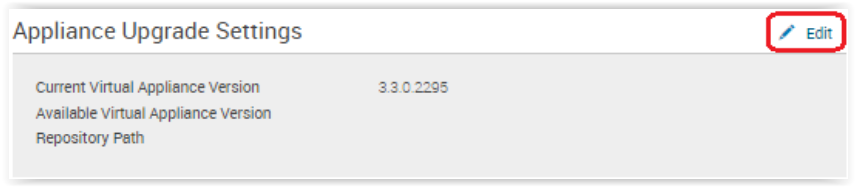
-
選取第二個選項按鈕, 從本機儲存庫路徑更新裝置。
-
輸入檔案的路徑: http://< IP>:8080/svc/repo/upgrade/ ,其中 <IP> 是 VxFlex Manager 裝置的 IP 位址。
注意:有時,如果執行舊版 VxFlex Manager (例如 Basalt 3.1.x),升級路徑會是:http://< IP>:8080/svc/repo/upgrade/centos/7/x86_64 其中 <IP> 是 VxFlex Manager 裝置的 IP 位址。 -
輸入登入資料 (預設 = delladmin/delladmin)
-
按一下儲存。

-
在 裝置升級設定中,會看到您要升級的新版本列為 可用的虛擬裝置版本。
-
準備好執行升級時,請按一下虛擬裝置管理設定頁面中的更新虛擬裝置按鈕。
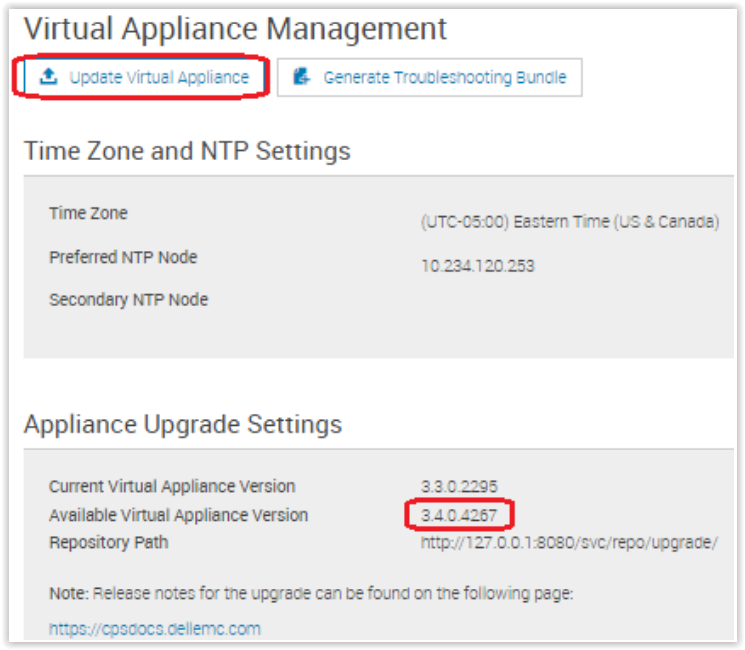
注意:更新可能需要 30 分鐘,並會在過程中將 VxFlex Manager 裝置重新開機。
-
更新完成後,登入頁面會重新開啟。登入並確認版本已更新。
赴?>右上角
的關於 注意:此升級不會影響新增至 VxFlex Manager 的任何服務,只會影響 VxFlex Manager Web UI 的存取權限。
Affected Products
PowerFlex SoftwareArticle Properties
Article Number: 000180905
Article Type: How To
Last Modified: 29 Apr 2025
Version: 6
Find answers to your questions from other Dell users
Support Services
Check if your device is covered by Support Services.