Een Gmail-account verwijderen uit M365 Outlook
Summary: Meer stapsgewijze instructies voor het verwijderen van een Gmail-account uit Microsoft 365 Outlook.
This article applies to
This article does not apply to
This article is not tied to any specific product.
Not all product versions are identified in this article.
Instructions
Wanneer dit proces is voltooid, bestaat het Gmail-account nog steeds, maar is het niet te zien in Outlook. Als er meer e-mailberichten worden ontvangen bij dat Gmail-account, herhaalt u de stappen in dit artikel om ze toe te voegen aan uw Office 365-postvak.
- Ga in Outlook naar Bestand, Accountinstellingen en vervolgens Accountinstellingen.

- Selecteer in het venster Accountinstellingen het Gmail-account en kies vervolgens Verwijderen.

- Klik in het dialoogvenster over de offline cache die wordt verwijderd op Ja.
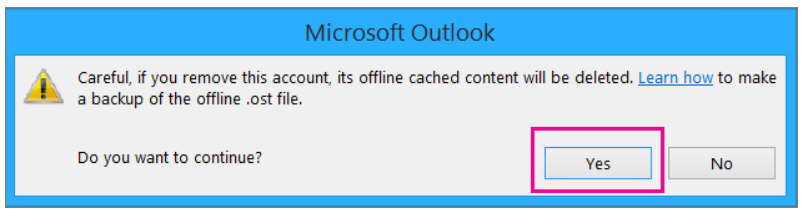
De Gmail-berichten die zijn geïmporteerd in het Office 365-postvak zijn er nog steeds, maar het Gmail-account wordt niet meer weergegeven in Outlook.
Affected Products
Microsoft 365 from DellArticle Properties
Article Number: 000186177
Article Type: How To
Last Modified: 17 Jul 2025
Version: 5
Find answers to your questions from other Dell users
Support Services
Check if your device is covered by Support Services.