如何從 M365 Outlook 移除 Gmail 帳戶
Summary: 瞭解從 Microsoft 365 Outlook 移除 Gmail 帳戶的逐步說明。
This article applies to
This article does not apply to
This article is not tied to any specific product.
Not all product versions are identified in this article.
Instructions
此程序完成後,Gmail 帳戶仍然存在,但不會在 Outlook 中顯示。如果該 Gmail 帳戶收到更多電子郵件,請重複本文中的步驟,將其添加到 Office 365 郵箱中。
- 在 Outlook 中,依序移至 檔案、帳戶設定和 帳戶設定。
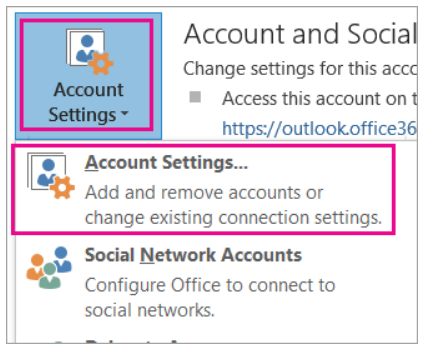
- 在 “帳戶設置 ”視窗中,選擇 Gmail 帳戶,然後選擇 “移除”。

- 在有關要刪除的離線緩存的對話框中,按兩下 “是”。

匯入至 Office 365 信箱的 Gmail 郵件仍然存在,但 Gmail 帳戶已不再顯示在 Outlook 中。
Affected Products
Microsoft 365 from DellArticle Properties
Article Number: 000186177
Article Type: How To
Last Modified: 17 Jul 2025
Version: 5
Find answers to your questions from other Dell users
Support Services
Check if your device is covered by Support Services.