Troubleshooting Dell Monitor USB Downstream Port Issues
Summary: Discover why USB downstream ports on Dell monitors may not work. Learn how to fix recognition issues and ensure proper connections. Find solutions for common problems.
This article applies to
This article does not apply to
This article is not tied to any specific product.
Not all product versions are identified in this article.
Symptoms
- The USB downstream ports do not work on Dell monitors.
- A USB device is not recognized when it is connected to the USB port on the monitor.
This issue is mostly noticed when the Dell monitor is connected to the computer using HDMI or DisplayPort cable.
Affected products
- Dell monitors with USB downstream ports (Figure 1 and 2).
NOTE: The location of the USB downstream ports varies between Dell monitors. For model-specific information, see the User Manual of the Dell monitor.
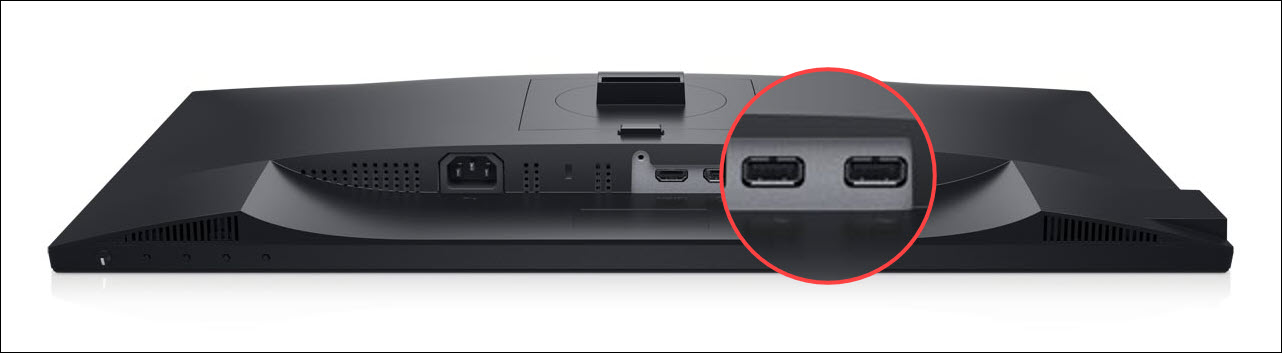
Figure 1: Example of P2421D monitor with USB downstream ports on the bottom.
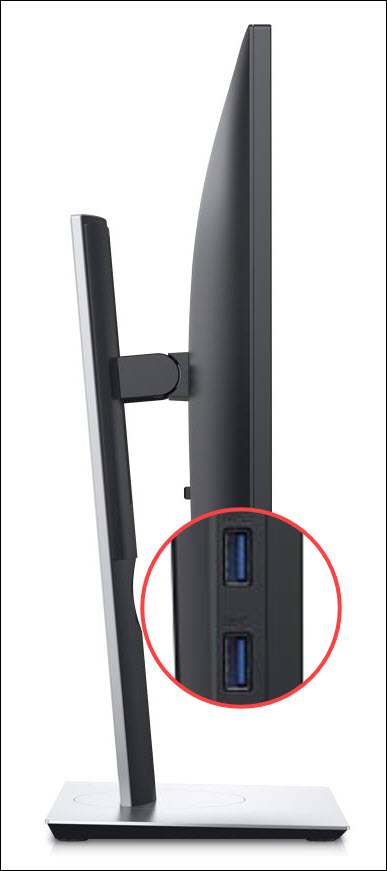
Figure 2: Example of P2421D monitor with USB downstream ports on the left side.
Cause
This issue is caused if the USB upstream cable is not connected between the Dell monitor and the computer.
The HDMI and DisplayPort cables support audio and video only. For data transmission, the USB upstream cable must be connected between the Dell monitor and the computer.
NOTE: The USB-C input (DisplayPort or Thunderbolt) port on the Dell monitor supports audio, video, and data transmission. USB-C input (DisplayPort or Thunderbolt) port is available in select Dell monitors. To learn if your Dell monitor has a USB-C input (DisplayPort or Thunderbolt) port, see the User Manual of your Dell monitor.
Resolution
To ensure that the USB downstream ports on the Dell monitor work, connect the USB upstream cable between the Dell monitor and the computer.
Dell monitors have a USB Type-B or USB-C upstream port. A compatible USB upstream cable is shipped with the Dell monitor.
- Dell monitors with USB Type-B upstream port - Connect the provided USB Type-B to USB Type-A upstream cable between the Dell monitor and the computer.
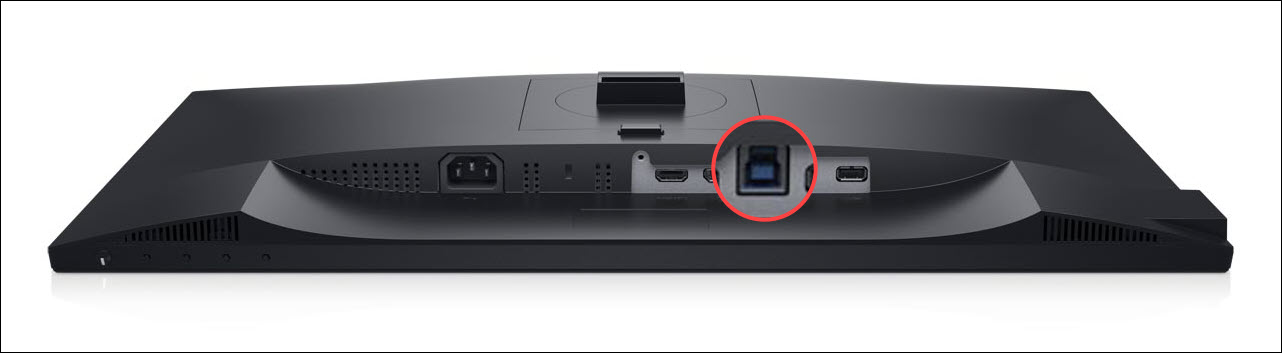
Figure 3: Example of P2421D monitor with USB Type-B upstream port. - Dell monitors with USB-C upstream port - Connect the provided USB-C to USB-C cable between the upstream port on the Dell monitor and the computer. If the computer does not have a USB-C port, use a USB-C to USB-A cable (optional purchase).
For additional troubleshooting information, see Dell Knowledge Base article USB Port on a Dell Monitor Does Not Work.
Affected Products
Alienware and Dell Gaming Monitors, C Series, D Series, E Series, Legacy Monitors, P Series, S Series, SE Series, UltraSharp Premier (UP) Series, UltraSharp (U) SeriesArticle Properties
Article Number: 000189810
Article Type: Solution
Last Modified: 04 Feb 2025
Version: 7
Find answers to your questions from other Dell users
Support Services
Check if your device is covered by Support Services.