PowerFlex Mellanox nmlx5_rdma Driver Causes ESXi Purple Screen
Summary: ESXi hosts can experience the purple screens post ESXi upgrade when Mellanox NICs are present and the nmlx5_rdma driver is installed and loaded. This article has been updated to cover the ESXi upgrade to version 8.x. It includes steps to restore vMotion functionality. ...
This article applies to
This article does not apply to
This article is not tied to any specific product.
Not all product versions are identified in this article.
Symptoms
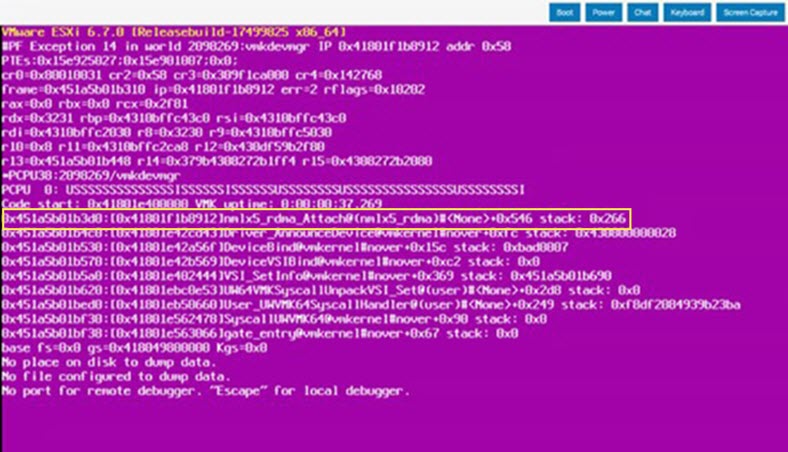
After installing patches or updates to ESXi hosts, hosts may experience purple screens if Mellanox NICs are present and the nmlx5_rdma driver is installed and loaded. There is a scenario where the drivers are not loaded but are loaded at boot following upgrade.
The purple screen references nmlx5_rdma driver:
Cause
The nmlx5_rdma driver was in the ESXi image used in older RCMs and ICs but is not used in PowerFlex solutions. PowerFlex solutions use only the nmlx5_core driver.
When the nmlx5_rdma driver is present and loaded, purple screens can occur when newer core drivers are installed. It is not known exactly which driver version combinations can lead to the purple screens.
Resolution
The scope of this article covers disabling all nmlx_rdma modules to prevent purple screens from occurring with nmlx_core and standard nmlx_rdma modules in 6.7 to 7.x. The goal of this article is to cover all scenarios involving ESXi 6.7 to ESXi 8.0.
Because the nmlx_rdma drivers are not used in the PowerFlex solution, it is recommended to ensure nmlx_rdma drivers are disabled before attempting ESXi upgrades.
Verify if nmlx_rdma drivers are installed and loaded. If the modules are not loaded, that is addressed and corrected using commands covered in this article. An ESXi upgrade followed by a reboot loads the Mellanox rdma modules and may cause purple screens. By disabling the modules in advance, the risk of purple screens related to nmlx(x)_rdma is remediated.
- Run the following command on all ESXi hosts:
esxcli system module list | grep 'Name\|nmlx'
- The below output is a configuration that may result in purple screens. The nmlx_core core module should be loaded and enabled. This module is required and does not contribute to a risk of purple screens:
[root@esx-01:~] esxcli system module list | grep 'Name\|nmlx'
Name                           Is Loaded  Is Enabled
nmlx5_core                       true        true
nmlx4_rdma                       true        true
nmlx5_rdma                       true        true
- Verify that Mellanox NICs are using the core driver by running the following command:
esxcli network nic list | grep 'Name\|nmlx'
- Mellanox X-4 example:
[root@esx-01:~] esxcli network nic list | grep 'Name\|nmlx4'
 Name    PCI Device    Driver      Admin Status  Link Status  Speed  Duplex  MAC Address         MTU  Description
 vmnic4  0000:5e:00.0  nmlx5_core  Up        Up           25000  Full    98:03:9b:c4:18:0e  9000  Mellanox Technologies MT27710 Family [ConnectX-4 Lx]
 vmnic5  0000:5e:00.1  nmlx5_core  Up        Up           25000  Full    98:03:9b:c4:18:0f  9000  Mellanox Technologies MT27710 Family [ConnectX-4 Lx]
 vmnic6  0000:d8:00.0  nmlx5_core  Up        Up           25000  Full    98:03:9b:c4:17:f6  9000  Mellanox Technologies MT27710 Family [ConnectX-4 Lx]
 vmnic7  0000:d8:00.1  nmlx5_core  Up        Up           25000  Full    98:03:9b:c4:17:f7  9000  Mellanox Technologies MT27710 Family [ConnectX-4 Lx]
- Mellanox X-5 example:
[root@esx-02:~] esxcli network nic list | grep 'Name\|nmlx5'
Name    PCI Device    Driver      Admin Status  Link Status  Speed  Duplex  MAC Address         MTU  Description
vmnic2  0000:31:00.0  nmlx5_core  Up            Up           25000  Full    e8:eb:d3:35:cb:4e  9000  Mellanox Technologies MT27800 Family [ConnectX-5]
vmnic3  0000:31:00.1  nmlx5_core  Up            Up           25000  Full    e8:eb:d3:35:cb:4f  9000  Mellanox Technologies MT27800 Family [ConnectX-5]
vmnic4  0000:4b:00.0  nmlx5_core  Up            Up           25000  Full    e8:eb:d3:cc:4f:c0  9000  Mellanox Technologies MT27800 Family [ConnectX-5]
vmnic5  0000:4b:00.1  nmlx5_core  Up            Up           25000  Full    e8:eb:d3:cc:4f:c1  9000  Mellanox Technologies MT27800 Family [ConnectX-5]
To remediate this issue, put the ESXi host in maintenance mode.
NOTE: If you are working on a hyperconverged (HC) node, follow the standard process for entering SDS in instant or protected maintenance mode before shutting down the SVM and entering ESXi in maintenance mode.
For PFMC 2.0, Compute Only, and HCI clusters backed by PowerFlex storage, disable all rdma drivers using the following commands:
NOTE: If you receive the following output "Invalid module name" when force loading
nmlx4_rdma driver or nmlx5_rdma driver, ignore the message and continue.
NOTE: If you receive the following output when attempting to disable
nmlx5_rdma driver "unknown module 'nmlx5_rdma driver'.", ignore the message and continue.
esxcli system module load -m=nmlx5_rdma --force
esxcli system module load -m=nmlx4_rdma --force
esxcli system module set --enabled=false -m=nmlx4_rdma
esxcli system module set --enabled=false -m=nmlx5_rdma
- Reboot the ESXi host.
- Verify that the rdma modules are not loaded or enabled by running the following command:
esxcli system module list | grep 'Name\|rdma'
Example:
esxcli system module list | grep 'Name\|rdma'
Name                           Is Loaded  Is Enabled
nrdma                              true        true
nmlx4_rdma                         false       false
nmlx5_rdma                         false       false
nrdma_vmkapi_shim                  true        true
If you applied the steps in this article prior to May 16, 2025, enable and load the modules to support vMotion functionality in ESXi 8.x. The following symptoms are observed if the nrdma_vmkapi_shim module is not loaded:
- The Migrate module does not load resulting in loss of vMotion functionality
- New VMs provisioned on a host that was upgraded to ESXi 8.x do not vMotion off the host
- VMs do not vMotion to upgraded hosts
Example:
[root@esxi01:~]vmkload_mod migrate
vmkmod: VMKModLoad: Module nrdma_vmkapi_shim is disabled and cannot be loaded
vmkmod: VMKModLoad: VMKernel_LoadKernelModule (migrate): Unresolved symbol
Resolution:
NOTE: esxcli supports enabling and loading these modules on a running ESXi host. Broadcom's recommendation is to reboot the ESXi host after enabling and loading driver modules. The host is rebooted during the ESXi 7 to 8 upgrade automation. A manual reboot should not be required if the below commands are applied prior to upgrading to ESXi 8.
If an issue is encountered with vMotion after a host has been upgraded to ESXi 8, enable the modules to restore vMotion functionality. Once vMotion is working, place the host in maintenance mode and reboot. If the host is Hyperconverged, place the SDS into maintenance mode first, then place the ESXi host into maintenance mode before rebooting the host:
esxcli system module set --enabled=true -m=nrdma
esxcli system module set --enabled=true -m=nrdma_vmkapi_shim
esxcli system module load -m=nrdma
esxcli system module load -m=nrdma_vmkapi_shim
- Validation:
esxcli system module list | grep 'Name\|nrdma'
Name                           Is Loaded  Is Enabled
nrdma                               true        true
nrdma_vmkapi_shim                   true        true
- Load the migrated module:
[root@esxi01:~]vmkload_mod migrate
Module migrate loaded successfully
NOTE: There is a scenario where the
nmlx5_rdma driver VIB is not installed at the time of an ESXi upgrade. This causes the force load command and disable command to fail, and the nmlx5_rdma driver module does not appear in the validation output as shown above. To resolve, run the following command to disable nmlx5_rdma driver one more time to ensure that the module is disabled in the future. The host does not require rebooting after running this command:
esxcli system module set --enabled=false -m=nmlx5_rdma
NOTE: Post reboot, the
nmlx5_rdma driver VIB is installed but the module is not loaded. Running the disable command keeps the module from being loaded and enabled:
[root@esxi01:~] esxcli system module list | grep 'Name\|nmlx'
Name                           Is Loaded  Is Enabled
nmlx5_core                          true        true
nmlx4_rdma                         false       false
[root@esxi01:~] esxcli system module set --enabled=false -m=nmlx5_rdma
[root@esxi01:~] esxcli system module list | grep 'Name\|nmlx'
Name                           Is Loaded  Is Enabled
nmlx5_core                          true        true
nmlx4_rdma                         false       false
nmlx5_rdma                         false       false
- Exit ESXi maintenance mode and SDS maintenance mode (If applicable) and wait for any PowerFlex rebuild/rebalance activity to complete before moving to the next host. Once all the hosts have the Mellanox rdma modules disabled, no further action is required when upgrading or updating ESXi hosts leveraging PowerFlex Manger.
For PFMC1.0 Clusters backed by vSAN or a Single Management ESXi host implementation, disable all rdma drivers using the following commands:
NOTE: These changes require two reboots.
NOTE: If you receive the following output "Invalid module name" when force loading
nmlx4_rdma driver or nmlx5_rdma driver, ignore the message and continue.
NOTE: If you receive the following output when attempting to disable
nmlx5_rdma driver "unknown module 'nmlx5_rdma driver'.", ignore the message and continue.
esxcli system module set --enabled=false -m=nrdma
esxcli system module set --enabled=false -m=nrdma_vmkapi_shim
esxcli system module load -m=nmlx5_rdma --force
esxcli system module load -m=nmlx4_rdma --force
esxcli system module set --enabled=false -m=nmlx4_rdma
esxcli system module set --enabled=false -m=nmlx5_rdma
- Reboot the ESXi host.
- After the host boots up, SSH to the host and enable the following drivers. These drivers are required for vSAN storage but not PowerFlex storage:
esxcli system module set --enabled=true -m=nrdma
esxcli system module set --enabled=true -m=nrdma_vmkapi_shim
- Reboot the ESXi host
NOTE: There is a scenario where the
nmlx5_rdma driver VIB is not installed at the time of an ESXi upgrade. This causes the force load command and the disable command to fail. In turn the nmlx5_rdma driver module does not appear in the validation output as shown above. To resolve, run the following command to disable nmlx5_rdma driver one more time to ensure that the module is disabled in the future. The host does not require rebooting after running this command:
esxcli system module set --enabled=false -m=nmlx5_rdma
- Reboot the ESXi host a second time.
-
After the host boots up, SSH to the host and run the following command to verify that the nrdma, and nrdma_vmkapi_shim modules are loaded and enabled. Verify that the
nmlx4_rdma driver(ConnectX-4 Card) andnmlx5_rdma driver(ConnectX-5 Card) modules are not loaded or enabled:
esxcli system module list | grep 'Name\|rdma' | grep -v vrdma
Example:
esxcli system module list | grep 'Name\|rdma' | grep -v vrdma
Name                           Is Loaded  Is Enabled
nrdma                               true        true
nrdma_vmkapi_shim                   true        true
nmlx4_rdma                         false       false
nmlx5_rdma                         false       false
- Exit ESXi maintenance mode and repeat the procedure for the remaining PFMC 1.0 hosts.
- Once all the hosts have the Mellanox rdma modules disabled, no further action is required when upgrading or updating ESXi hosts leveraging PowerFlex Manger.
Affected Products
PowerFlex rack, VxFlex Ready Nodes, PowerFlex ApplianceArticle Properties
Article Number: 000191458
Article Type: Solution
Last Modified: 03 Jul 2025
Version: 15
Find answers to your questions from other Dell users
Support Services
Check if your device is covered by Support Services.