Webcam Does Not Work or is Not Detected on the Dell S2422HZ or S2722DZ Monitor
Summary: The following article provides information about resolving a problem with the pop-up webcam on the Dell S2422HZ, and S2722DZ monitors.
This article applies to
This article does not apply to
This article is not tied to any specific product.
Not all product versions are identified in this article.
Symptoms
Users of a Dell S2422HZ or S2722DZ Monitor may experience an issue with the monitor's integrated webcam. The webcam does not work or is not detected while using the following applications:
- Windows Camera Application
- Conference Applications:
- Zoom
- Skype for Business
- Webex
- Citrix GoToMeeting
- RingCentral Video
- Microsoft Teams
- Google Meetings
Cause
The two root causes to identify are:
- The webcam has not popped-up and is not visible on the top of the monitor.
- The USB cable between the monitor and the computer is not plugged in.
Resolution
Use the following steps to resolve this problem:
-
Ensure the cabling from the Monitor to the computer or docking station is correctly plugged in.
-
USB Type-C to Type-C cable
-
USB Type-A to Type-C cable, and an HDMI cable
-
USB Type-A to Type-C cable, and a DisplayPort (DP) cable
NOTE: USB Type-A to USB Type-C, HDMI, and DP cables are an optional purchase and do not ship with the monitor. -
-
Ensure that the webcam is in the popped-up position. (The webcam is only enabled in this state. See Figure.1.)

(Figure.1 Monitor webcam position)
-
Enable the access to the webcam for conference applications:
-
Open the Windows Settings.
-
Browse to the Privacy category.
-
Go down to Camera.
-
Your options are available on the right side pane. (See Figure.2 English Only)
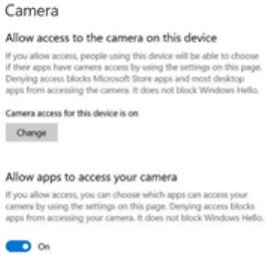
(Figure.2 Camera Options)
-
-
Enable the webcam in the monitor's On-Screen Display (OSD):
-
Open the Menu.
-
Browse to Audio and webcam.
-
Go to Webcam.
-
Ensure it is Enabled. (See Figure.3 English Only)
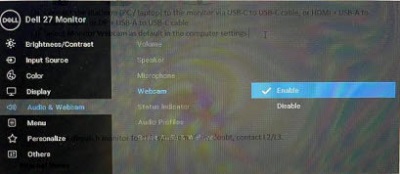
(Figure.3 On-Screen Display)
-
-
Open your conferencing application and ensure that the Dell Monitor RGB webcam is selected.
NOTE: If you only have the HDMI or the DP cable connected from the monitor to your computer. Only one speaker, either the Dell S2422HZ or Dell S2722DZ is displayed. The Microphone, and Echo Canceling Speakerphone are not supported in this selection. This selection is only for Audio Playback. It is recommended that you select the Echo Canceling Speakerphone (S2422HZ or S2722DZ) audio path.
NOTE: For more information about the Dell S2422HZ or S2722DZ monitors, see the resources below:
Affected Products
Dell S2422HZ, Dell S2722DZArticle Properties
Article Number: 000191500
Article Type: Solution
Last Modified: 07 Apr 2025
Version: 8
Find answers to your questions from other Dell users
Support Services
Check if your device is covered by Support Services.