Dell Pro Wireless Headset WL5022 Usage and Troubleshooting Guide
Summary: This article provides information about the Dell Pro Wireless Headset WL5022. You can reference each section to learn more about the features of the Dell WL5022 Pro Wireless Headset and how to use it. ...
This article applies to
This article does not apply to
This article is not tied to any specific product.
Not all product versions are identified in this article.
Instructions
Table of Contents:
- What is in the Dell WL5022 Pro Wireless Headset box?
- Dell Pro Wireless Headset Features
- Setting up your Dell Pro Wireless Headset
- Troubleshooting
- Additional Information
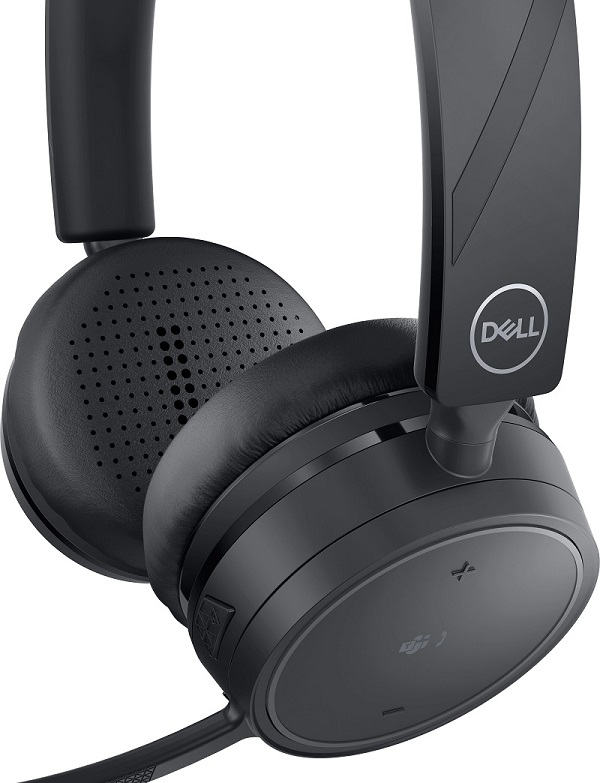
(Figure 1: Work faster and smarter with the Dell Pro Wireless Headset - WL5022)
What is in the Dell WL5022 Pro Wireless Headset box
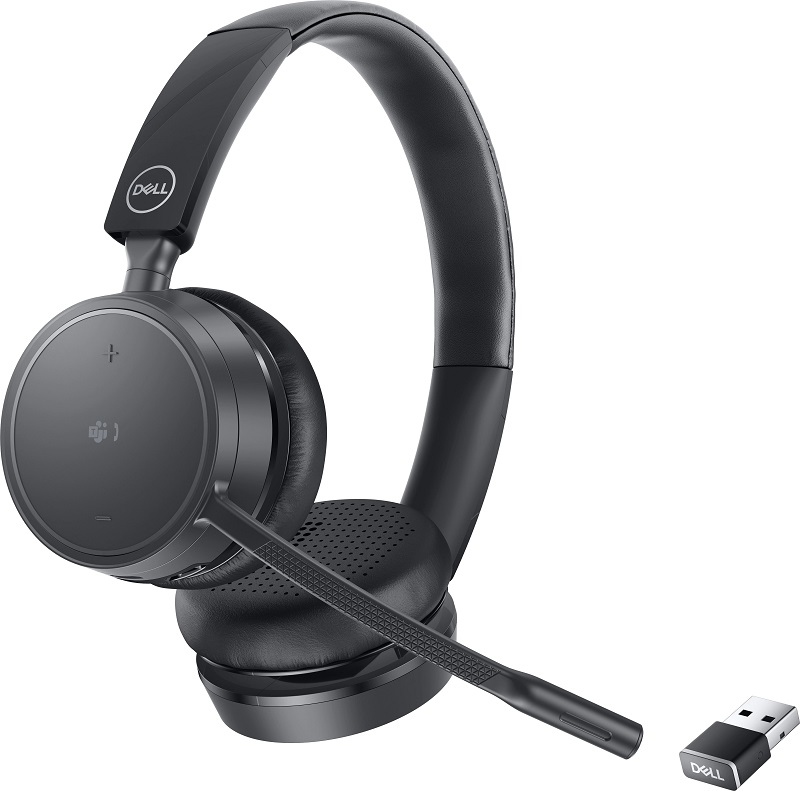
(Figure 2: Dell WL5022 Pro Wireless Headset Box Contents)
| 1 | Pro Wireless WL5022 headset |
| 2 | USB Dongle |
| 3 | Micro-USB Cable |
| 4 | Pouch |
| 5 | Documentation |
Dell Pro Wireless Headset Features
Front View
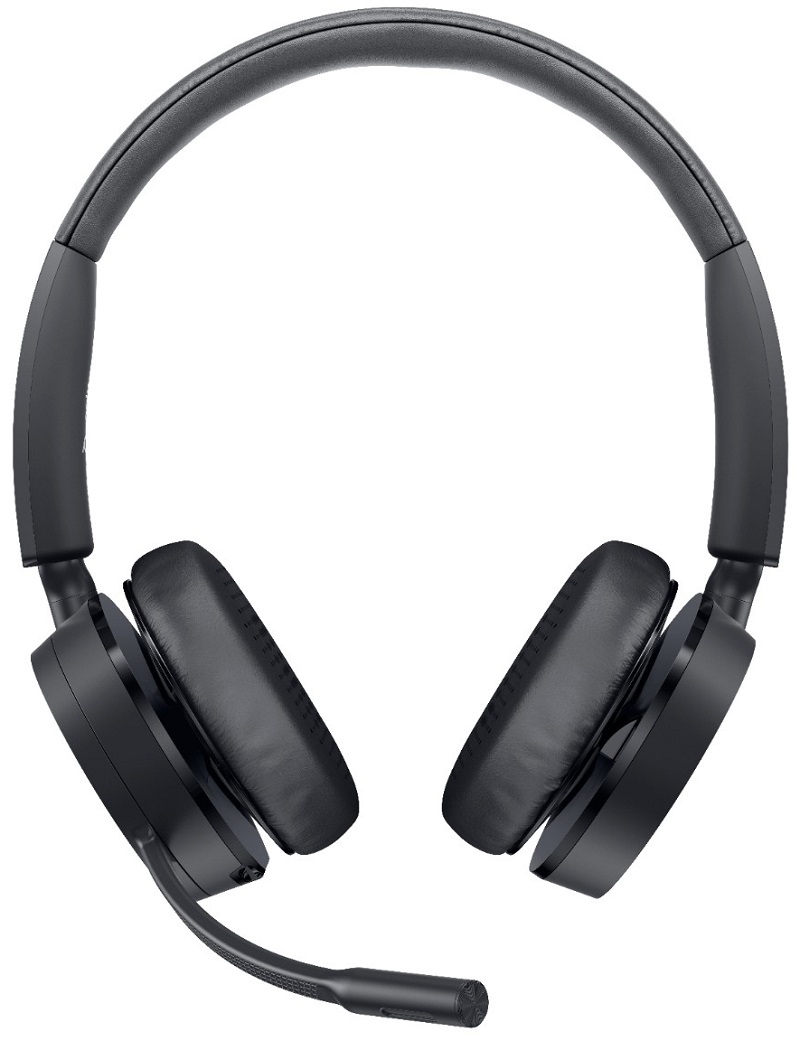
(Figure 3: Dell WL5022 Pro Wireless Headset front View)
Controls

(Figure 4: Dell WL5022 Pro Wireless Headset Controls)
 |
Slide the switch to Power on or off. |
 |
Bluetooth pairing |
 |
Charging port |
 |
Mute or Unmute |
 |
Volume Up |
 |
Volume down |
 |
LEDs or Online indicator |
 |
Call button. Alternatively, press to interact with Microsoft Teams (app required). |
 |
Play or Pause ** |
 |
Next track ** |
 |
Previous track ** |
| Siri, Google Assistant | Smartphone feature: Press and hold the Call button for two seconds to activate your phone's default voice assistant. |
NOTE: **Functionality varies by application. The controls may not work with web-based apps.
Adjusting your Dell WL5022 Pro Wireless Headset

(Figure 5: Adjusting your Dell WL5022 Pro Wireless Headset)
To position the microphone on the right or left side, rotate the microphone boom up and over. Gently bend the boom so it is approximately two finger widths from the corner of your mouth.
NOTE: For true stereo sound, wear the boom on your right side.
Enable Tile
With the Tile app enabled on your mobile device, you can ring your lost headset or locate it on a map.
Steps
- Pair the headset to your mobile device.
- Update your Plantronics Hub mobile app (software) if necessary.
- Launch Plantronics Hub app and ensure that your headset (firmware) is up to date.
- From Plantronics Hub main menu, choose Apps → Tile → Enable.
- Launch the Tile app and follow the instructions to connect your headset.
DeepSleep Mode
Your headset conserves its battery power by entering into DeepSleep mode. This can happen if you leave your headphones turned on, but out of range of your paired phone or USB adapter for more than 7 days. Once back in range with your phone or USB adapter, press the Call control button to exit DeepSleep mode.
Online indicator
Your headset LEDs flash red to inform others that you are on a call.
Corded mode (audio over USB)
If your audio is cutting out during softphone calls, you may be experiencing Bluetooth density problems. Improve audio performance by using density-friendly corded mode.
- Disconnect your Bluetooth USB adapter from your computer.
- Connect your headset directly to your computer with the provided 1.5 meter USB cable.
- Power off your headset to use density-friendly corded mode.
NOTE: Your headset battery charges while in corded mode.
Setting up your Dell Pro Wireless Headset
Compatibility
- iPhone, Android Phone, Mac, Windows
Troubleshooting
| Problems | Possible solutions |
|---|---|
The headset audio is not working as expected when connected to my computer.
|
|
| My headset call control is not working as expected when on a softphone call. |
|
| How do I interact with Microsoft Teams or Skype for Business? |
|
| Does my Microsoft Teams-enabled headset work with other softphones? |
Yes, while your headset is optimized for Microsoft Teams, it can be configured to use with other supported softphones.
|
| The headset audio is cutting out during softphone calls. | You may be experiencing Bluetooth density issues. Use density-friendly corded mode. See Corded mode (audio over USB). |
| The headset talk time is not accurate. | Deplete your headset battery and then fully charge to reset the accuracy of the talk time prompts. |
Additional Information
Learn how to use and troubleshoot problems with the Dell Pro Wireless Headset - WL5022 you use with your computer. You can find information about Troubleshooting steps, How-To guides, and relevant Support Videos for assistance.
For the Dell Pro Wireless Headset - WL5022 User Guide, browse to the Dell Pro Wireless Headset - WL5022 Online Manual Page. Touch or click View PDF to the right of WL5022 User Guide.
Affected Products
Dell Pro Wireless Headset - WL5022Article Properties
Article Number: 000191624
Article Type: How To
Last Modified: 29 Aug 2025
Version: 6
Find answers to your questions from other Dell users
Support Services
Check if your device is covered by Support Services.