PowerFlex: How to expand the /var file system prior to upgrade to 3.7.x
Summary: This procedure explains how to expand the var file system on an existing 3.6.x PowerFlex Manager appliance by 100 GB. This allows your existing PowerFlex Manager VM to have the same size disk space as a new 3.7.x appliance would have. Once this is completed, you can perform a standard PowerFlex Manager software update from 3.6.x to 3.7.x. ...
This article applies to
This article does not apply to
This article is not tied to any specific product.
Not all product versions are identified in this article.
Instructions
The PowerFlex Manager virtual machine (VM) is running Logical Volume Manager (LVM) to manage its volumes. There is a separate /var/log and /var volume on the PowerFlex Manager appliance. We are going to be expanding /var by 100 GB to match the new default configuration in version 3.7.0 and higher using the following steps.
Check the size of the current virtual disk on the PowerFlex Manager VM:
-
Log in to PowerFlex Manager over ssh
-
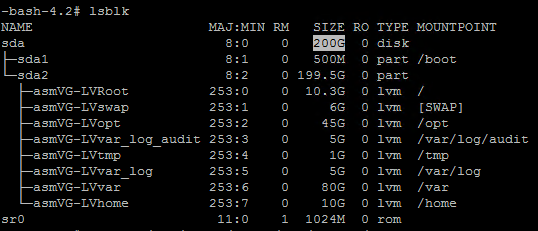
Check the size of the virtual disk by running the following command:
lsblk
Increase the VM disk size on the PowerFlex Manager VM:
-
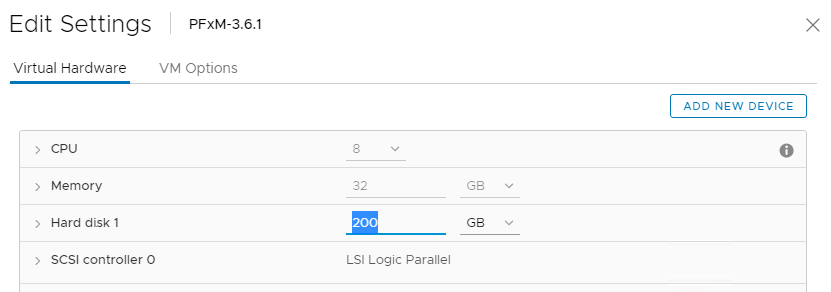
Log in to vCenter and find the PowerFlex Manager VM.
-
Right-click and edit settings. Change the disk size from 200 GB to 300 GB.
Navigate back to the SSH session to the PowerFlex Manager VM and perform the remaining steps to expand the file system:
-
Perform a scan to detect the changes made to the VM disk size by running this command:
echo 1>/sys/class/block/sda/device/rescan
-
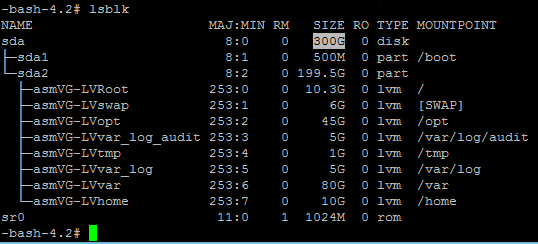
Confirm that the changes were detected by running this command:
lsblk
-
Grow the partition that belongs to the expanded volume by running this command:
growpart /dev/sda 2

-
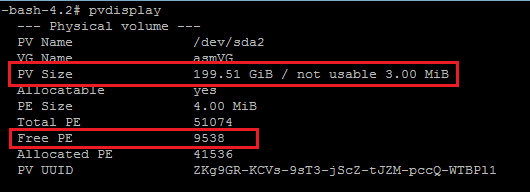
Check the current physical volume size by running this command:
pvdisplay
-
Resize the physical volume by running this command:
pvresize /dev/sda2

-
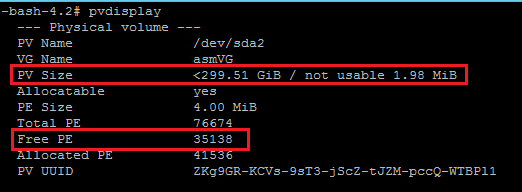
Verify that the physical volume size has increased by running this command:
pvdisplay
-
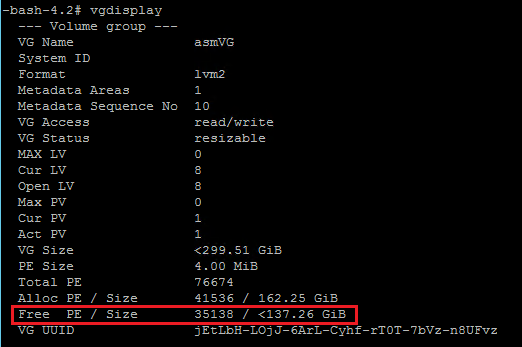
Confirm that there is now enough Free PE to extend the logical volume by running the following command. The default Free PE before making any changes is 37.26 GiB. You should see that number increased by 100 GiB.
vgdisplay
-
Run the following command to display all the logical volumes and find the one you are expanding. In this case we are looking for /dev/asmVG/LVvar.
lvdisplay
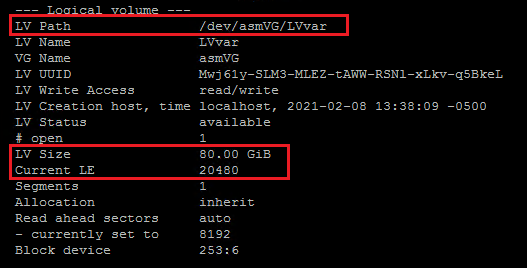 Note: The red boxes in the above screenshot show the LV Path, LV Size, and the Current Logical Extents. This shows 80 GB and 20480 Logical Extents.
 -
Resize the partition /dev/asmVG/LVvar from 80 GB to 180 GB by running the following command:
lvm lvresize -l 46080 /dev/asmVG/LVvar
 Note: One important thing to consider while increasing the Logical Extents is that the amount you are increasing it by should be lesser than the Free PE/Size from the vgdisplay output above. In this case we are adding 25600 LE to the logical volume.
 -
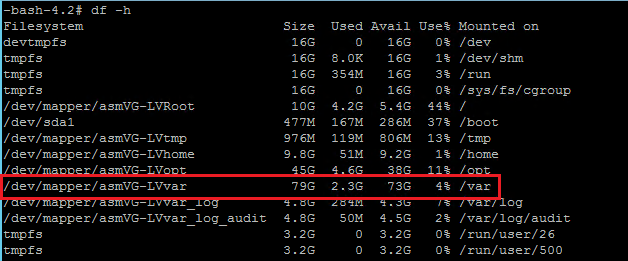
The system does not yet see the file system changes. You can verify this by running this command:
df -h
-
Run the following command to commit these changes to the file system.
resize2fs /dev/asmVG/LVvar

-
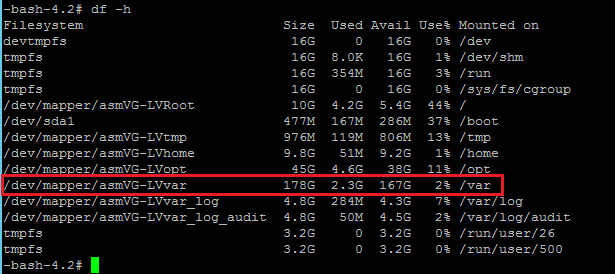
Verify that you can see that the file system size is now showing correctly by running this command:
df -h
-
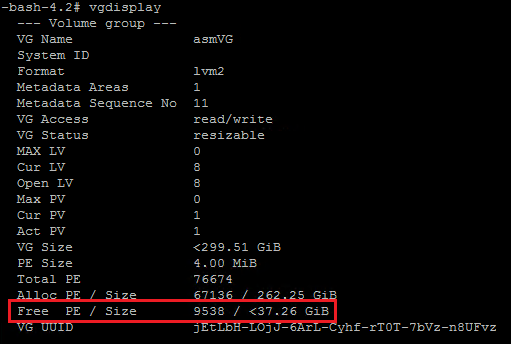
Confirm that the Free Physical Extents and Size have been reduced by running this command:
vgdisplay
-
Confirm that the Current Logical Extents size has increased by running this command:
lvdisplay
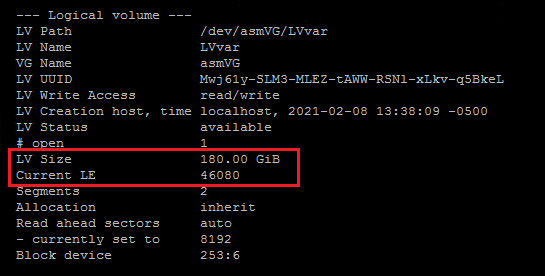
You have successfully expanded the PowerFlex Manager /var file system by 100 GB.
Affected Products
PowerFlex ApplianceArticle Properties
Article Number: 000192061
Article Type: How To
Last Modified: 25 Nov 2025
Version: 5
Find answers to your questions from other Dell users
Support Services
Check if your device is covered by Support Services.