NVP vProxy: How to Restore a vCenter server VM with embedded Platform Services Controller
Summary: The Knowledge Base article provides a brief overview on restoring the vCenter Server Virtual Machine (VM) when the source vCenter services are no longer accessible.
This article applies to
This article does not apply to
This article is not tied to any specific product.
Not all product versions are identified in this article.
Instructions
NOTE: The information in this article is provided in the Backing up and recovering a vCenter server section of the NetWorker version-specific VMware Integration Guide: https://www.dell.com/support/product-details/en-us/product/networker/docs
vCenter deployments overview:
You can protect vCenter 6.5 deployments with NetWorker by using the vProxy appliance. The instructions in this section assume that the vCenter server and the Platform Services Controller (PSC) are deployed as virtual machines.
For the restores to complete successfully,
- Ensure that these virtual machines use a fully qualified domain name (FQDN) with correct Domain Name System (DNS) resolution, or:
- Ensure that the hostname of the machine is configured as an IP address. I the hostname is configured as an IP address, the IP address cannot be changed.
There are mainly two types of vCenter deployments:
- vCenter server Appliance/Windows Virtual Machine with an embedded Platform Service Controller (PSC).
- vCenter server (also multiple) Appliance/Windows virtual machine with an external PSC. This type has two sub categories:
- vCenter server environment with a single external PSC
- vCenter server environment with multiple PSC instances: This environment contains multiple vCenter server instances that are registered with different external PSC instances that replicate their data.
Best practices for vCenter server backup and restore:
Review the following recommendations and best practices when planning a vCenter server backup and restore.
NOTE: Backups do not save Distributed Switch (vDS) configurations.
- It is recommended to schedule the backup of the vCenter server when the load on the vCenter server is low, such as during off-hours, to minimize the impact of vCenter virtual machine snapshot creation and snapshot commit processing overhead.
- Ensure that there are no underlying storage problems that might result in long stun times.
- Keep the vCenter virtual machine and all its component virtual machines in one single isolated protection policy
- The protection policy should not be shared with any other virtual machines. This is to ensure that the backup times of all vCenter server component virtual machines are as close to each other as possible.
- Ensure that the backup start time of the vCenter server does not overlap with any operations for other protected virtual machines managed by this vCenter server so that there is no impact on other protected virtual machines during snapshot creation and snapshot commit of the vCenter virtual machine.
- If the vCenter server and Platform Services Controller instances fail simultaneously, you must first restore the Platform Services Controller and then the vCenter server instances.
Protecting an embedded PSC:
The following section describes backup and recovery options for protecting an embedded PSC.
Backup:
You can perform a backup of an embedded PSC by using the following guidelines.
- Create a policy, and then add the vCenter Virtual Machine (VC VM) group to the policy.
- Select the full virtual machine and not individual disks.
- Run the scheduled or on-demand (ad-hoc) policy.
Recovery:
Depending on the type of failure, you can perform the virtual machine recovery by using one of the following methods.
- Restore to original (Revert a virtual machine). This method is valid only when the vCenter Server Appliance (VCSA) is intact and running, but corrupted.
- Recover as a new virtual machine to a managed ESXi server (Virtual Machine Recovery). Use this method if you have lost your VCSA. This vCenter must be registered with NetWorker.
- Emergency recovery to an ESXi server; Emergency recovery is the main use case, and so the following steps describe how to perform the restore using the Emergency Recovery option.
vCenter server restore workflow:

Restore an embedded PSC with Emergency Recovery:
Use the following steps to restore an embedded PSC using the Emergency Recovery option in the NetWorker Management Console (NMC).
Emergency Recovery requires you to setup a vProxy on the ESXi host prior to running the recovery. Ensure that there is one healthy ESXi host available for the emergency recovery, and that this host has a vProxy appliance that is registered to NetWorker.
Also, ensure that you disconnect the ESXi host from the vCenter server.
NOTE: There is no post-restore operation to be performed for embedded installs.
- In the NMC Recover window, select Recover > New from the main menu. The Recover Configuration wizard opens on the Select the Recovery Type page. Virtual Machine Recovery is the second option that is displayed in the Recovery Type pane.
- In the Select the Recovery Type page, select Virtual Machine Recovery, and then select a vCenter server to recover from using the Source vCenter server drop-down. Click Next.
- In the Select the Virtual Machine to Recover page, enter the name of the source virtual machines to recover from, or perform a search for the virtual machine. Also, you can use the tabs on this page to choose a single virtual machine or multiple virtual machines from a selected backup, or browse the source vCenter to determine the required virtual machine source. After selecting the wanted virtual machines, click Next.
- In the Select the Target Backups page, select the virtual machine backups you want to restore from the Available Backups pane. This pane lists both primary backups and, if available, clone copies. If you selected recovery from multiple virtual machines, you can switch between virtual machines to browse each machine's available backups by using the Virtual Machine Name drop-down. Click Next.
- In the Select the Virtual Machine Recovery method page, select Emergency recovery, and then click Next.
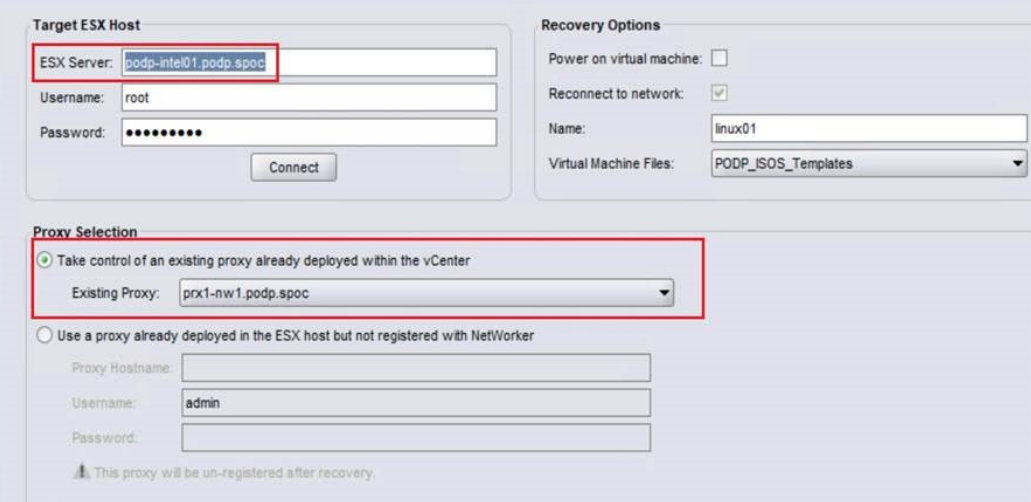
- In the Configure the Emergency Recovery page, specify the target ESXi server in the vCenter environment, and then click Connect. The Proxy Selection and Recovery Data panes get populated with the ESXi server details
- In the Proxy Selection pane, select one of the following proxy selection options:
-
- Take control of an existing proxy already deployed in vCenter:
-
- Use a proxy that is already deployed in the ESXi but not registered with NetWorker. This option preprovisions the proxy from the OVA on the ESXi. It does not register it. The proxy is unregistered after the recovery.

- For the disks in the Recovery Data pane, select a datastore, and then optionally, select the Power on virtual machine and Reconnect to network options. Click Next.
- In the Select Alternate Recovery Sources page, select the original disk backup or select a clone copy if one is available. If recovering from a clone that is not on a Data Domain device, or recovering from a Data Domain Cloud Tier device, specify the staging pool. Click Next.
- In the Perform the Recovery page, specify a name for the recovery and check the summary at the bottom of the page to ensure all the details are correct, and then click Run Recovery.
- After the recovery operation, wait until the virtual machine restarts, and then log in the vCenter Server Appliance shell as
root. - Verify that all PSC and vCenter services are running, run the
service-control --status --allcommand in the appliance shell.
During an Emergency Recovery, the vProxy gets associated with the ESXi host and is unavailable for other operations on the vCenter server. Wait until the recovery completes before initiating any other operations on the vProxy.
Additional Information
Review the following additional considerations when backing up and restoring the vCenter server and Platform Service Controller (PSC).
- Backing up the vCenter server does not save the Distributed Switch (vDS) configuration as it is stored on the hosts. As a best practice, back up the vDS configuration by using a script that can be used after restoring the virtual center.
- After restoring the PSC, verify that replication has been performed as designed by using the following commands to display the current replication status of a PSC and any of the replication partners of the PSC:
- On the vCenter, go to /usr/lib/vmware-vmdir/bin and type:
./vdcrepadmin -f showpartnerstatus -h localhost -u administrator -w Administrator_Password
- On the vCenter, go to /usr/lib/vmware-vmdir/bin and type:
- For the vCenter server or PSC, do not select advanced quiesce-based backup options. Selecting these options results in application quiescing on virtual machines, which impacts the overall environment due to stunning.
The VMware vCenter server documentation, available at https://techdocs.broadcom.com/us/en/vmware-cis/vsphere/vsphere/8-0.html 
Affected Products
NetWorkerArticle Properties
Article Number: 000192241
Article Type: How To
Last Modified: 02 May 2025
Version: 3
Find answers to your questions from other Dell users
Support Services
Check if your device is covered by Support Services.