How to Enable Windows VBS/HVCI on a Dell Computer
Summary: This article walks you through the process of enabling the Windows Virtualization Based Security (VBS)/Hypervisor Enforced Code Integrity (HVCI) feature on a Dell computer.
This article applies to
This article does not apply to
This article is not tied to any specific product.
Not all product versions are identified in this article.
Symptoms
No symptoms information is available.
Cause
No cause information is available.
Resolution
Windows VBS/HVCI
You can confirm whether VBS/HVCI is enabled on your computer by checking either of the following methods:
- Checking the Windows System Information App:
- Windows 10 or Windows 11: Windows System Information App => System Summary => Virtualization-based security Services Configured & Virtualization-based security Services Running (MSINFO32.exe) (Figure 1)

Figure 1: HVCI/VBS enabled shown in Windows System information
- Windows 10 or Windows 11: Windows System Information App => System Summary => Virtualization-based security Services Configured & Virtualization-based security Services Running (MSINFO32.exe) (Figure 1)
- Checking in the Windows Security Settings:
- Windows 10: Windows Settings => Update & Security => Windows Security => Device Security => Core isolation Details (Figure 2)
- Windows 11: Windows Settings => Privacy & Security => Windows Security => Device Security => Core isolation Details (Figure 2)
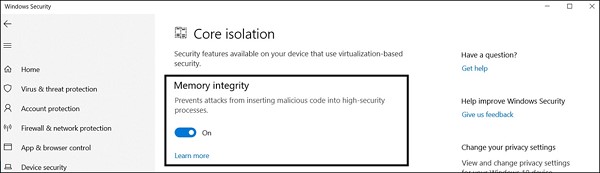
Figure 2: HVCI/VBS enabled shown in Windows Security settings
To enable Virtualization Based Security (VBS)/Hypervisor Enforced Code Integrity (HVCI), follow the steps above to load the Windows Security settings. Click the radio button, under Memory Integrity, to turn the feature on. A reboot may be required.
Additional Resources:

Affected Products
Alienware, Dell All-in-One, Dell Pro All-in-One, Dell Pro Max Micro, Dell Pro Max Slim, Dell Pro Max Tower, Dell Pro Micro, Dell Pro Slim, Dell Pro Tower, Dell Slim, Dell Tower, Inspiron, Legacy Desktop Models, OptiPlex, Vostro, XPS, G Series
, G Series, Alienware, Dell Plus, Dell Pro, Dell Pro Max, Dell Pro Plus, Dell Pro Premium, Inspiron, Latitude, Dell Pro Rugged, Vostro, XPS, Legacy Laptop Models, Fixed Workstations, Mobile Workstations, Dell Pro Max Micro XE FCM2250, Dell Pro Max Slim XE FCS1250, Dell Pro Max Tower T2 XE FCT2250, Dell Pro Max 16 XE MC16250, Dell Pro Micro Plus XE QBM1250, Dell Pro Slim Plus XE5 QBS1250, Dell Pro Tower Plus XE5 QBT1250
...
Article Properties
Article Number: 000192246
Article Type: Solution
Last Modified: 21 Jul 2025
Version: 4
Find answers to your questions from other Dell users
Support Services
Check if your device is covered by Support Services.