如何运行和使用 Windows 进程监视器 (ProcMon)
Summary: 运行进程监视器的步骤。
This article applies to
This article does not apply to
This article is not tied to any specific product.
Not all product versions are identified in this article.
Instructions
按照以下步骤运行 Windows 进程监视器 (ProcMon) 工具。
- 从 此处
下载 ProcMon 工具并解压ProcessMonitor.zip文件
- 运行 Procmon64 可执行文件 (Procmon64.exe)
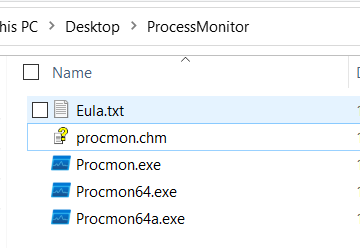
3.接受或同意许可协议以继续。
4.此时将显示以下窗口。
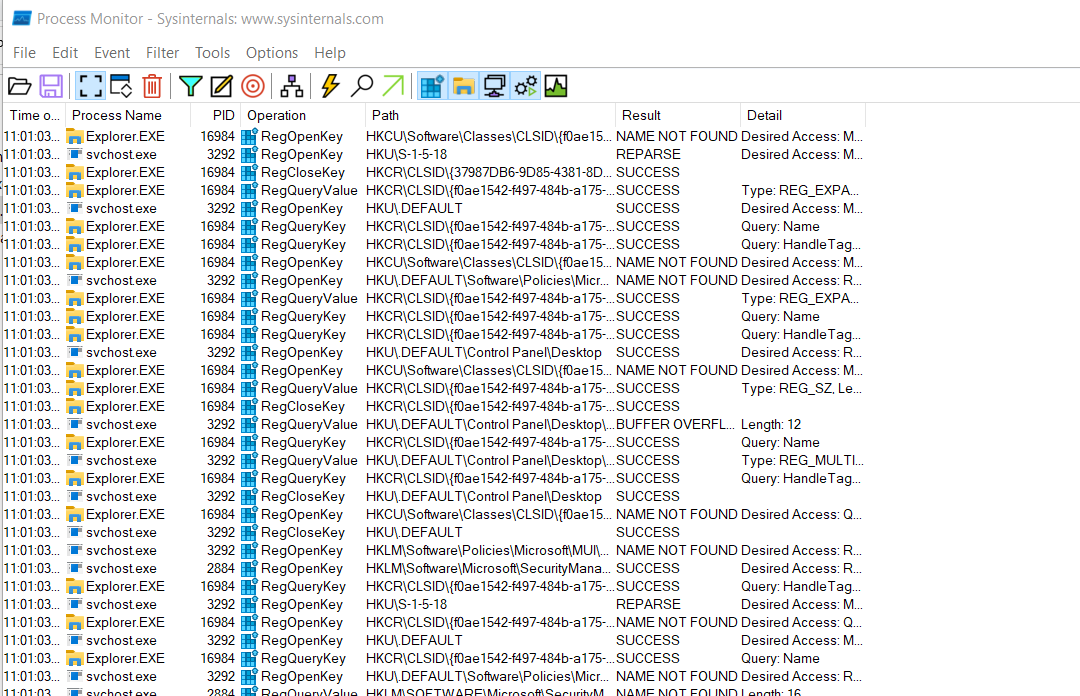
5.重现问题并保存日志文件。
6.要保存日志输出,请单击 File > Save,这将打开以下窗口:-
7.选择要保存的文件的格式以及路径。

7.捕获并发送保存的文件以供调查/审查。
有关进程监视器的详细信息,请参阅下面的 Microsoft 文档。
进程监视器 - Windows Sysinternals |Microsoft 文档
Affected Products
Microsoft Windows Server 2016, Microsoft Windows Server 2019, Microsoft Windows Server 2022, PowerEdge R570, PowerEdge R640, PowerEdge R6415, PowerEdge R650, PowerEdge R650xs, PowerEdge R6515, PowerEdge R6525, PowerEdge R660, PowerEdge R660xs
, PowerEdge R6615, PowerEdge R6625, PowerEdge R670, PowerEdge R740, PowerEdge R740XD, PowerEdge R740XD2, PowerEdge R7415, PowerEdge R7425, PowerEdge R750, PowerEdge R750XA, PowerEdge R750xs, PowerEdge R7515, PowerEdge R7525, PowerEdge R760, PowerEdge R760XA, PowerEdge R760xd2, PowerEdge R760xs, PowerEdge R7615, PowerEdge R7625, PowerEdge R770, PowerEdge R7715, PowerEdge R7725, PowerEdge R840, PowerEdge R860, PowerEdge R940, PowerEdge R940xa, PowerEdge R960, PowerEdge T330, PowerEdge T340, PowerEdge T350, PowerEdge T360, PowerEdge T440, PowerEdge T550, PowerEdge T560, PowerEdge T630, PowerEdge T640
...
Article Properties
Article Number: 000193986
Article Type: How To
Last Modified: 07 May 2025
Version: 2
Find answers to your questions from other Dell users
Support Services
Check if your device is covered by Support Services.