PowerMax: Storage Devices Show Different LUNs on Different Paths from the Server View
Summary: The server view is getting duplicate LUN IDs, some LUN IDs are changing between reboots. All devices are from PowerMax array storage, and hosts and host groups have Consistent_LUN set.
This article applies to
This article does not apply to
This article is not tied to any specific product.
Not all product versions are identified in this article.
Symptoms
An ESXi server shows duplicate LUN IDs, and the other ESXi servers in the cluster are seeing different LUN IDs for the same LUN.
Both the host and host groups (IGs) have consistent LUN set. This is only happening for some devices, not all devices presented.
Command output:
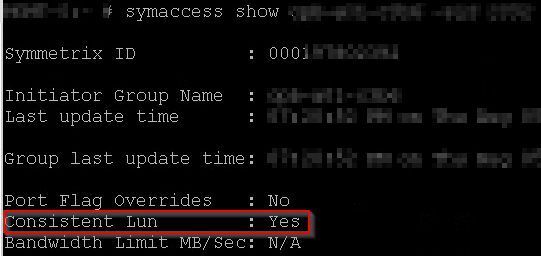
When checking the device LUN assignments with the below command, they are consistent with the array.
Both the host and host groups (IGs) have consistent LUN set. This is only happening for some devices, not all devices presented.
Command output:
symaccess show <IG name> -sid xxx -detail
When checking the device LUN assignments with the below command, they are consistent with the array.
symaccess list devinfo -ig <IG Name> -sid xxxThe LUN ID is correct and consistent across all FA mappings. The devices are part of an ActiveActive SRDF/Metro configuration.
Cause
The devices are in an SRDF/Metro configuration. The devices were added to the masking after the original creation of the Metro configuration.
During the initial creation of the Metro pairing and groups, the devices and IGs are built to match each other, and LUN IDs are consistent.
When adding a device to the storage group after, the LUN IDs are assigned on a first come first serve basis. This means that although both sides have groups set with "consistent LUN," this restriction does NOT compare the arrays against each other. This results in some instances where the R1 array and R2 arrays can set different LUN IDs.
When the same commands from above are run on the R2 devices spoofing the R1 device WWN, the differing LUN IDs are seen.
During the initial creation of the Metro pairing and groups, the devices and IGs are built to match each other, and LUN IDs are consistent.
When adding a device to the storage group after, the LUN IDs are assigned on a first come first serve basis. This means that although both sides have groups set with "consistent LUN," this restriction does NOT compare the arrays against each other. This results in some instances where the R1 array and R2 arrays can set different LUN IDs.
When the same commands from above are run on the R2 devices spoofing the R1 device WWN, the differing LUN IDs are seen.
Resolution
To address this issue, the R2 side devices must have their LUN IDs reset to match the R1 side devices. This is performed in both Solutions Enabler or Unisphere using the below steps.
After the device is removed from the storage group and after the device is added back to the storage group, the host or Server must rescan to see the change in paths.
Solutions Enabler:
CAUTION: Dell Technologies recommends checking with your operating system vendor on SAN path change restrictions before performing the below changes.
After the device is removed from the storage group and after the device is added back to the storage group, the host or Server must rescan to see the change in paths.
Solutions Enabler:
- Check HLU assignments:
symaccess list devinfo -ig <IG Name> -sid xxx
- Remove the device from the storage group:
Symaccess –sid xxx –name <SG name> -type Storage remove dev <xxx> -unmap
- Add the device back to the storage group with the below command:
Symaccess –sid xxx –name <SG name> -type Storage add dev <xxx> -lun xUnisphere for PowerMax:
- Check the current assignments.
- Login > select Array > Hosts > Masking Views > select Host Group > click View Path Details
- Check the lower section for the device ID and assign LUN ID.
- Remove the device from the storage group.
- Login > select Array > Storage > Storage Group > select SG > click the Device Count in the SG details (Right-hand side) > select Volume > click Remove Volumes
- Ensure that the Unmap checkbox is selected.
- Add the volume back to the SG with the new LUN ID.
- Login > select Array Storage > Storage Groups > select SG > click the Device Count in the SG details > click Add Volume to SG
- Clear the Exclude Volumes in Use checkbox, since the device is in a metro configuration the device is listed as in use.
- Click Next
- Select the Device ID from the list.
- Click Set Dynamic LUNs
- Type in the required LUN ID and click Apply Starting LUN
- Click Finish
Additional Information
For additional information if devices with consistent LUN address are required for ESXi configurations, see blog article Dell PowerFlex and PowerMax with VMware 
Affected Products
Solutions Enabler, Unisphere for PowerMaxArticle Properties
Article Number: 000194719
Article Type: Solution
Last Modified: 14 Jul 2025
Version: 7
Find answers to your questions from other Dell users
Support Services
Check if your device is covered by Support Services.