PowerEdge: C6400 - How to update CM Firmware
Summary: Below are the steps that can be used to upgrade the CM firmware.
This article applies to
This article does not apply to
This article is not tied to any specific product.
Not all product versions are identified in this article.
Instructions
Tools required to perform the upgrade:
- iDRAC Tool (RACADM)
- BMC Tool (IPMI)
Steps: - Install DRAC tool on any system which has access to IDRAC.
- Download the latest CM firmware from support site. The CM Firmware (cm.sc) required for this process is available in the .zip (V314-2020-12-18-External.zip) file and not the usual .exe as would be expected like when using the iDRAC firming file workaround.
- 3. Extract the file and copy the "cm.sc" to the DRAC tool installed or extracted folder. Do not rename the file or the update process does not complete and no error message is returned.

- Open a command prompt and go to the racadm folder and run the below command:
Command:racadm -r <idrac ip> -u username -p password update -f cm.sc
- It usually takes up to 10-15 minutes of time depending upon the network speed. Meanwhile open the iDRAC console and go to LCC logs to see the event regarding version change. If the message appears in the LCC logs, then install the IPMI tool and run the below command to see the status.
Command:ipmitool -I lanplus -H <iDRAC IP Address> -U username -P password raw 0x30 0x12 - Cross-check the above output from the CM firmware release notes.
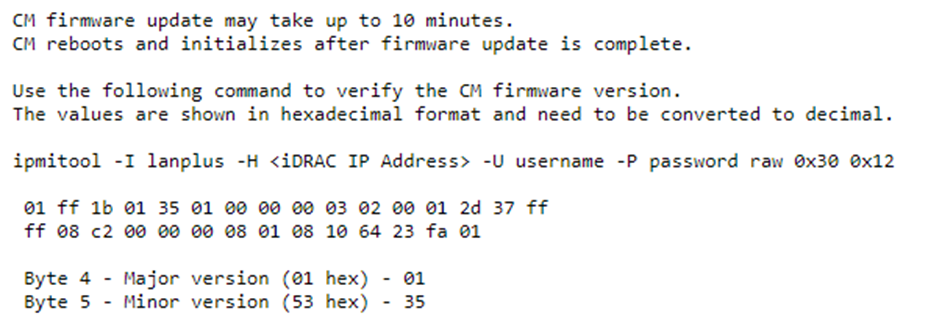
- If the output matches, then the CM firmware has been successfully upgraded.
Note: The sled did not shut down during the CM firmware upgrade procedure. But better to take a downtime before proceeding.
Note:Note: If doing the upgrade from a Linux operating system, then the below error may be seen while running the "racadm" command:ERROR: RAC1170: Unable to find the SSL library in the default path. If an SSL library is not installed, install one and retry the operation. If an SSL library is installed, create a soft-link of the installed SSL library to "libssl.so" using the linux "ln" command.
To resolve the issue, install the "openssl-devel" tool using "yum" and then try again.
Affected Products
PowerEdge C6400Article Properties
Article Number: 000195360
Article Type: How To
Last Modified: 26 May 2025
Version: 4
Find answers to your questions from other Dell users
Support Services
Check if your device is covered by Support Services.