PowerEdge: Secured-core Servers Enabling Guide
Summary: This article provides guidance for product-specific steps to configure Secured-core Servers to a fully enabled state.
This article applies to
This article does not apply to
This article is not tied to any specific product.
Not all product versions are identified in this article.
Instructions
Applicable Products
The configuration guidance applies to the following Dell Technologies server products:
- PowerEdge R750
- PowerEdge R750xa
- PowerEdge R650
- PowerEdge MX750c
- PowerEdge C6520
- PowerEdge R750xs
- PowerEdge R650xs
- PowerEdge R450
- PowerEdge R550
- PowerEdge T550
- PowerEdge XR11
- PowerEdge XR12
- PowerEdge R6525 ("EPYCTM 7003 series processors")
- PowerEdge R7525 ("EPYCTM 7003 series processors")
- PowerEdge C6525 ("EPYCTM 7003 series processors")
- Dell EMC AX-7525 (EPYCTM 7003 series processors only)
- Dell EMC AX-750
- Dell EMC AX-650
BIOS Settings
Below is the minimum version of BIOS for specific platform to be used for enabling secure core.
This can be obtained from the Dell support page .
| Platform Name | Minimum BIOS Version |
| PowerEdge R750 | 1.3.8 |
| PowerEdge R750xa | 1.3.8 |
| PowerEdge R650 | 1.3.8 |
| PowerEdge MX750c | 1.3.8 |
| PowerEdge C6520 | 1.3.8 |
| PowerEdge R750xs | 1.3.8 |
| PowerEdge R650xs | 1.3.8 |
| PowerEdge R450 | 1.3.8 |
| PowerEdge R550 | 1.3.8 |
| PowerEdge R6525 | 2.3.6 |
| PowerEdge R7525 | 2.3.6 |
| PowerEdge C6525 | 2.3.6 |
| Dell EMC AX-7525 | 2.3.6 |
| Dell EMC AX-750 | 1.3.8 |
| Dell EMC AX-650 | 1.3.8 |
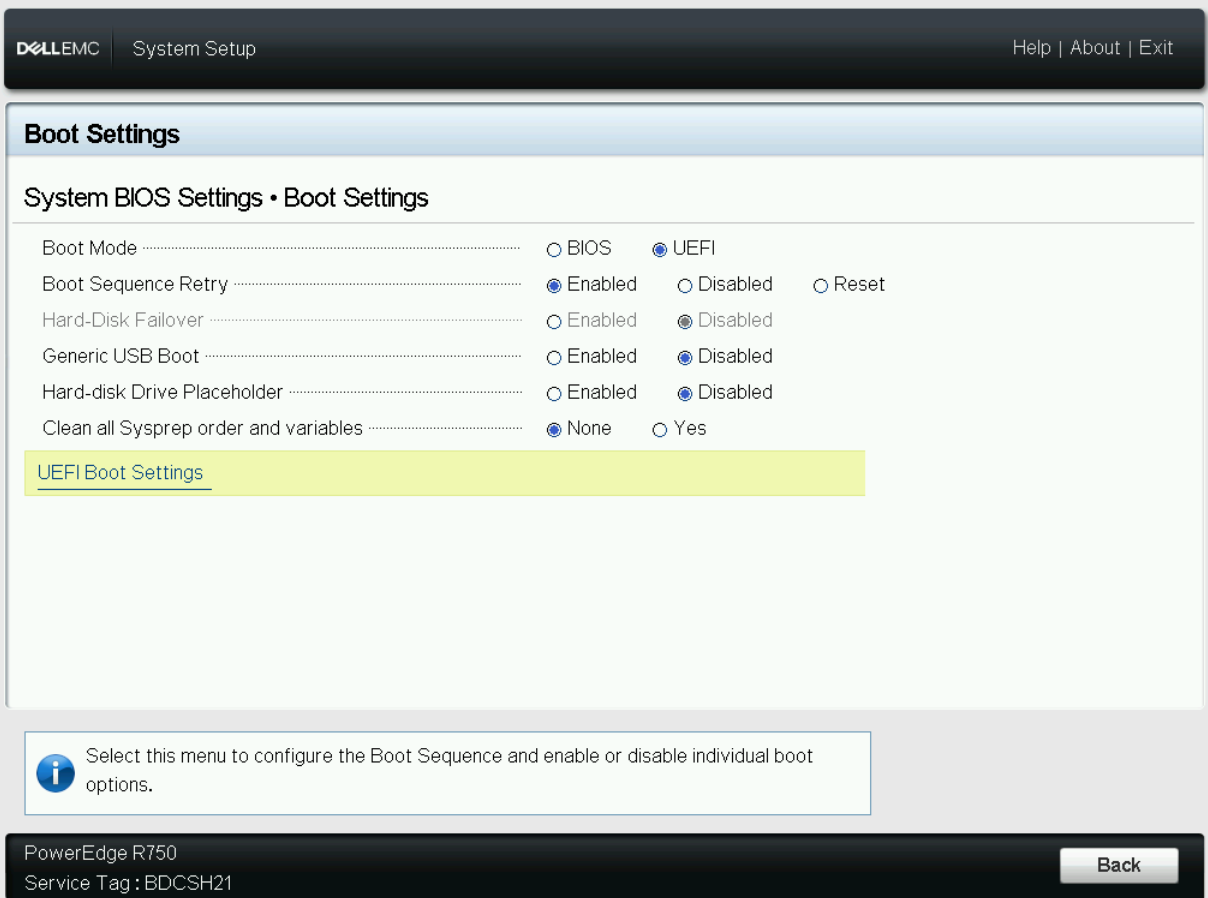
Note: The system must be booted in the Unified Extensible Firmware Interface (UEFI) mode. UEFI mode should be set at the BIOS settings in System BIOS Settings > Boot Settings.
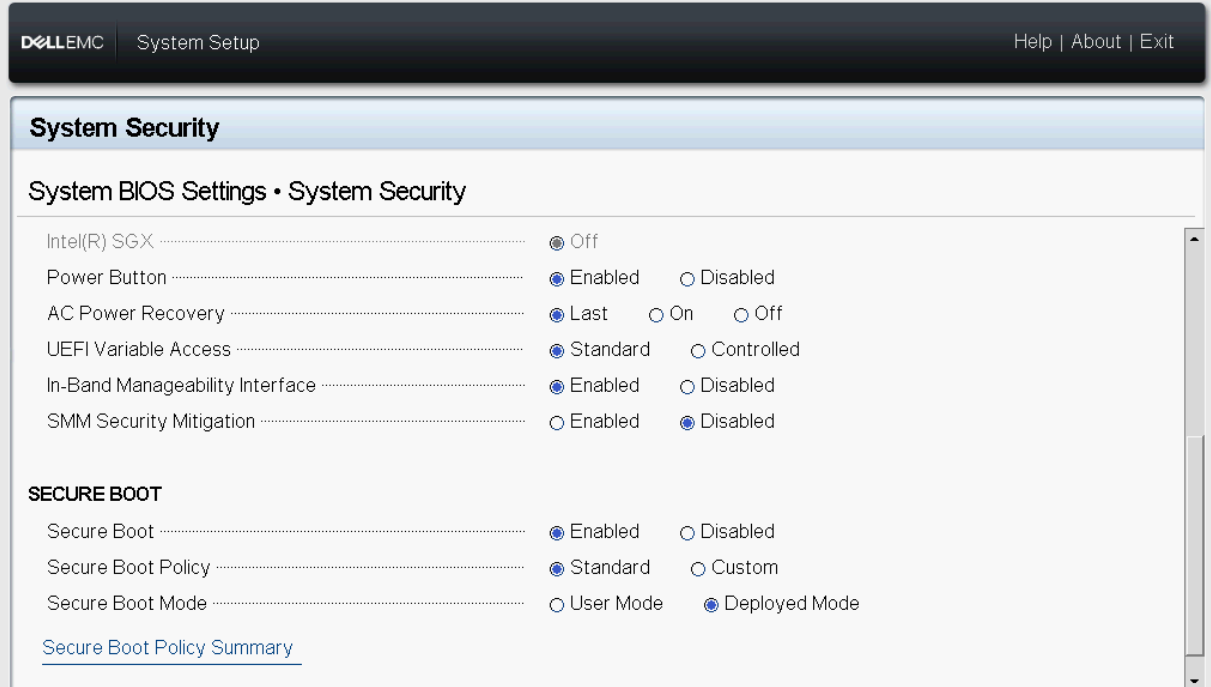
2. Secure Boot must be enabled.
Secure Boot must be set in BIOS in System BIOS Settings > System Security.
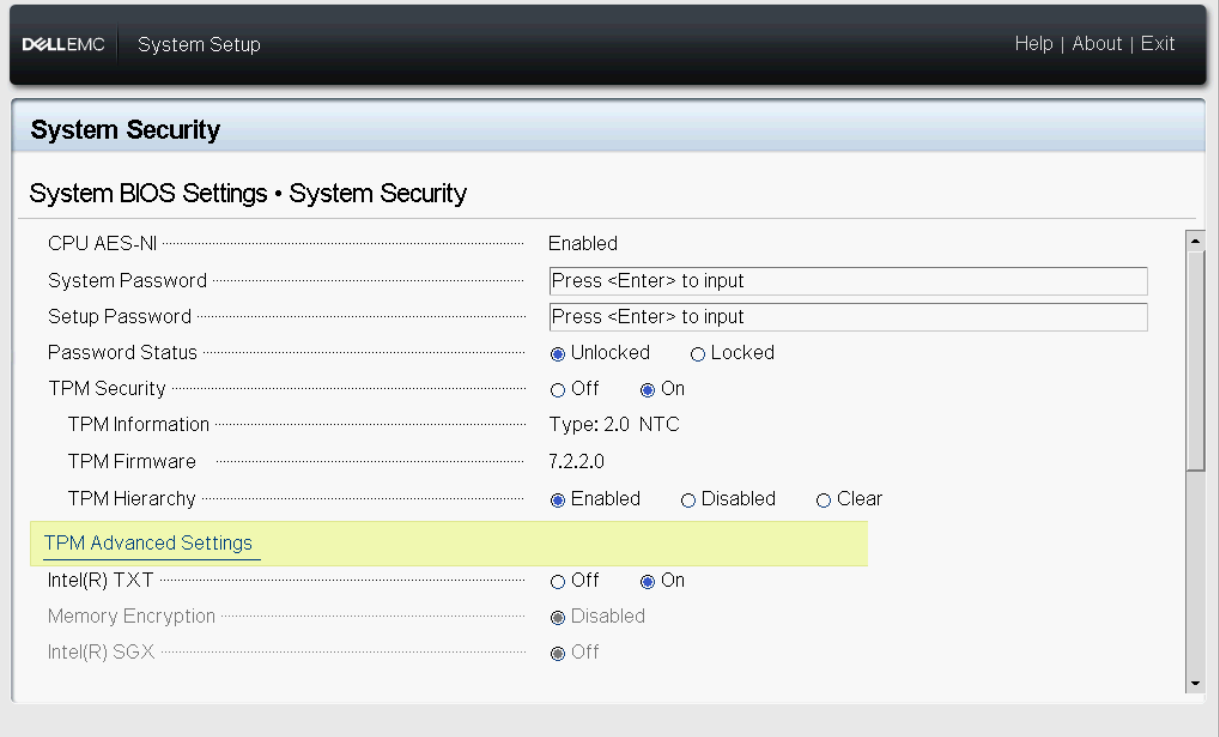
3. The server must have Trusted Platform Module (TPM) 2.0, and it must be enabled as mentioned below.
- TPM Security must be set as ON in System BIOS Settings > System Security
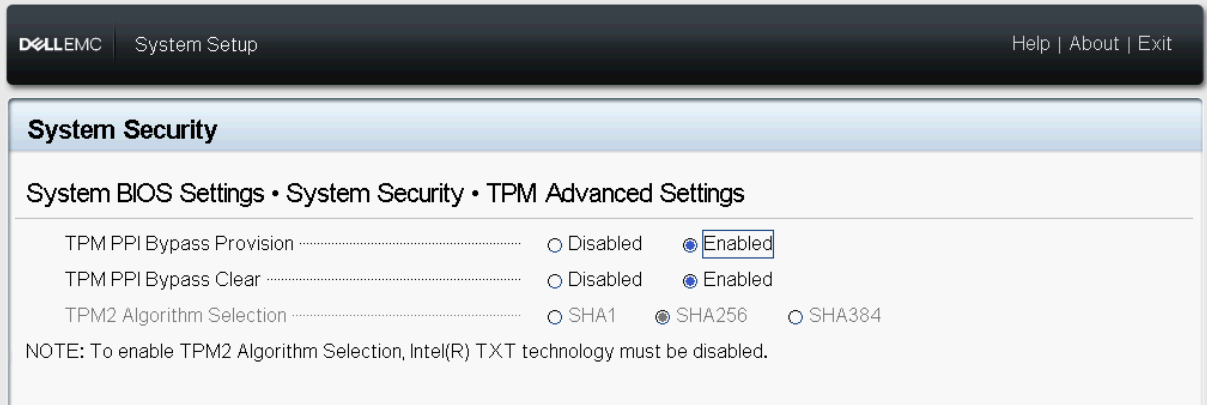
- Other Settings must be set in BIOS Settings > System Security > TPM Advanced Settings
- TPM Physical Presence Interface (PPI) Bypass and TPM PPI Bypass Clear must be enabled.
- TPM Algorithm Selection should be set as "SHA 256"
- Minimum firmware version of TPM:
TPM 2.0 - 7.2.2.0CTPM 7.51.6405.5136
4. Dynamic Root of Trust for Measurement (DRTM) must be enabled in the BIOS. For Intel server, DRTM should be enabled by enabling below BIOS Settings:
- Direct Memory Access Protection in System BIOS Settings > Processor Settings.
- Intel(R) TXT in System BIOS Settings > System Security
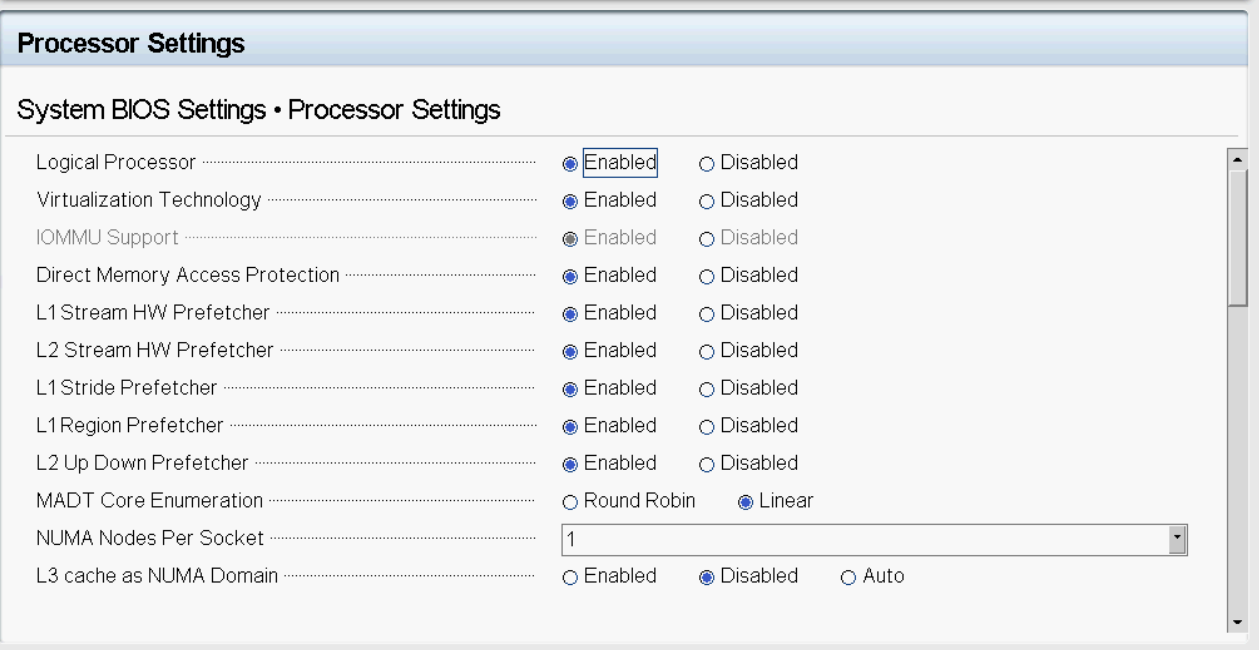
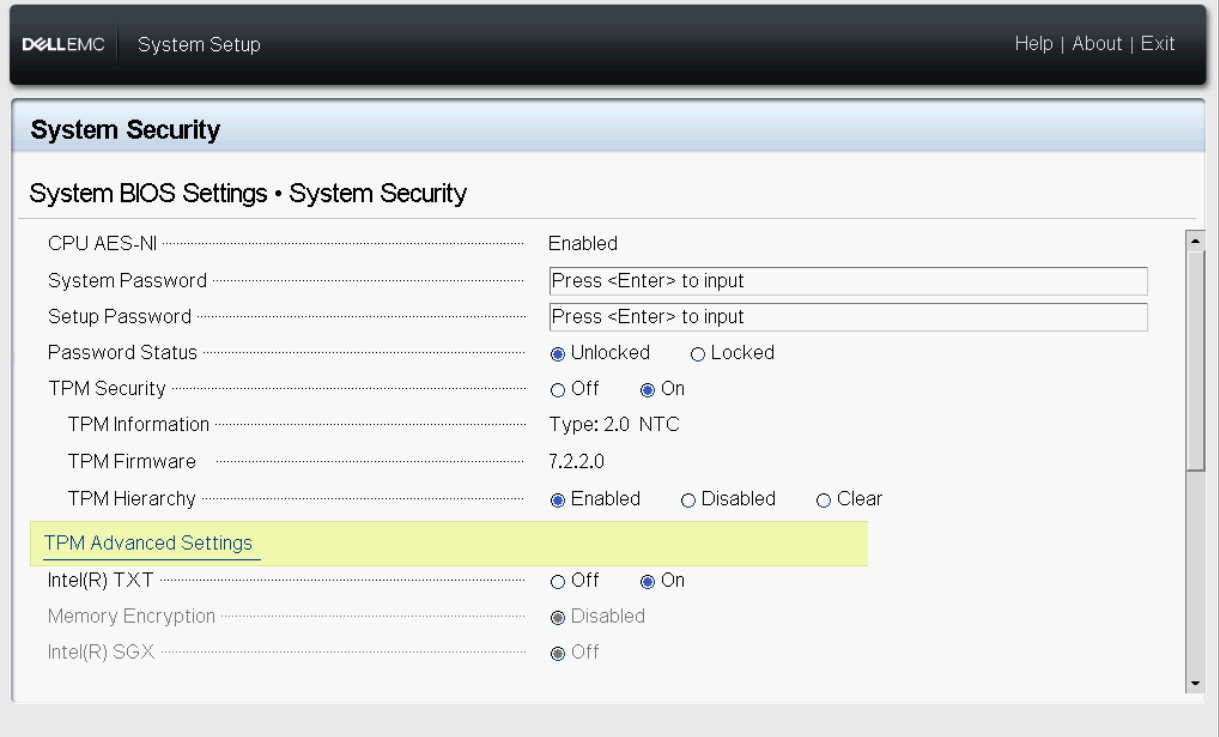
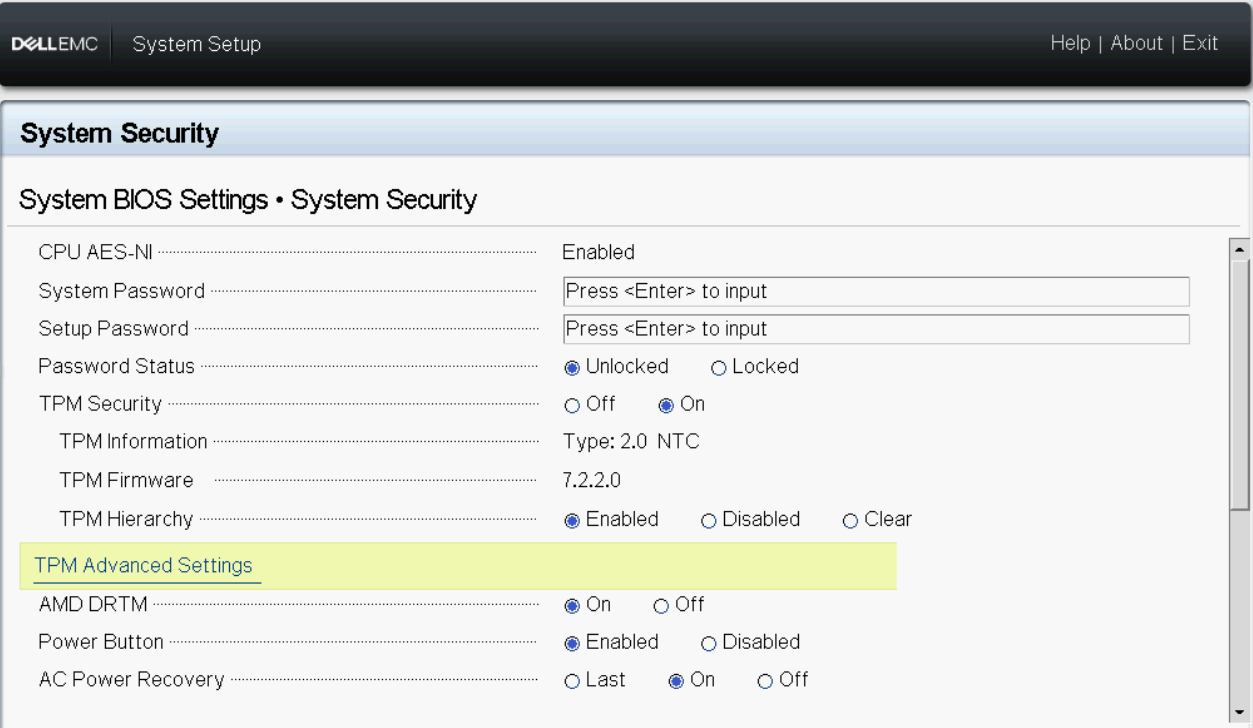
For AMD server, DRTM should be enabled. BIOS settings below enable it:
- "Direct Memory Access Protection" at System BIOS Settings > Processor Settings
- "AMD DRTM" at System BIOS Settings > System Security
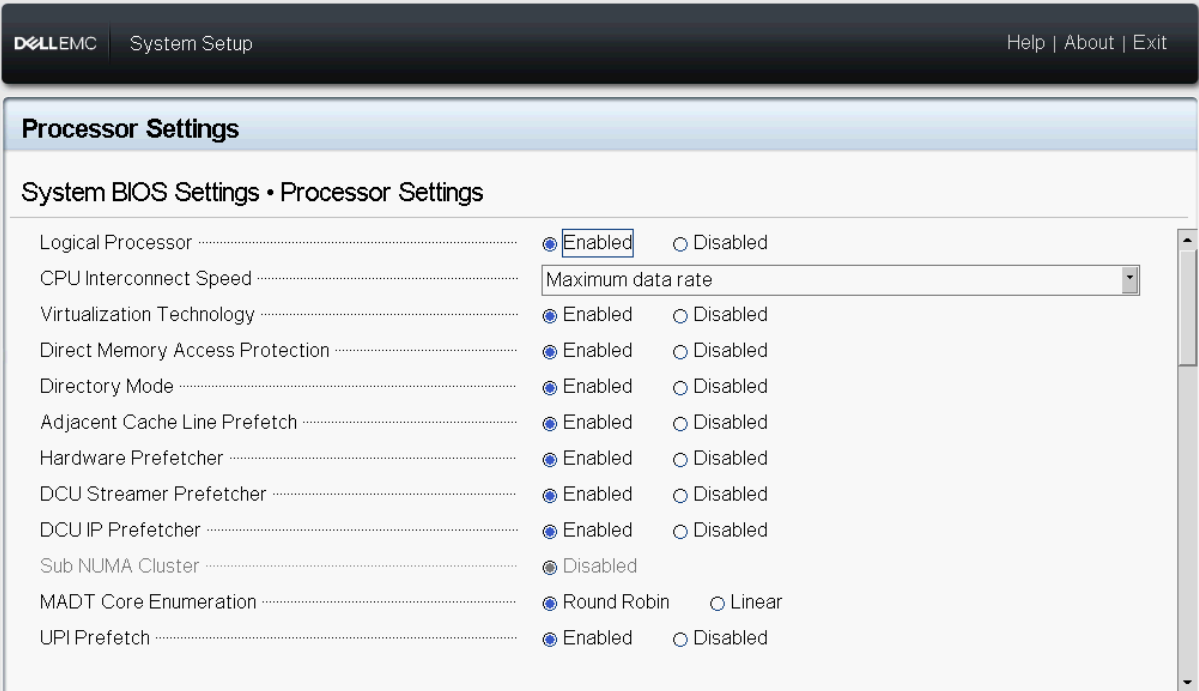
5. Input-Output Memory Management Unit (IOMMU) and Virtualization Extension must be enabled in BIOS.
For Intel Server IOMMU and Virtualization Extension should be enabled by enabling "Virtualization Technology" in System BIOS Settings > Processor settings.
For AMD Server, IOMMU and Virtualization Extension should be enabled with below BIOS settings:
- "Virtualization Technology" in System BIOS Settings > Processor Settings
- IOMMU Support in System BIOS Settings > Processor Settings
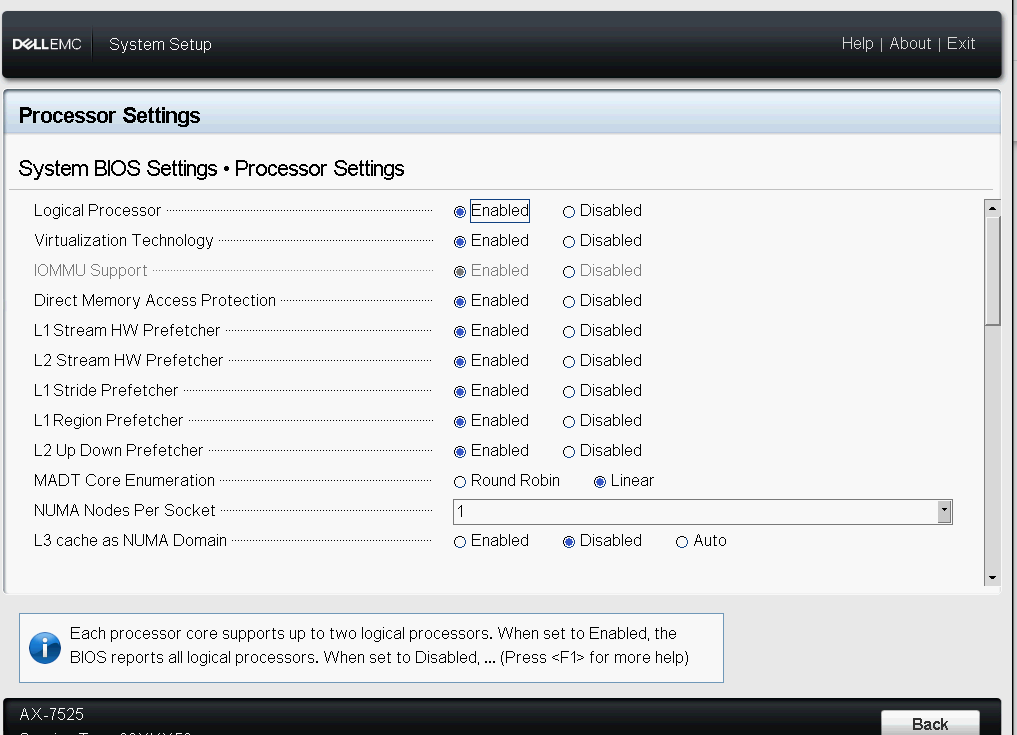
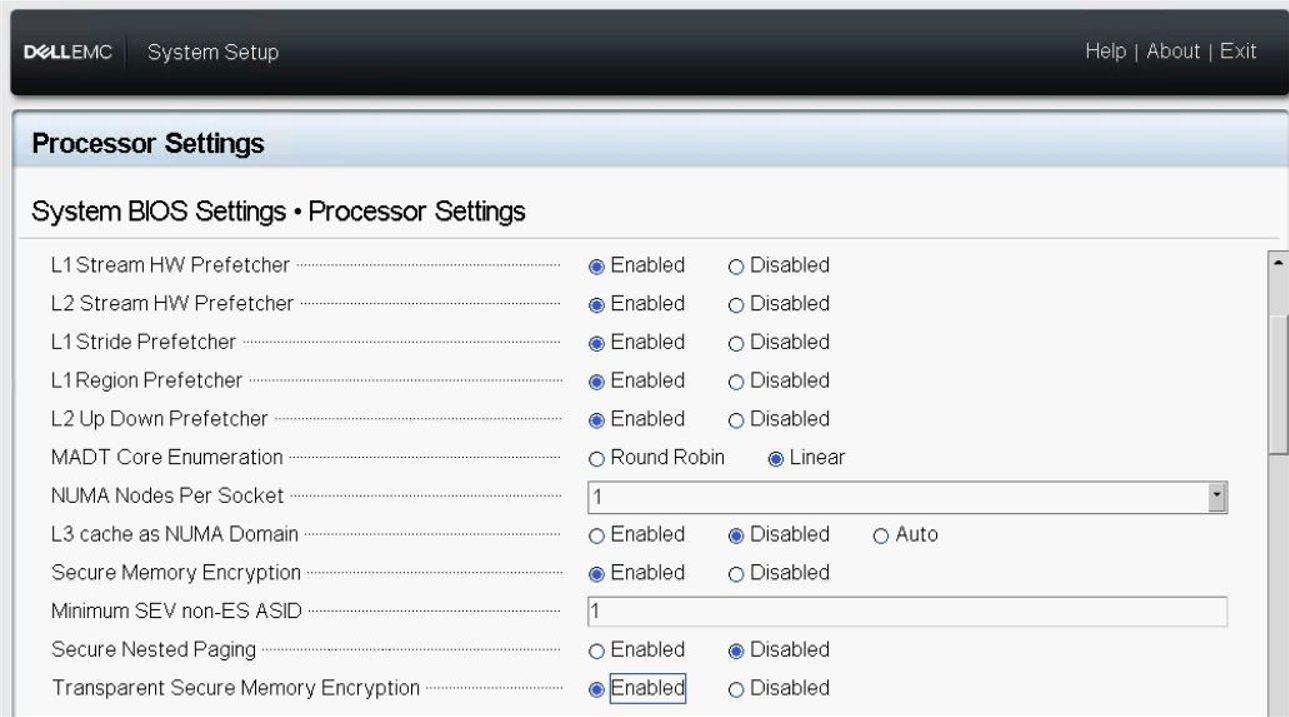
For the AMD server in the System BIOS Settings > Processor settings, enable Secure Memory Encryption (SME) and Transparent Secure Memory Encryption (TSME).
OS Settings
Install platform-specific drivers
For Intel Servers, chipset driver (version: 10.1.18793.8276 and above) should be installed.
For AMD Servers, chipset driver (version: 2.18.30.202 and above) should be installed.
These drivers can be downloaded from the Dell support page:
Enter the server model name, go to "Driver and Downloads" section, choose OS as Windows Server 2022 LTSC and look for chipset driver.
Example, For PowerEdge R650, "Intel Lewisburg C62x Series Chipset Drivers" should be installed.
For PowerEdge R6525, "AMD SP3 MILAN Series Chipset Drivers" should be installed.
Configure registry keys for VBS, HVCI, and System Guard
Run the following from the command prompt:
reg add "HKLM\SYSTEM\CurrentControlSet\Control\DeviceGuard" /v "EnableVirtualizationBasedSecurity" /t REG_DWORD /d 1 /f
reg add "HKLM\SYSTEM\CurrentControlSet\Control\DeviceGuard" /v "RequirePlatformSecurityFeatures" /t REG_DWORD /d 3 /f
reg add "HKLM\SYSTEM\CurrentControlSet\Control\DeviceGuard" /v "Locked" /t REG_DWORD /d 0 /f
reg add "HKLM\SYSTEM\CurrentControlSet\Control\DeviceGuard\Scenarios\HypervisorEnforcedCodeIntegrity" /v "Enabled" /t REG_DWORD /d 1 /f
reg add "HKLM\SYSTEM\CurrentControlSet\Control\DeviceGuard\Scenarios\HypervisorEnforcedCodeIntegrity" /v "Locked" /t REG_DWORD /d 0 /f
reg add “HKLM\System\CurrentControlSet\Control\DeviceGuard\Scenarios\SystemGuard” /v “Enabled” /t REG_DWORD /d 1 /f
Note: The system should be rebooted after running these commands. The above operations can be performed by running below PowerShell script.
Confirm the Secured-core state
To confirm all the Secured-core features are properly configured and running, follow the steps below:
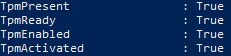
TPM 2.0
Run get-tpm in a PowerShell and confirm the following:
Secure boot, Kernel DMA Protection, VBS, HVCI, and System Guard
Launch msinfo32 from command prompt and confirm the following values:
- "Secure Boot State" is "On"
- "Kernel DMA Protection" is "On"
- "Virtualization-Based Security" is "Running"
- "Virtualization-Based Security Services Running" contains the value "Hypervisor-enforced Code Integrity" and "Secure Launch"


Support
For HW and Firmware issues, contact Dell support
For OS and SW issues, contact Microsoft support
Affected Products
ax-650, AX-750, AX-7525, Microsoft Windows Server 2022, PowerEdge C6520, PowerEdge C6525, PowerEdge MX750c, PowerEdge R450, PowerEdge R550, PowerEdge R650Products
PowerEdge R650xs, PowerEdge R6525, PowerEdge R750, PowerEdge R750XA, PowerEdge R750xs, PowerEdge R7525, PowerEdge T550, PowerEdge XR11, PowerEdge XR12Article Properties
Article Number: 000195803
Article Type: How To
Last Modified: 07 May 2026
Version: 3
Find answers to your questions from other Dell users
Support Services
Check if your device is covered by Support Services.