PowerEdge: How to Configure Windows DHCP Server to Process DHCP Relay Agent Option 82 Circuit ID and Remote ID
Summary: This How-To article is to clarify how to configure the Windows DHCP server to accept and process the DHCP relay agent Option 82 information. Option 82 is automatically inserted on Dell Networking switches when IP Helper is used. ...
This article applies to
This article does not apply to
This article is not tied to any specific product.
Not all product versions are identified in this article.
Instructions
Example Topology
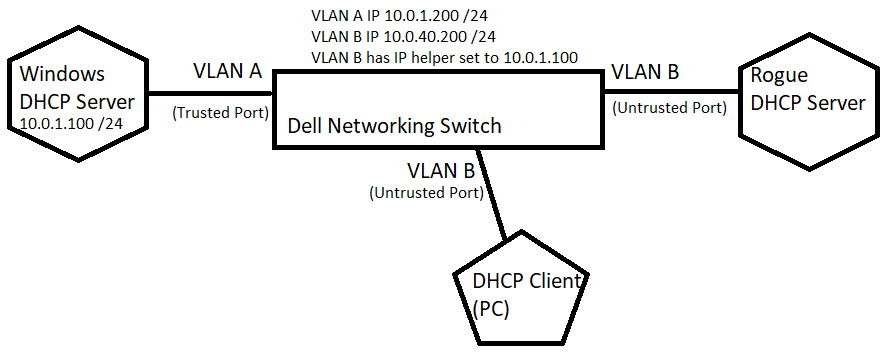
In the below scenario, the customer has a Client personal computer connecting on Vlan B, with a server located on Vlan A. However on Vlan B, there is a rogue DHCP server that tries to serve an IP address to the client personal computer.
DHCP IP helper, Option 82, and relay trust configuration have been applied on the Dell Networking switch, so only the DHCP Offer from a Trusted Port is forwarded to the Client personal computer. Any DHCP Offers from Rogue DHCP server coming from Untrusted Port are not forwarded to the Client personal computer.
This How-To article only focuses on the Windows DHCP Server Policy configuration to handle DHCP Option 82 sent by switch.
Assumptions
- Windows Server with UI and DHCP Server role installed
- All network adapter and IP configuration are as per Windows DHCP requirements.
- Dell Networking switch have been configured correctly.
- All network adapter and IP configuration are as per Windows DHCP requirements.
- Dell Networking switch have been configured correctly.
Windows DHCP Configuration
- Open the DHCP Configuration tool.
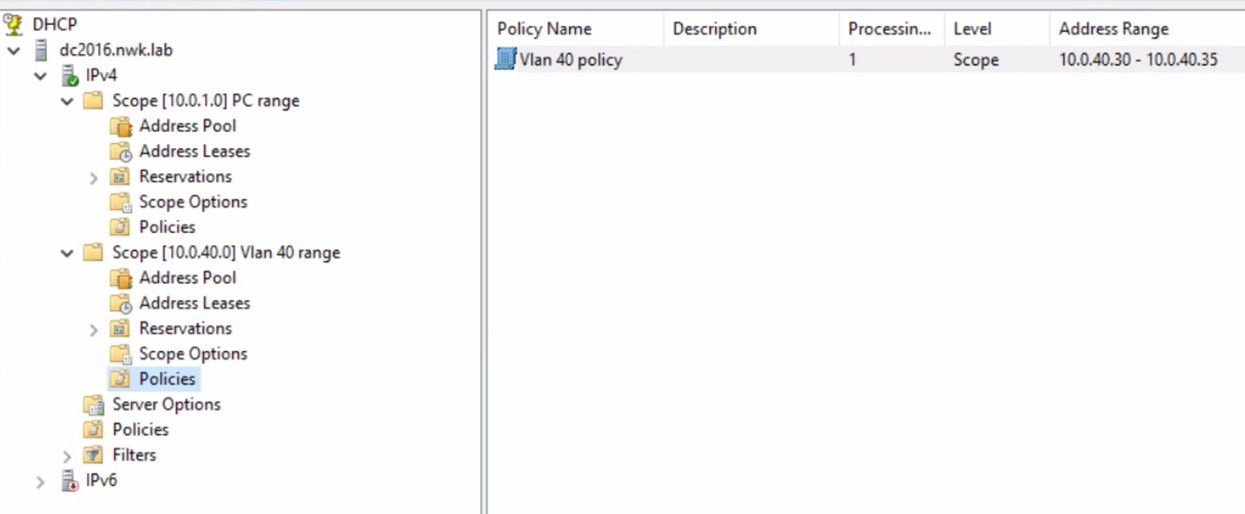
- Make sure switch has a Relay Agent IP Address (that is VLAN IP) matching with one of the configured DHCP scopes. In this example, the Relay Agent IP Address is 10.0.40.200 which is part of Scope 10.0.40.0/24 range. Windows article also refers Relay Agent IP Address as Gateway IP Address (GIADDR).
- Expand Scope, right click Policies and select New Policy.
- Enter the scope Name and Description and select Next.
- On Conditions, select Add.
- Set Criteria to Relay Agent Information, leave Operator on default Equals.
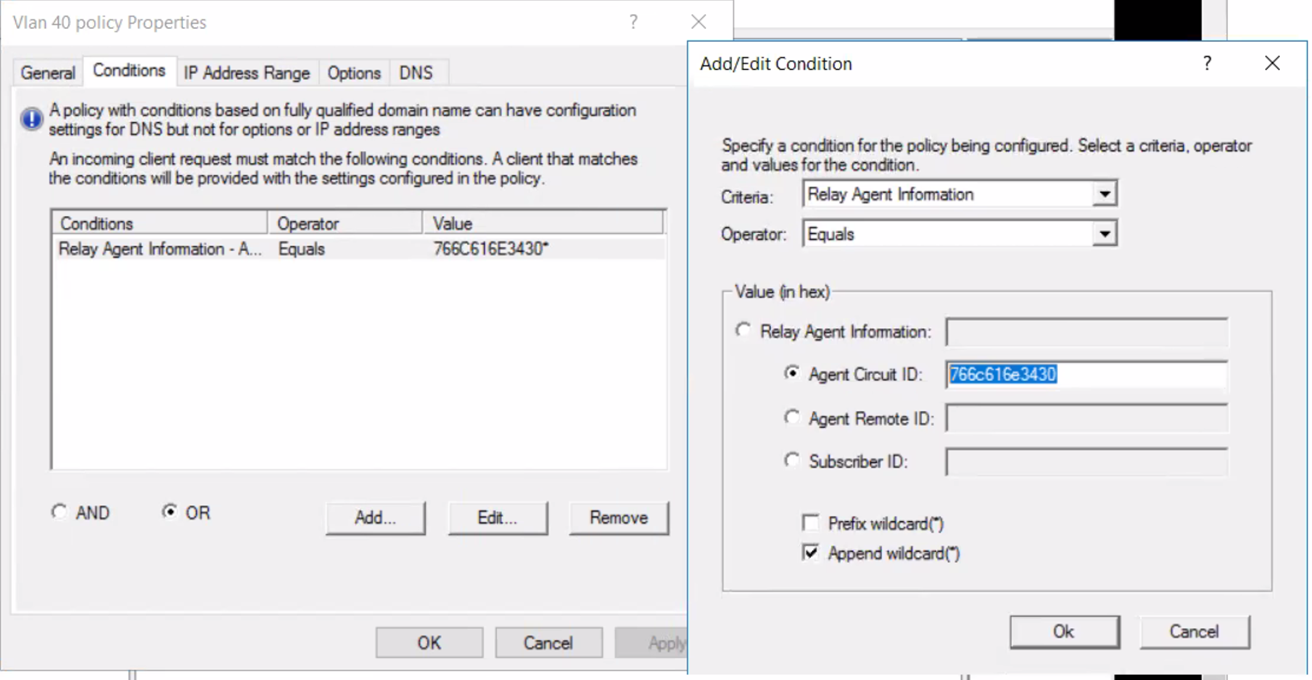
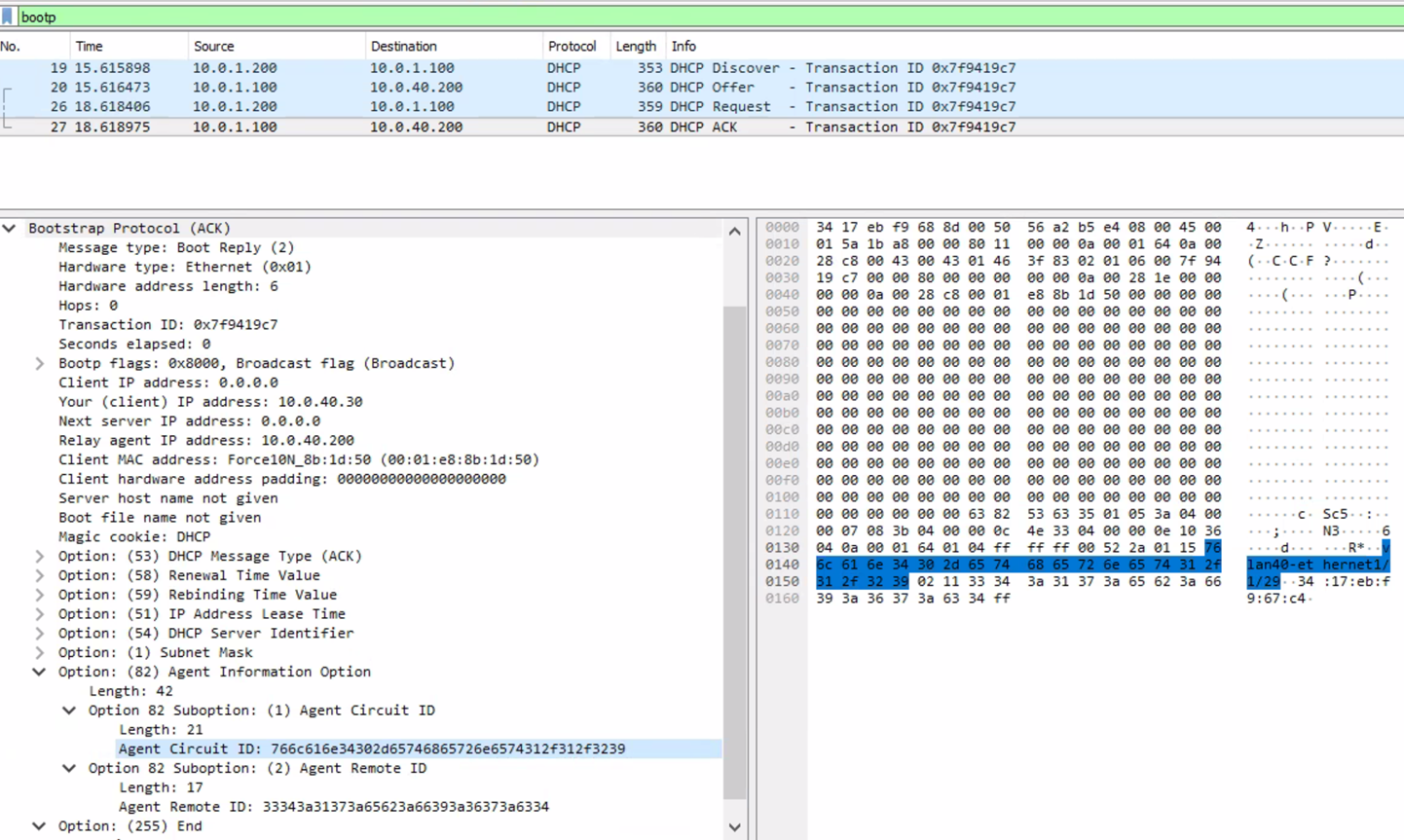
- Select Agent Circuit ID. The value format depends on the switch model and OS used. For example: Dell OS10 sends Circuit ID vlan40-ethernet1/1/29 for a Client personal computer connected at port 1/1/29 with access vlan 40 (see screenshot).
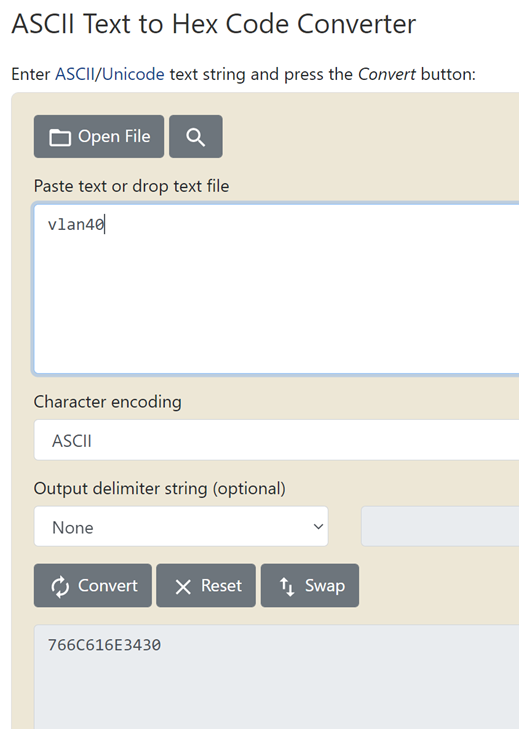
- The value to be entered has to be in HEX value. Use the online ASCII to HEX converter tool (example https://www.rapidtables.com/convert/number/ascii-to-hex.html) and tick on Prefix or Append wildcard if required.
- For the below example, a HEX value of vlan40 (766C616E3430) and Append wildcard is used. The policy matches vlan40* for Agent Circuit ID that begins with vlan40 and accepts all variations of interfaces.
- Customer can add more. Conditions to match particular interfaces if needed or use Agent Remote ID or Subscriber ID. It is up to the customer to configure the appropriate DHCP conditions.
- Add IP Range, Server Options, and DNS configuration if needed and click OK.
- Make sure switch has a Relay Agent IP Address (that is VLAN IP) matching with one of the configured DHCP scopes. In this example, the Relay Agent IP Address is 10.0.40.200 which is part of Scope 10.0.40.0/24 range. Windows article also refers Relay Agent IP Address as Gateway IP Address (GIADDR).
- Expand Scope, right click Policies and select New Policy.
- Enter the scope Name and Description and select Next.
- On Conditions, select Add.
- Set Criteria to Relay Agent Information, leave Operator on default Equals.
- Select Agent Circuit ID. The value format depends on the switch model and OS used. For example: Dell OS10 sends Circuit ID vlan40-ethernet1/1/29 for a Client personal computer connected at port 1/1/29 with access vlan 40 (see screenshot).
- The value to be entered has to be in HEX value. Use the online ASCII to HEX converter tool (example https://www.rapidtables.com/convert/number/ascii-to-hex.html) and tick on Prefix or Append wildcard if required.
- For the below example, a HEX value of vlan40 (766C616E3430) and Append wildcard is used. The policy matches vlan40* for Agent Circuit ID that begins with vlan40 and accepts all variations of interfaces.
- Customer can add more. Conditions to match particular interfaces if needed or use Agent Remote ID or Subscriber ID. It is up to the customer to configure the appropriate DHCP conditions.
- Add IP Range, Server Options, and DNS configuration if needed and click OK.
Example Screenshots
Windows DHCP Scope
Example of DHCP Policy Condition configuration
Example of packet capture showing DHCP Option 82 Circuit ID
Example of ASCII to HEX conversion
https://www.rapidtables.com/convert/number/ascii-to-hex.html

Additional Information
Introduction to DHCP policies
https://docs.microsoft.com/en-us/previous-versions/windows/it-pro/windows-server-2012-r2-and-2012/dn425039(v =ws.11)
DHCP Subnet selection options
https://docs.microsoft.com/en-us/windows-server/networking/technologies/dhcp/dhcp-subnet-options
Affected Products
N Series, PowerSwitch, S Series, C Series, HS Series, Modular Infrastructure, Rack Servers, Tower Servers, Microsoft Windows Server 2016, Microsoft Windows Server 2019, Microsoft Windows Server 2022, Microsoft Windows 2008 Server R2
, Microsoft Windows 2008 Server Service Pack 2, Microsoft Windows 2012 Server, Microsoft Windows 2012 Server R2, Poweredge C4140, PowerEdge C6400, PowerEdge C6420, PowerEdge C6520, PowerEdge C6525, PowerEdge C6600, PowerEdge C6615, PowerEdge C6620, PowerEdge FC640, PowerEdge M640, PowerEdge M640 (for PE VRTX), PowerEdge M7701, PowerEdge M7725, PowerEdge MX5016s, PowerEdge MX7000, PowerEdge MX740C, PowerEdge MX750c, PowerEdge MX760c, PowerEdge MX840C, PowerEdge R240, PowerEdge R250, PowerEdge R260, PowerEdge R340, PowerEdge R350, PowerEdge R360, PowerEdge R440, PowerEdge R450, PowerEdge R470, PowerEdge R540, PowerEdge R550, PowerEdge R570, PowerEdge R640, PowerEdge R6415, PowerEdge R650, PowerEdge R650xs, PowerEdge R6515, PowerEdge R6525, PowerEdge R660, PowerEdge R660xs, PowerEdge R6615, PowerEdge R6625, PowerEdge R670, PowerEdge R740, PowerEdge R740XD, PowerEdge R740XD2, PowerEdge R7415, PowerEdge R7425, PowerEdge R750, PowerEdge R750XA, PowerEdge R750xs, PowerEdge R7515, PowerEdge R7525, PowerEdge R760, PowerEdge R760XA, PowerEdge R760xd2, PowerEdge R760xs, PowerEdge R7615, PowerEdge R7625, PowerEdge R770, PowerEdge R7715, PowerEdge R7725, PowerEdge R840, PowerEdge R860, PowerEdge R940, PowerEdge R940xa, PowerEdge R960, PowerEdge T140, PowerEdge T150, PowerEdge T160, PowerEdge T340, PowerEdge T350, PowerEdge T360, PowerEdge T40, PowerEdge T440, PowerEdge T550, PowerEdge T560, PowerEdge T640
...
Article Properties
Article Number: 000197179
Article Type: How To
Last Modified: 02 Apr 2025
Version: 2
Find answers to your questions from other Dell users
Support Services
Check if your device is covered by Support Services.