VxRail: How to find the product-serial number tag of a VxRail node
Summary: This article provides different methods to find the product-serial number tag (PSNT) of a node.
This article applies to
This article does not apply to
This article is not tied to any specific product.
Not all product versions are identified in this article.
Instructions
There are two identification tags on your appliance:
- The VxRail appliance-serial number: You can find the serial number in VxRail Manager or printed on the information tag. The product-serial number tag (PSNT) is a 14-digit number that is used to identify your appliance to Dell support.
- The Service Tag: You can find the Service Tag printed on the physical appliance. The service tag is a 7-digit service tag number.
Only use the VxRail appliance-serial number to contact Customer Support. The service tag number is required.
Method 1: Finding the PSNT from VxRail Plugin.
- Go to the VxRail cluster > Configure > VxRail hosts > check PSNT for the host.
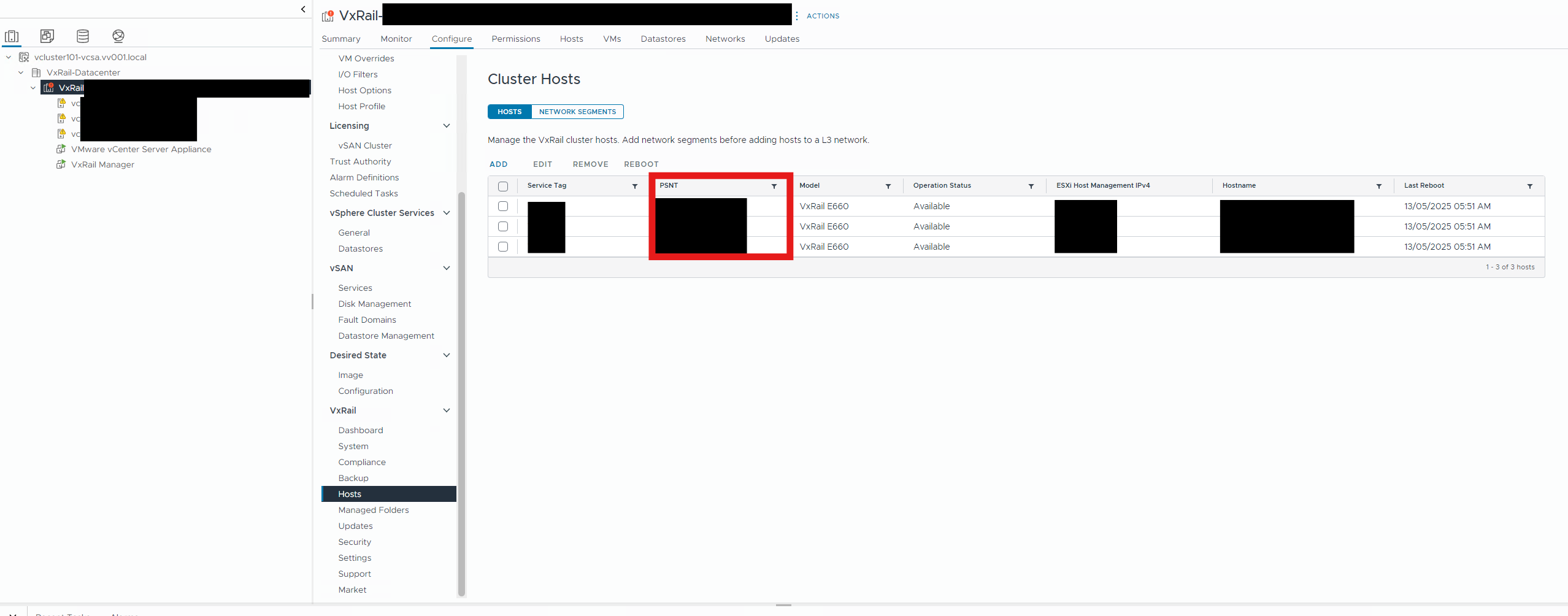
Method 2: Finding the PSNT from the iDRAC.
- Open the iDRAC for the Node.
- Open the Virtual console.
- The black screen has the PSNT written in it.
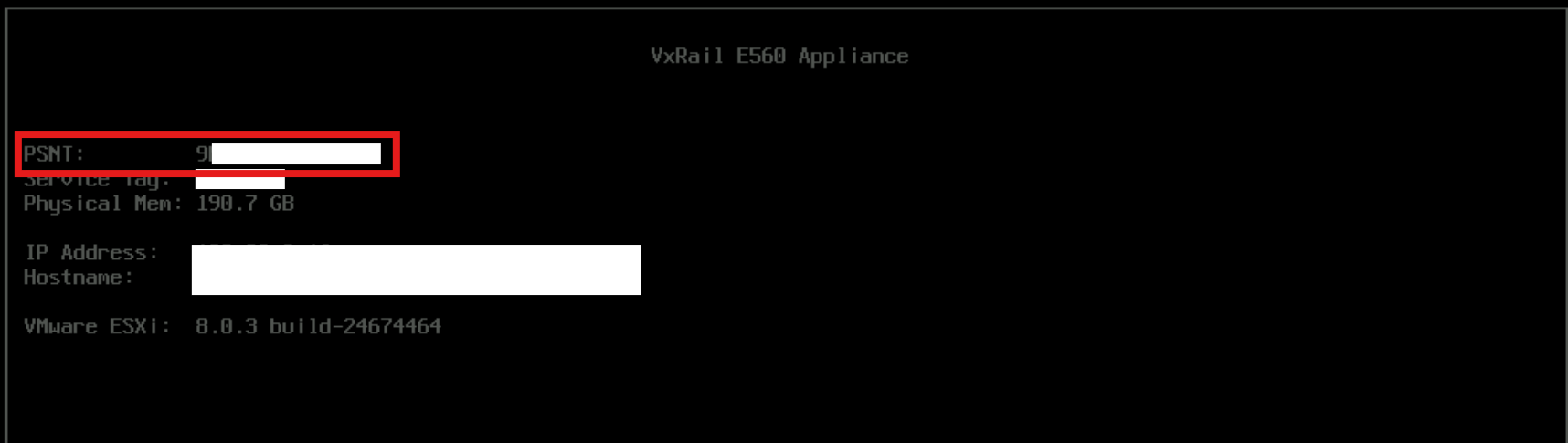
Method 3: Finding the PSNT from VxRail Manager Virtual Machine (VM).
- SSH to VxRail VM as mystic user and then
SUto root - Run the command:
psql -U postgres vxrail -c "select * from node.node";
Method 4: Finding the Model and PSNT from the ESXi Console.
- Once you are in the console for the VxRail appliance, run the following command to get both the Model and PSNT.
opt/dell/DellPTAgent/tools/ipmitool_static fru print 17 - If the location of the
ipmitoolchanges in a future version, run the following command to get the new location.find /* -name ipmitool_static - If you are only looking for the PSNT, run the following command. The first section of the Local Datastore name on each VxRail Appliance includes the 14-digit PSNT.
df -h
Method 5: Finding the PSNT from the Physical Node.
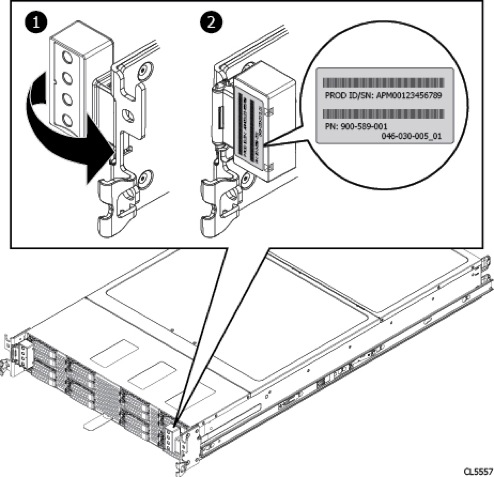
See the VxRail Product Guide.
https://dl.dell.com/content/docu67901_VxRail-Appliance-3.0-Product-Guide.pdf
- At the front of your VxRail Appliance, locate drives 2 and 3 on the left-side of the chassis.
- Pull out the blue-tabbed tag that is located above drives 2 and 3.
- Locate the appliance-serial number label on the pull-out tag.
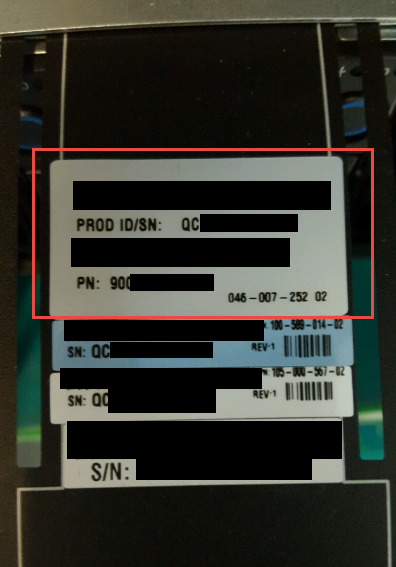
Additional Information
How To Find The Product Serial Number Tag Of A Node For VxRail
Duration: 00:05:47 (hh:mm:ss)
When available, closed caption (subtitles) language settings can be chosen using the CC icon on this video player.
YouTube video link: VxRail: How to find the Product Serial Number Tag of a Node
Affected Products
VxRail, VxRail Appliance Series, VxRail G Series Nodes, VxRail D Series Nodes, VxRail D560, VxRail D560F, VxRail E Series Nodes, VxRail E460, VxRail E560, VxRail E560 VCF, VxRail E560F, VxRail E560F VCF, VxRail E560N, VxRail E560N VCF, VxRail E660
, VxRail E660F, VxRail E660N, VxRail E665, VxRail E665F, VxRail E665N, VxRail G560, VxRail G560 VCF, VxRail G560F, VxRail G560F VCF, VxRail P Series Nodes, VxRail P470, VxRail P570, VxRail P570 VCF, VxRail P570F, VxRail P570F VCF, VxRail P580N, VxRail P580N VCF, VxRail P670F, VxRail P670N, VxRail P675F, VxRail P675N, VxRail S Series Nodes, VxRail S470, VxRail S570, VxRail S570 VCF, VxRail S670, VxRail Software, VxRail V Series Nodes, VxRail V470, VxRail V570, VxRail V570 VCF, VxRail V570F, VxRail V570F VCF, VXRAIL V670F, VxRail VD-4000R, VxRail VD-4000W, VxRail VD-4000Z, VxRail VD-4510C, VxRail VD-4520C, VxRail VD Series Nodes, VxRail VE-660, VxRail VE-6615, VxRail VP-760, VxRail VP-7625, VxRail VS-760
...
Article Properties
Article Number: 000197326
Article Type: How To
Last Modified: 13 May 2026
Version: 12
Find answers to your questions from other Dell users
Support Services
Check if your device is covered by Support Services.