PowerStore: How to use PowerStore X without requiring vCenter admin privileges
Summary: The article explains how to use PowerStore X without requiring vCenter admin privileges.
This article applies to
This article does not apply to
This article is not tied to any specific product.
Not all product versions are identified in this article.
Instructions
Summary
This procedure explains how to use PowerStore X without requiring vCenter admin privileges.
After the procedure is completed, the PowerStore X will be fully operational. All PowerStore X features, except for those listed below, are supported, including NDU, without needing admin privileges.
- Management Network Reconfigure (MNR),
- Storage Network Reconfiguration (SNR),
- vCenter Migration
Overview
Two new Roles are created in the vCenter to enable the creation of a PowerStore X without requiring vSphere admin privileges:
- PSTX-Admin
- A copy of the Administrator role, to be applied for a specific user at the DataCenter level of the PowerStore X installation.
- The "Privileges” of this Role include all the available roles in the vCenter.
- The role name "PSTX-Admin" is an example. Use any appropriate role name.
- Storage Views
- This is a new role set at the vCenter level and applied to a specific user,
- The "Privileges” of this Role include access to the configure service and to view the Storage Providers (VASA),
- The role name "Storage Views" is an example. Use any appropriate role name.
Procedure
Prerequisite: ICW has completed successfully, and the PowerStore X cluster has been created.- Create a new user. Open the vCenter and navigate to Menu > Administration > Single Sign On > Users and Groups
- Select the desired domain. Note: vsphere.local is the default domain of the SSO. Should the customer have a different domain name, or using AD/LDAP, this name should be used instead.
- Click Add.
- Enter the necessary information for the creation of this new user:
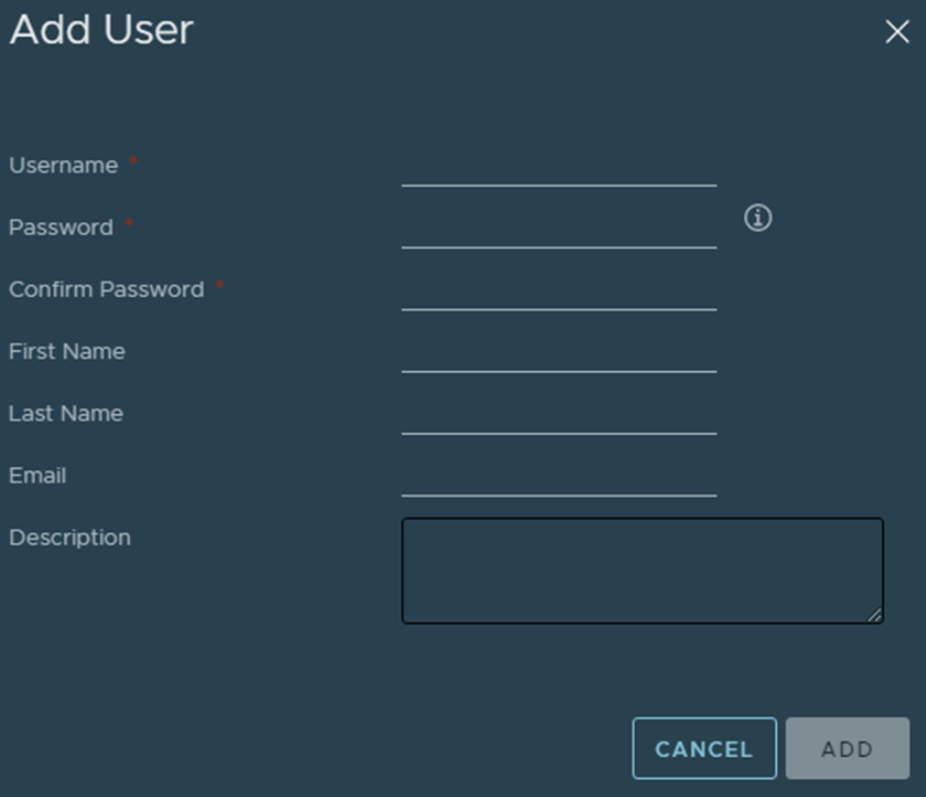
- Navigate to Menu > Administration > Access Control > Roles
- Find the Administrator role, select it, and click "Clone”.
- Rename the Role, and a Description, if desired.
- In the case of this role, it is important that all possible privileges be selected.
- Create a new Role on the same page in the vCenter.
- This role should have only the Storage views permissions available and selected:
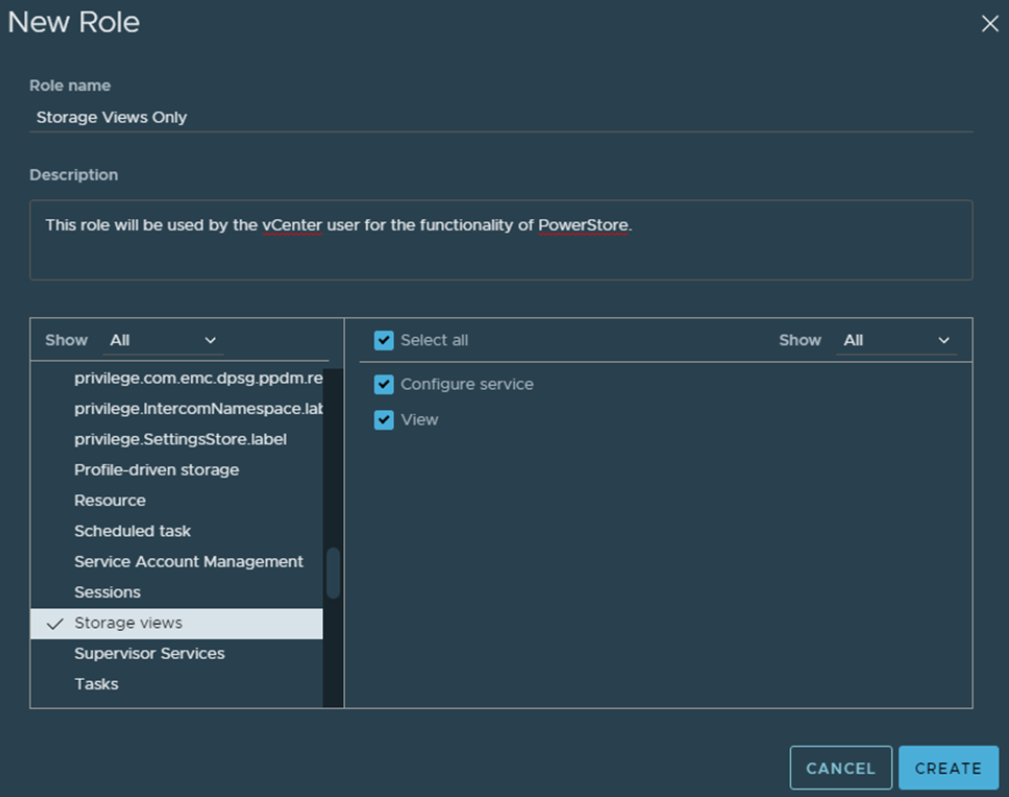
- Navigate to the Menu > Inventory page,
- Select the vCenter level of the inventory tree.
- Navigate to the Permissions tab.
- Click the add button.
- Leave the domain field alone so that desired domain is shown, as selected in step 2. The default domain is the vsphere.local domain.
- In the User / Group field, type the name of the user created in step 4.
- In the Role field, selected the role created in step 10.
- In the Inventory tree, select the DataCenter of the PowerStore X installation.
- Repeat steps 15 and 16.
- In the Role field, select the role created in steps 6 and 7.
- Next, open the PowerStore Manager. Navigate to Compute > vCenter Server Connection
- There, click the "Update Configuration” button.
- Next, change the vCenter Administrator Username and enter the password.
- Click the Update button.
Affected Products
PowerStore 1000X, PowerStore 3000X, PowerStore 5000X, PowerStore 7000X, PowerStore 9000XArticle Properties
Article Number: 000197527
Article Type: How To
Last Modified: 13 Jun 2025
Version: 3
Find answers to your questions from other Dell users
Support Services
Check if your device is covered by Support Services.