Data Domain Come aggiungere/registrare un sistema Data Domain a un gateway ESRS
Summary: Riepilogo: questo documento descrive in dettaglio la procedura per registrare/aggiungere un sistema Data Domain al gateway ESRS.
This article applies to
This article does not apply to
This article is not tied to any specific product.
Not all product versions are identified in this article.
Instructions
CLI:
Il dispositivo viene registrato nel gateway ESRS.
GUI: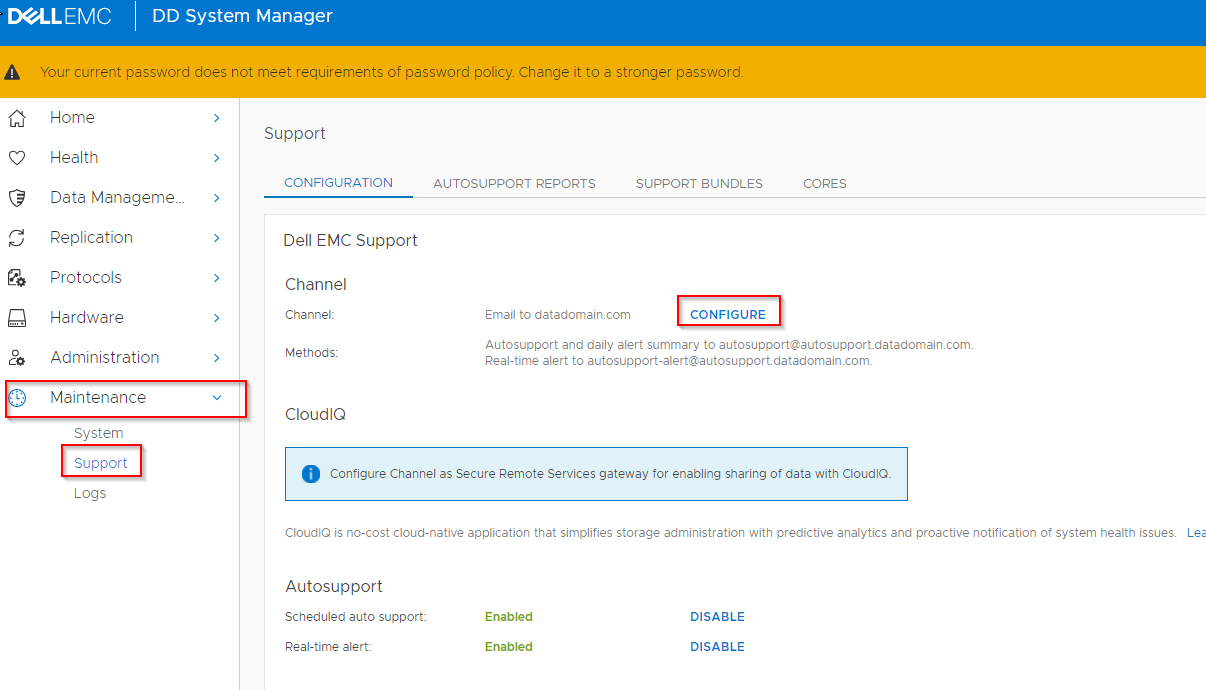
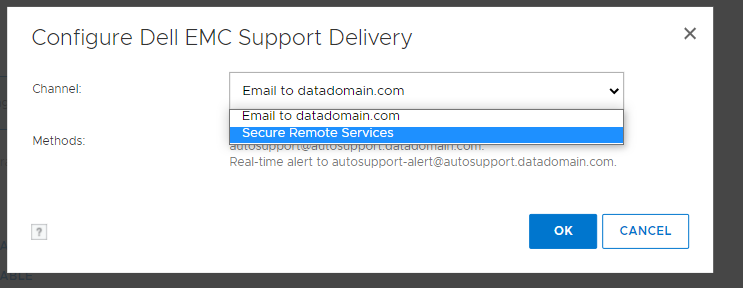
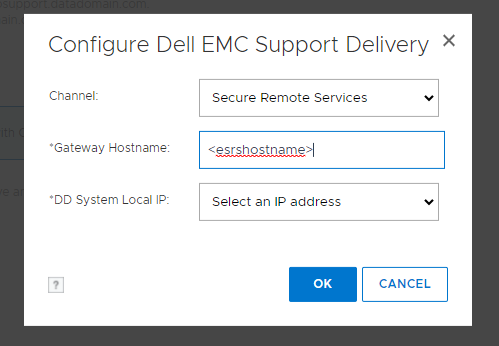
Se si verificano errori durante il processo, acquisire uno screenshot degli errori e aprire una Service Request con il supporto.
- Accedere tramite SSH/PuTTY nel sistema Data Domain come sysadmin
- Controllare la configurazione corrente.
- # support notification method show
- # support connectemc config show
- Registrare DD su ESRS
- # support connectemc device register <DDR IP> esrs-gateway <the ESRS GW hostname>
- Vengono richiesti il nome utente e la password di Service Link. È possibile utilizzare le credenziali del supporto del cliente (ovvero le stesse credenziali utilizzate per il sito del Supporto Dell).
- Esempio di output:
- # support connectemc device register <DDR IP> esrs-gateway <the ESRS GW hostname>
# support connectemc device register 10.10.10.10 esrs-gateway myesrsgw01
Enter Service Link username: admin
Enter Service Link password: <nulla visualizzato durante la digitazione>
Enter Service Link username: admin
Enter Service Link password: <nulla visualizzato durante la digitazione>
Il dispositivo viene registrato nel gateway ESRS.
- Dopo la registrazione, controllare nuovamente la configurazione e impostare il metodo di notifica per connectemc.
- # support connectemc config show
- Esempio di output:
- # support connectemc config show
# support connectemc config show
ConnectEMC Configuration:
ESRS gateway IP/hostname: myesrsgw01
Registered device IP(s): 10.10.10.10
ConnectEMC Configuration:
ESRS gateway IP/hostname: myesrsgw01
Registered device IP(s): 10.10.10.10
-
- # support notification method set connectemc
- # support notification method show
- Testare la connessione.
- # support connectemc test
- Esempio di output:
- # support connectemc test
# support connectemc test
Sending test message through ConnectEMC...
Test message successfully sent through ConnectEMC.
Sending test message through ConnectEMC...
Test message successfully sent through ConnectEMC.
GUI:
- Maintenance > Support > Configure Channel
- Selezionare "Secure Remote Services"
- Inserire il nome host ESRS e selezionare un IP DD
- Inserire le credenziali Service Link (ovvero le stesse credenziali utilizzate per il sito del Supporto Dell)
- Registrazione completata
Se si verificano errori durante il processo, acquisire uno screenshot degli errori e aprire una Service Request con il supporto.
Affected Products
Data DomainArticle Properties
Article Number: 000197719
Article Type: How To
Last Modified: 01 Dec 2025
Version: 7
Find answers to your questions from other Dell users
Support Services
Check if your device is covered by Support Services.