How to Perform an Operating System Reinstall of Windows 10 IoT Enterprise LTSC 2021
Summary: Windows 10 IoT Enterprise LTSC 2021 may be reinstalled using a USB drive that is supplied by Dell support.
This article applies to
This article does not apply to
This article is not tied to any specific product.
Not all product versions are identified in this article.
Instructions
Affected Platforms:
- OptiPlex 3000 Thin Client
- OptiPlex All-in-One 7410
- OptiPlex All-in-One 7420
- OptiPlex Micro 7010
- OptiPlex Micro 7020
- Latitude 3440
- Latitude 5440
- Latitude 5450
Affected Operating Systems:
- Windows 10 IoT Enterprise LTSC 2021
Reinstalling the Windows 10 IoT Enterprise LTSC 2021 Operating System
To reinstall the operating system:
- Connect the thin client to a power source.
- Connect the USB drive that is supplied by Dell support to the thin client.
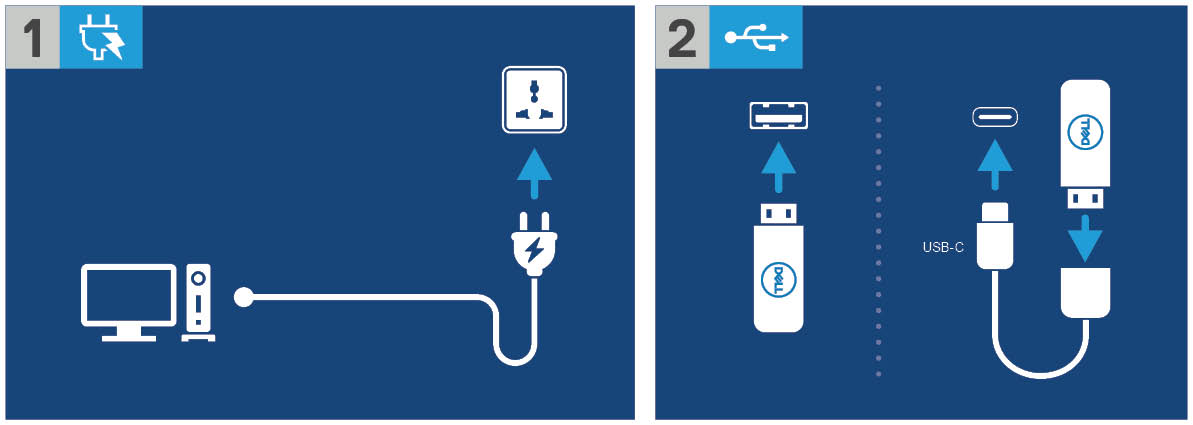
Figure 1: Connect to power source and connect the USB drive
- Power on the device and then tap the F12 key.
- Select USB Storage Device from the Boot Menu.
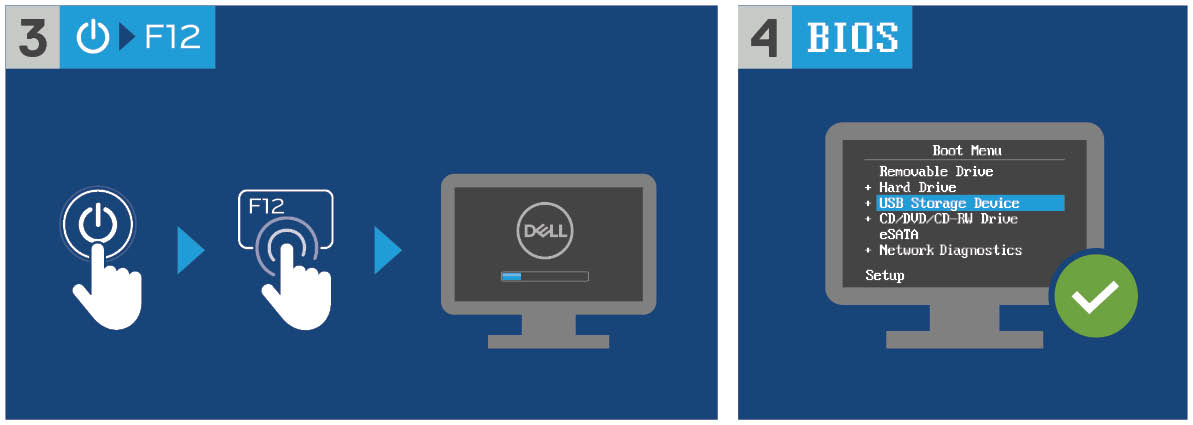
Figure 2: Power on the device and tap F12 key and select USB Storage Device
- Select the operating system image.
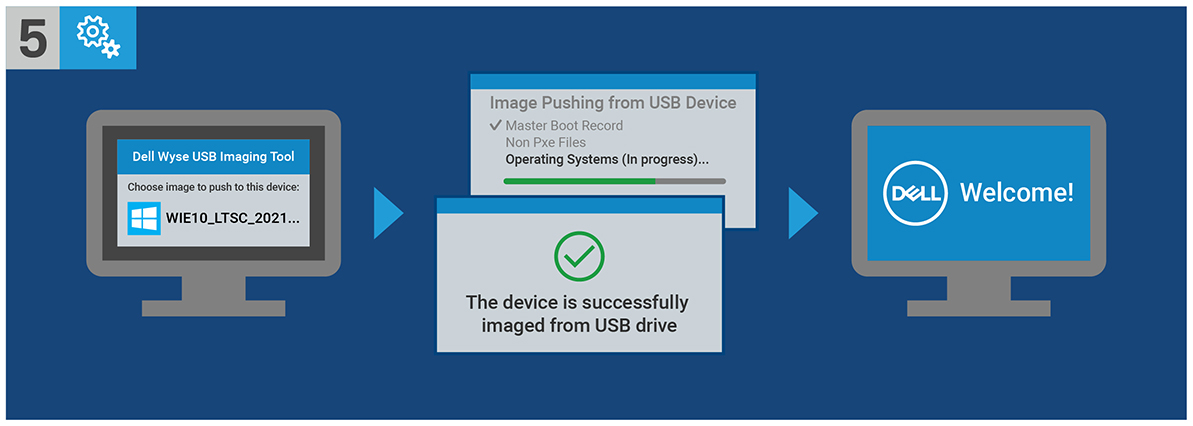
Figure 3: (English Only) Select the operating system image
Note: After the installation is complete, the Windows 10 IoT Enterprise LTSC 2021 operating system boots. Ensure to remove the USB drive before booting.
Affected Products
Latitude 3440, Latitude 5440, Latitude 5450, OptiPlex 3000 Thin Client, OptiPlex Micro 7010, OptiPlex Micro 7020, OptiPlex All-In-One 7410, OptiPlex All-in-One 7420Article Properties
Article Number: 000198584
Article Type: How To
Last Modified: 14 Apr 2025
Version: 15
Find answers to your questions from other Dell users
Support Services
Check if your device is covered by Support Services.