Connectivity Issue with Alienware Tri-Mode Wireless Gaming Headset Using USB-C Dongle
Summary: The following article provides information about a connection problem using the USB Type-C dongle with the Alienware Tri-Mode Wireless Gaming Headset. (AW920H)
This article applies to
This article does not apply to
This article is not tied to any specific product.
Not all product versions are identified in this article.
Symptoms
You may experience an unstable connection when using your Alienware Tri-Mode Wireless Gaming Headset (AW920H). This happens when connecting the headset to your device using the USB Type-C dongle. This can result in audio dropping while in use. (For example: In games, music, calls, and so on.)
Cause
This section is not applicable to this article.
Resolution
Remember the following two checks to resolve this issue with connecting the USB Type-C dongle to your computer:
- Ensure that there is a direct line of sight (or few obstacles) between the dongle and the headset.
- Ensure that the latest firmware is being used with your AW920H headset and its USB Type-C dongle.
There are two different methods on updating to the latest versions of the firmware available in the steps listed below:
Alienware Tri-Mode Wireless Gaming Headset (AW920H) and Dongle
- Connect the AW920H headset to your computer sing the provided USB cable.
- Connect the USB Type-C dongle to your device.
- Go to: AW920H Drivers & Downloads page on Dell.com
- Download the file named Alienware Command Center Application.
- Install the application and follow the instructions on-screen.
- Run the application Alienware Command Center.
- Go to the FX page, select Settings, and Alienware AW920H.

- Select Update and update the Headset Version.
- Follow the instructions on-screen.
- Wait for the firmware update to finish.
- Do NOT disconnect the AW920H headset during the Firmware update.
- Select Update and update the Dongle Version.
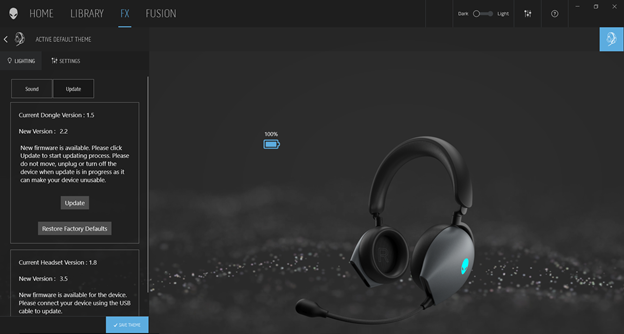
- Follow the instructions on-screen.
- Wait for the firmware update to finish.
- Do NOT disconnect the AW920H USB Type-C dongle during the Firmware update.
- Exit the Alienware Command Center.
- The firmware update is successful.
First for the Alienware Tri-Mode Wireless Gaming Headset (AW920H)
- Connect the AW920H headset to your computer using the provided USB cable.
- Go to: AW920H Drivers & Downloads page on Dell.com
- Download the file named AW920H Audio driver.
- Extract all the files to a location of your choice.
- Run the application titled AW920HFWUpdate.
- Select Start Updating and follow the instructions on-screen.
- Wait for the firmware update to finish and displays the message. Updating: Success
- Do NOT disconnect AW920H during Firmware update.
- Exit the application.
- The firmware update is successful.
Then for the Alienware Tri-Mode Wireless Gaming Headset (AW920H) Dongle
- Connect the USB Type-C dongle to your computer.
- Go to: AW920H Drivers & Downloads page on Dell.com
- Download the file named AW920H Dongle Firmware.
- Extract all the files to a location of your choice.
- Run the application titled AW920H FW Update.
- Select Start Updating and follow the instructions on-screen.
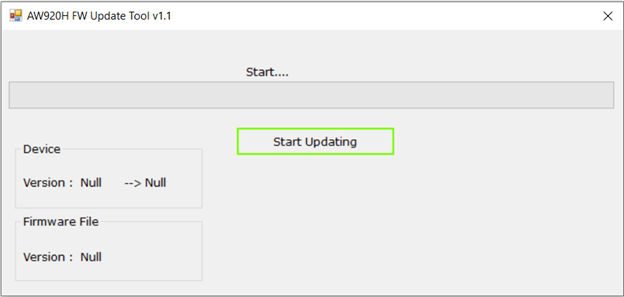
- Wait for the firmware update to finish and displays the message. Updating: Success
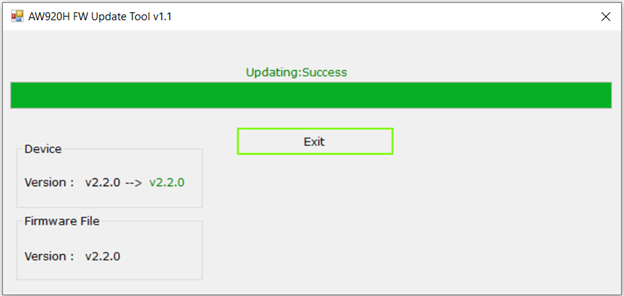
- Do NOT disconnect AW920H USB Type-C dongle during Firmware update.
- Exit the application.
- The firmware update is successful.
Affected Products
Alienware Tri-Mode Wireless Gaming Headset AW920HArticle Properties
Article Number: 000198924
Article Type: Solution
Last Modified: 25 Nov 2024
Version: 3
Find answers to your questions from other Dell users
Support Services
Check if your device is covered by Support Services.