Windows Server:PowerShell を使用した Active Directory GPO 管理
Summary: 以下の手順では、特定のWindows Active Directoryドメインで見つかったGPOのリストを収集するために使用できるPowerShellコマンドの例を示します。 TSDOMAINです。Localは、以下のコマンドの例であり、GPO情報を収集するドメイン名に置き換える必要があります。
This article applies to
This article does not apply to
This article is not tied to any specific product.
Not all product versions are identified in this article.
Instructions
次の手順では、Windows PowerShellを使用してActive DirectoryのWindowsグループ ポリシー オブジェクトを管理します。
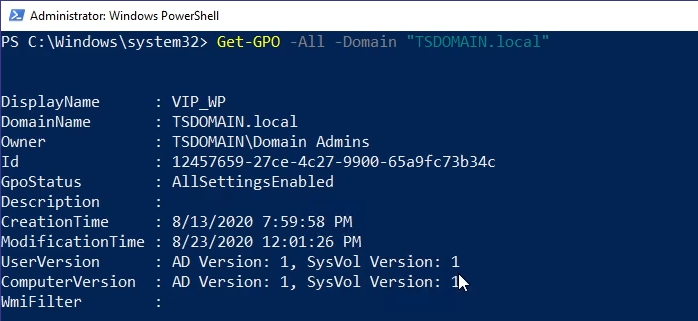


- 次のコマンド例では、指定されたドメインで見つかったすべてのGPOを返します。
Get-GPO -All -Domain “TSDOMAIN.local”
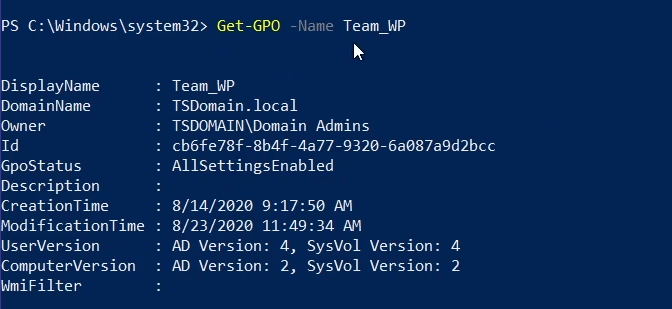
Get-GPOを使用して、特定の GPO の一般的な情報を返すことができます。次の例では、"Team_WP" GPO の一般的な情報を返します。
Get-GPO -Name Team_WP
- GPO 情報は、GPO の GUID ID を照会することで返すことができます。コマンドの例を次に示します。
Get-GPO -Guid cb6fe78f-8b4f-4a77-9320-6a087a9d2bcc -Domain “TSDOMAIN.local”
Get-GPOReportコマンドを実行すると、見つかったすべてのドメイン GPO の包括的なレポートが返され、レビュー用に HTML 形式で情報がコンパイルされます。
Get-GPOReport -All -Domain “TSDOMAIN.Local” -ReportType HTML -Path “C:\GPOReports\GPOReportsAll.html”
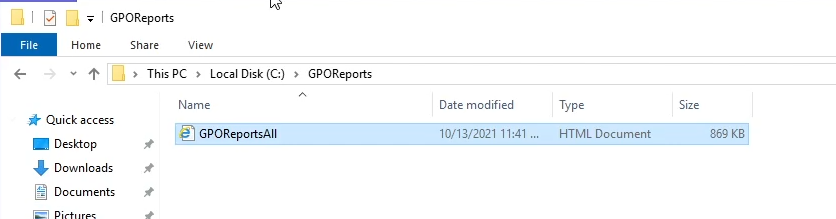
- 実行後
Get-GPOReportHTMLファイルは、上記のコマンドで指定したファイルパスに作成されます。
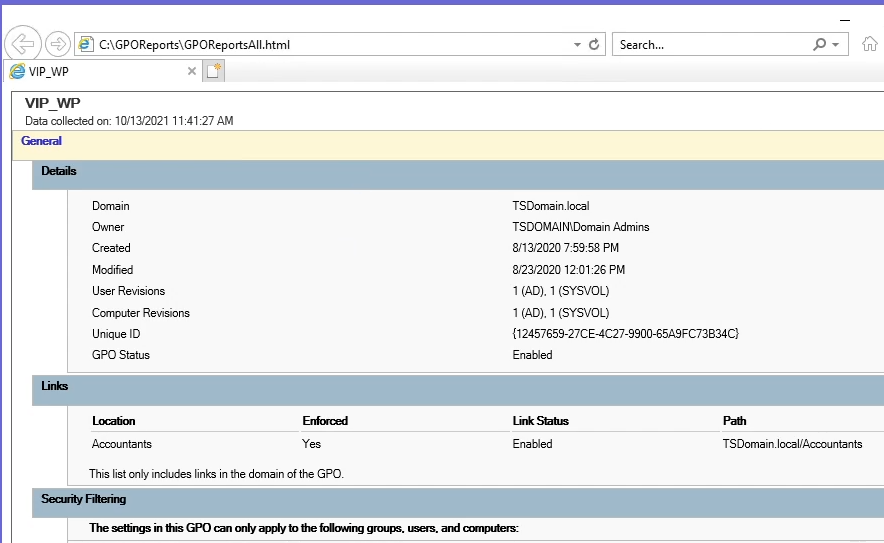
- ファイルを開くと、ブラウザー ページとして表示され、見つかったすべてのドメインGPOに関する広範な詳細が表示されます。
Additional Information
次のビデオをご覧ください。
Affected Products
Microsoft Windows Server 2016, Microsoft Windows Server 2019, Microsoft Windows Server 2022Products
PowerEdge XR2, PowerEdge FC640, PowerEdge M640, PowerEdge M640 (for PE VRTX), PowerEdge MX5016s, PowerEdge MX740C, PowerEdge MX750c, PowerEdge MX760c, PowerEdge MX840C, PowerEdge R240, PowerEdge R250, PowerEdge R260, PowerEdge R340, PowerEdge R350
, PowerEdge R360, PowerEdge R440, PowerEdge R450, PowerEdge R540, PowerEdge R550, PowerEdge R640, PowerEdge R6415, PowerEdge R650, PowerEdge R650xs, PowerEdge R6515, PowerEdge R6525, PowerEdge R660, PowerEdge R660xs, PowerEdge R6615, PowerEdge R6625, PowerEdge R740, PowerEdge R740XD, PowerEdge R740XD2, PowerEdge R7415, PowerEdge R7425, PowerEdge R750, PowerEdge R750XA, PowerEdge R750xs, PowerEdge R7515, PowerEdge R7525, PowerEdge R760, PowerEdge R760XA, PowerEdge R760xd2, PowerEdge R760xs, PowerEdge R7615, PowerEdge R7625, PowerEdge R840, PowerEdge R860, PowerEdge R940, PowerEdge R940xa, PowerEdge R960, PowerEdge T140, PowerEdge T150, PowerEdge T160, PowerEdge T340, PowerEdge T350, PowerEdge T360, PowerEdge T440, PowerEdge T550, PowerEdge T560, PowerEdge T640, PowerEdge XR11, PowerEdge XR12
...
Article Properties
Article Number: 000200551
Article Type: How To
Last Modified: 05 Sep 2025
Version: 9
Find answers to your questions from other Dell users
Support Services
Check if your device is covered by Support Services.