PowerEdge: MX7000 How to Reset a Management Module
Summary: Platform training video that covers how to reset a Management Module (MM) in OpenManage Enterprise Modular (OME-M).
This article applies to
This article does not apply to
This article is not tied to any specific product.
Not all product versions are identified in this article.
Instructions
How to Reset Management Module on Your MX7000 Chassis
Duration: 00:02:26 (hh:mm:ss)
When available, closed caption (subtitles) language settings can be chosen using the CC icon on this video player.
Overview:
When performing a reset of a Management Module (MM), if the customer has a single MM configuration, this performs a reboot of the single MM. When performing an MM reset in a dual MM configuration, the active MM reboots, and a failover occurs, causing the standby MM to become active. An MM "reset" in a dual MM configuration performs the same function as the "failover" option listed under Chassis > More Actions > Failover.
Before performing a reset on an MM, check to see which MM is active and which MM is in standby by going to Devices > Chassis. From this page, select the chassis that you would like to view, and go to Hardware > Management Module.
Verify that the MMs are redundant and healthy and that MM firmware versions match before proceeding with an MM reset. This is important as if either scenario exists, OME-M configuration data could be lost.
Below, you can see that the MM in slot 1 is active, and the MM in slot 2 is the standby MM.
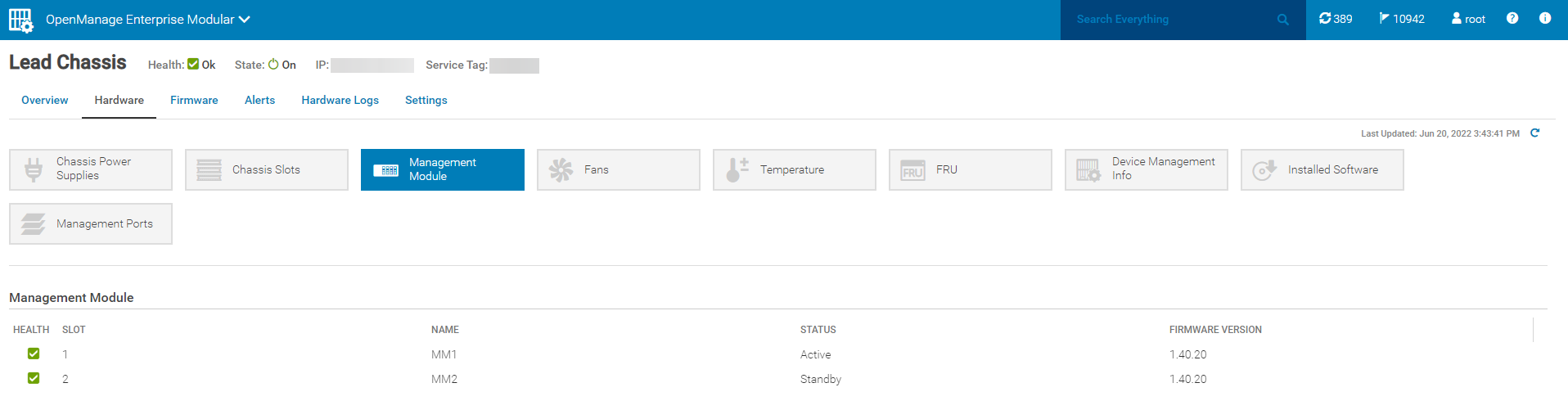
Steps on how to reset the active MM:
- Go to Devices > Chassis and select the chassis you would like to reset the MM on.
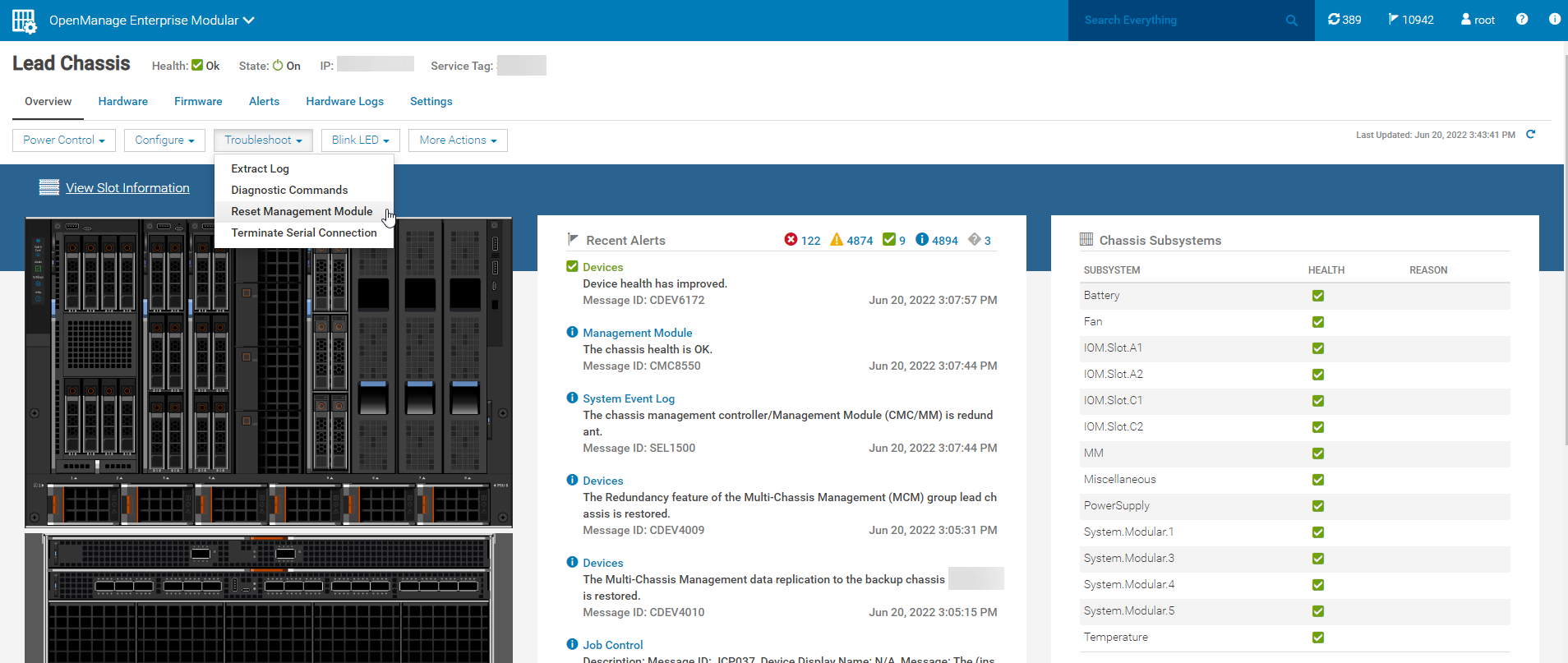
- On the chassis' page, go to Troubleshoot > Reset Management Module.
- Select Yes to proceed.
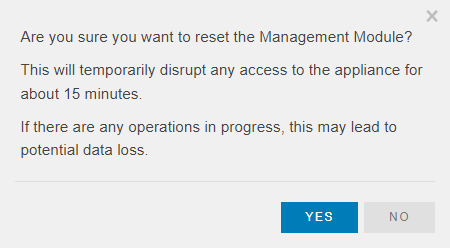
- After selecting Yes, you will be logged out of OME-M.
- You can set up a continuous ping to OME-M with:
ping <chassisIP> -t - Once the active MM reboots, the ping requests time out.
- In a dual MM configuration, a failover occurs. Once ICMP ping replies are received again, you may access OME-M once more. Confirm that the passive MM has taken over as the now active MM. (It is normal to see no value for the standby MM firmware for a few more minutes.)
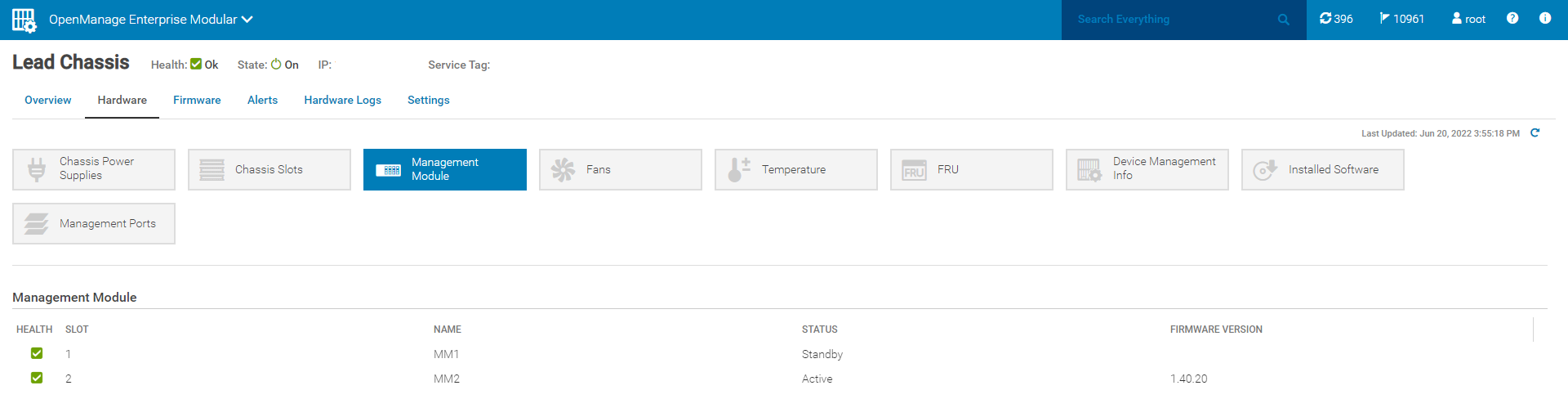
- Go the chassis page. Under Devices > Chassis, Recent Alerts show multiple inventory refresh jobs. The Job Queue page in Monitor > Jobs also shows multiple inventory refresh jobs, by changing the Source filter from User Generated to System Generated. After inventory refreshes, alerts will indicate that MM redundancy is restored. Eventually, the lead chassis health shows a status of OK when an alert appears stating,
Device Health has Improved. The last item to change, is the alert under MM in the Chassis Subsystems section on the right side of the chassis page, which disappears.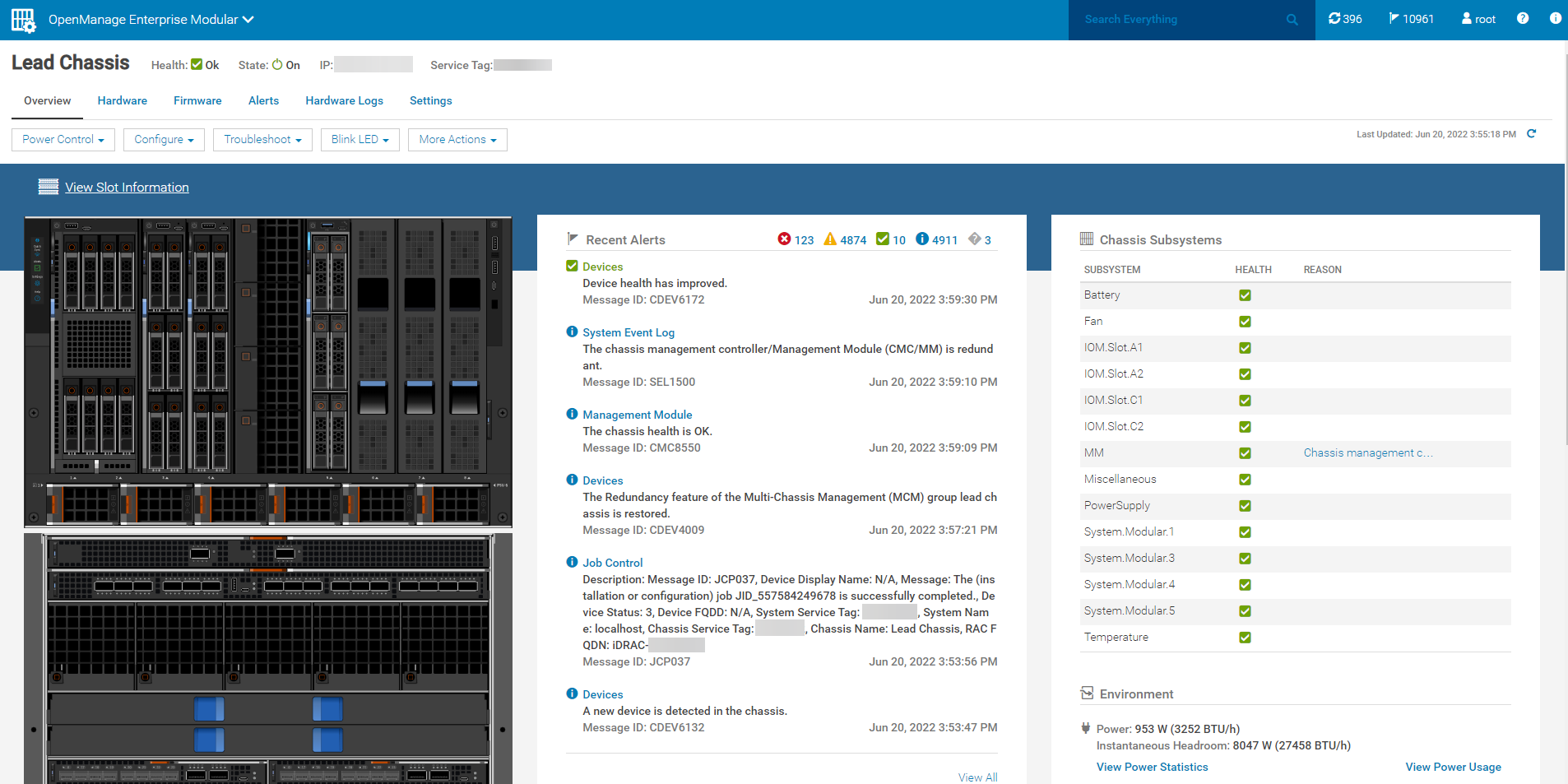
- The chassis health shows a status of OK. The alert under MM in the Chassis Subsystems section on the right side of the chassis page disappears. The MM reset process is complete. The user may proceed with other chassis related tasks.
Affected Products
Dell OpenManage Enterprise-Modular, PowerEdge MX7000Article Properties
Article Number: 000200779
Article Type: How To
Last Modified: 12 Feb 2025
Version: 9
Find answers to your questions from other Dell users
Support Services
Check if your device is covered by Support Services.