Sådan laver du gendannelse af adgangskode til OS10-system
Summary: I nogle situationer kan brugere glemme adgangskoden til både OS10-bruger "admin" og Linux-bruger "linuxadmin", hvilket resulterer i, at brugere ikke kan logge ind på OS10.
This article applies to
This article does not apply to
This article is not tied to any specific product.
Not all product versions are identified in this article.
Instructions
Hvis den lokale administrator ikke indstiller andre systemadministrationsbrugere (OS10- og Linux-brugere), skal adgangskodegendannelse forsøges for adgang.
Vedligeholdelse Windows skal være planlagt til gendannelse af adgangskode, fordi switchen skal genstartes flere gange (tre eller flere) under aktiviteten.
OS10-brugervejledningen har en lignende procedure til at løse denne situation under "Fejlfinding af OS10". Hvis både OS10-bruger- (admin) og Linux-admin (linuxadmin) adgangskoder er blevet glemt, skal linuxadmin-adgangskoden først gendannes fra GRUB.
Derefter kan OS10-brugeradgangskoden (admin) gendannes af linuxadmin fra Linux-kernen.
Hvis kun OS10-brugeradgangskoden (admin) er blevet glemt, er handlingen enklere, da der ikke kræves nogen konsol. Log ind via SSH eller Telnet på Linux-kernen med linuxadmin, og nulstil derefter administratorbrugeradgangskoden.
Trin 1 Tilslut til den serielle konsolport.
Indstil de serielle indstillinger 115200 baudrate, 8 databit og ingen paritet.
Genstart kontakten ved at slukke for kontakten og derefter tænde for kontakten.
Trin 2 Tryk på E , mens du henter nedenstående output for at åbne OS10 GRUB-editormenuen:
Vedligeholdelse Windows skal være planlagt til gendannelse af adgangskode, fordi switchen skal genstartes flere gange (tre eller flere) under aktiviteten.
OS10-brugervejledningen har en lignende procedure til at løse denne situation under "Fejlfinding af OS10". Hvis både OS10-bruger- (admin) og Linux-admin (linuxadmin) adgangskoder er blevet glemt, skal linuxadmin-adgangskoden først gendannes fra GRUB.
Derefter kan OS10-brugeradgangskoden (admin) gendannes af linuxadmin fra Linux-kernen.
Hvis kun OS10-brugeradgangskoden (admin) er blevet glemt, er handlingen enklere, da der ikke kræves nogen konsol. Log ind via SSH eller Telnet på Linux-kernen med linuxadmin, og nulstil derefter administratorbrugeradgangskoden.
Bemærk: I denne vejledning viser vi handlingen under version 10.5.4.0 og 10.5.0.6 som en demo, i dit tilfælde skal du kontrollere din kørende version med kunden.
Du skal anvende vedligeholdelsesvinduet for at udføre følgende handlinger, da du har genstartet switchen flere gange (tre eller flere) under gendannelse af adgangskoden.
Du skal anvende vedligeholdelsesvinduet for at udføre følgende handlinger, da du har genstartet switchen flere gange (tre eller flere) under gendannelse af adgangskoden.
Bemærk: Proceduren SKAL udføres med konsolforbindelse.
Trin 1 Tilslut til den serielle konsolport.
Indstil de serielle indstillinger 115200 baudrate, 8 databit og ingen paritet.
Genstart kontakten ved at slukke for kontakten og derefter tænde for kontakten.
Trin 2 Tryk på E , mens du henter nedenstående output for at åbne OS10 GRUB-editormenuen:

Bemærk: For forskellige versioner får du muligvis en anden GRUB-editormenu.
Hvis det er en nyere version, siger 10.5.2.x eller nyere, ses nedenstående.
Hvis det er en nyere version, siger 10.5.2.x eller nyere, ses nedenstående.

Hvis det er en ældre version, f.eks. 10.5.0.x eller tidligere, ses nedenstående.

Trin 3 Foretag følgende ændringer for at indstille opstartsadfærd:
Hvis det er en nyere version, f.eks. 10.5.2.x eller nyere, skal du bruge piletasterne til at flytte til slutningen af linjen, der har set os_debug_args=, og tilføj derefter init=/bin/bash til slutningen.

Hvis det er en ældre version, f.eks. 10.5.0.x eller tidligere, skal du bruge piletasterne til at flytte til slutningen af linjen, der starter med "linux", og derefter tilføje init=/bin/bash i slutningen af linjen.

Genstart kontakten ved at trykke på Ctrl + x eller Alt + 0 (0 er nummer nul). Systemet starter op i root shell (OS10 linux-kerne) UDEN adgangskode.
Hvis det er en nyere version, skal du sige 10.5.2.x eller nyere:
Booting a command list
Loading OS10 ...
AF,
DXE_EXIT_BOOT_SERVICES(03101019)
B0, B1, [    1.193068] intel_rapl: driver does not support CPU family 6 model 77
bash: cannot set terminal process group (-1): Inappropriate ioctl for device
bash: no job control in this shell
root@OS10:/#

Hvis det er en ældre version, skal du f.eks. 10.5.0.x eller tidligere:

Trin 4: Kontroller Linux-brugerens status for "linuxadmin":
root@OS10:/#
root@OS10:/# cat /etc/passwd | grep linuxadmin
linuxadmin:x:1000:1000:,,,:/home/linuxadmin:/bin/bash      ------// if there's NO "/bin/bash", reset it with below command,
root@OS10:/#
root@OS10:/# usermod -s /bin/bash linuxadmin      ------// reset the login shell mode,
usermod: no changes      ------// it's already correct, so no changes,
root@OS10:/#
Kontroller, om Linux-brugeren "linuxadmin" er låst, og lås den op, hvis den er.
root@OS10:/#
root@OS10:/# passwd -S linuxadmin
linuxadmin L 07/22/2022 0 99999 7 -1      ------// 'L' means user locked,
root@OS10:/#
root@OS10:/# passwd -u linuxadmin       ------// unlock the user,
passwd: password expiry information changed.
root@OS10:/#
root@OS10:/# passwd -S linuxadmin      ------// check again, it's correct user status,
linuxadmin P 07/22/2022 0 99999 7 -1
root@OS10:/#
Trin 5: Nulstil adgangskoden til Linux-brugeren "linuxadmin."
root@OS10:/#
root@OS10:/# passwd linuxadmin      ------// reset user "linuxadmin" password,
New password: <reset password with the user name : linuxadmin>
Retype new password: <retype new password : linuxadmin>
passwd: password updated successfully
root@OS10:/#
root@OS10:/# sync      ------// synchronize system to save the new password,
root@OS10:/#
After password recovery done, please remember to reset the linuxadmin password manually
in running-configurations later as below :
OS10(config)# system-user linuxadmin password [retype your new password]
OS10(config)# exit
OS10# write memory
OS10#

Another preferred method is to use script as below :
Notes : the script will also update the new linuxadmin password in "startup.xml".

If the OS10 version is 10.5.1.0, then run the following command.
root@OS10: /# sed -ibak '31,41s/^/#/g' /opt/dell/os10/
bin/recover_linuxadmin_password.sh

Configure the password by using the script command :
root@OS10:/# /opt/dell/os10/bin/recover_linuxadmin_password.sh [plainpassword]
Notes: Enter the linuxadmin password in plain text.
For example :
root@OS10:/# /opt/dell/os10/bin/recover_linuxadmin_password.sh P@ssw0rd123!
root@OS10:/#
root@OS10:/# sync      ------// synchronize system to save the new password,
root@OS10:/#
Trin 6: Tving genstart af systemet igen.
root@OS10:/#
root@OS10:/# reboot -f       ------// force switch to reboot,
Rebooting.
[  417.428659] reboot: Restarting system
15, 00068001, 19, 00068000,
BIOS Boot Selector for S4100
Version 3.33.0.1-12
...<output omitted>...

Then try login with Linux user "linuxadmin" and new password "linuxadmin" as below.
OS10 login: linuxadmin
Password: linuxadmin
Linux OS10 4.19.208 #1d SMP Debian 4.19.208-1 x86_64
...<output omitted>...
linuxadmin@OS10:~$
   ------// login to the kernel shell mode directly, password recovered successfully to the default (the same as user name),
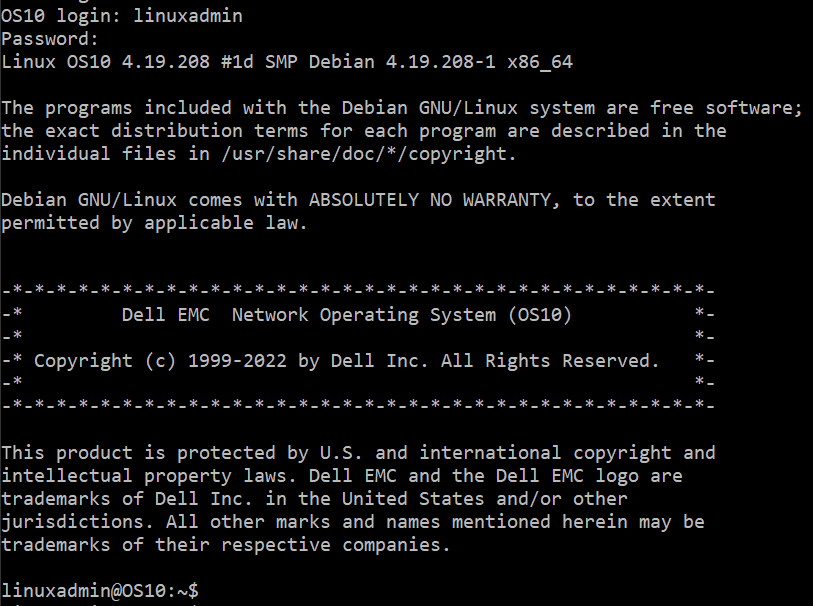
Log ind på Linux-kernen med brugeren "linuxadmin".
Trin 7: Nulstil adgangskoden til OS10-brugeren "admin".
linuxadmin@OS10:~$
linuxadmin@OS10:~$ sudo -i      ------// get the root permission,
We trust you have received the usual lecture from the local System
Administrator. It usually boils down to these three things:
    #1) Respect the privacy of others.
    #2) Think before you type.
    #3) With great power comes great responsibility.
[sudo] password for linuxadmin:
root@OS10:~#

root@OS10:~# passwd -S admin      ------// check and make sure user status, not locked,
admin P 07/25/2022 0 99999 7 -1
root@OS10:~#

root@OS10:~# cat /etc/passwd | grep admin
...<output omitted>...
admin:x:1003:997::/config/home/admin:/opt/dell/os10/bin/clish
      ------// check the shell mode and make sure it's "/opt/dell/os10/bin/clish",
root@OS10:~#

Reset password,
root@OS10:~#
root@OS10:~# passwd admin
New password: <reset the password with user name : admin>
BAD PASSWORD: it is too short
BAD PASSWORD: is too simple
Retype new password: <retype the password : admin>
passwd: password updated successfully
root@OS10:~#
Trin 8: Afslut og prøv at logge ind med brugeren "admin".
OS10 login: admin
Password: admin
Last login: Mon Jul 25 05:21:56 UTC 2022 on ttyS0
Linux OS10 4.19.208 #1d SMP Debian 4.19.208-1 x86_64
...<output omitted>...
%Warning : Default password for admin account should be changed to secure the system
%Warning : Default password for linuxadmin account should be changed to secure the system.
OS10#
   ------// login to the OS10 shell mode, password recovered successfully to the default (the same as user name),

Log på OS10-shellen med brugeren "admin".
Bemærk %Advarselslogfiler, du skal indstille en ny adgangskode efter eget valg. Husk den nye adgangskode.
Trin 9 Indstil en ny adgangskode som brugere eller administrator.
OS10#
OS10# configure terminal
OS10(config)#
OS10(config)# service simple-password      ------// this is optional, if want to set simple password.
OS10(config)#
OS10(config)# username admin password <input customer's password> role sysadmin
OS10(config)#
OS10(config)# system-user linuxadmin <input customer's password> linuxadmin
OS10(config)#
OS10(config)# end
OS10# write memory      ------// save changed configuration, DO NOT forget the new password !!!!
OS10#
Affected Products
SmartFabric OS10 SoftwareProducts
PowerSwitch, Dell EMC Networking MX5108n, Dell EMC Networking MX9116nArticle Properties
Article Number: 000201897
Article Type: How To
Last Modified: 04 Dec 2025
Version: 9
Find answers to your questions from other Dell users
Support Services
Check if your device is covered by Support Services.