VxRail: SFP, 트랜시버, 케이블 식별 절차
Summary: 이 문서에서는 VxRail 노드의 SFP 트랜시버에서 하나 이상의 파트 번호와 유형을 찾는 방법에 대해 자세히 설명합니다. 연결된 네트워크 케이블이 DAC(Direct Attach Copper)인지 확인하는 데 도움이 될 수 있습니다. 이 문서에서는 라이브 지원 세션 중에 또는 로그 내에서 정보를 찾는 방법에 대한 예를 제공합니다. ...
This article applies to
This article does not apply to
This article is not tied to any specific product.
Not all product versions are identified in this article.
Instructions
iDRAC(및 해당 로그 - TSR)를 사용하여 네트워크 트랜시버의 유형, 공급업체 및 파트 번호를 확인하는 방법:
방법 1: iDRAC UI
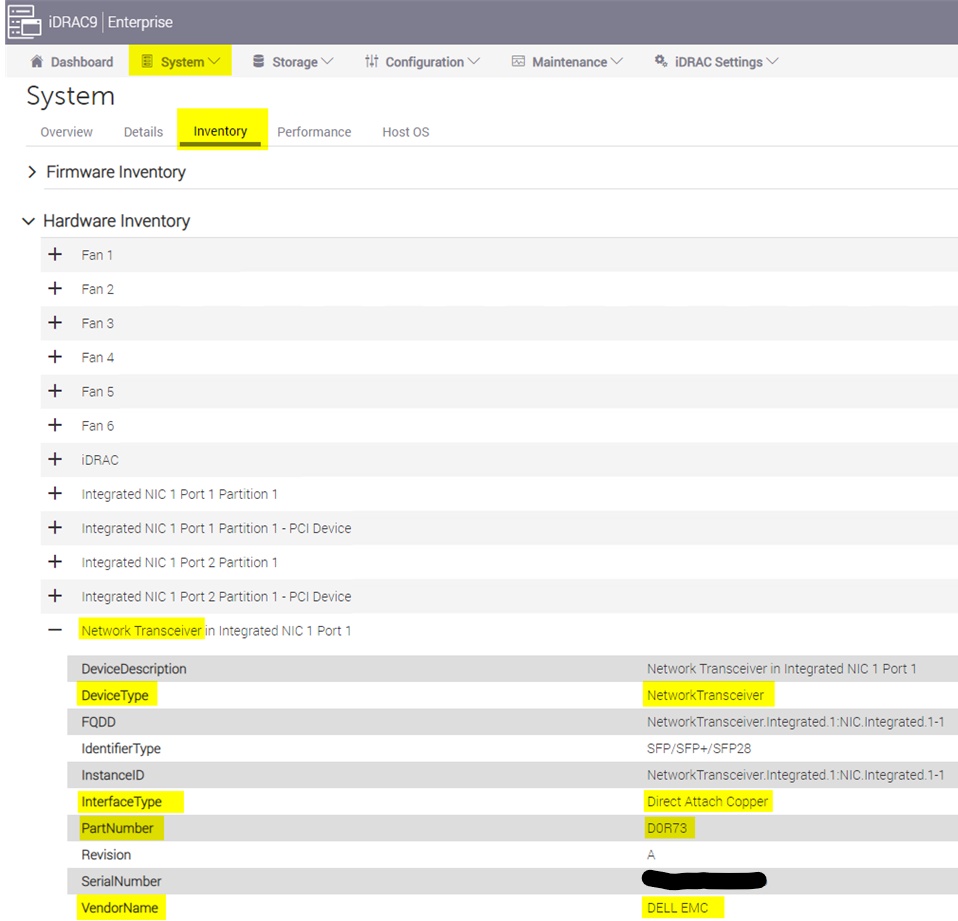
- 노드의 iDRAC UI에 로그인하고 SystemInventoryHardware >> InventoryNetwork Transceiver > 로 이동합니다.
- 여기에서 InterfaceType, PartNumber, VendorName 등을 확인합니다.
예:
방법 2: iDRAC CLI - racadm:
- 다음 명령을 사용하여 iDRAC의 IP 주소에 직접 연결하거나 VxRail 노드의 CLI에서 SSH를 통해 수행합니다.
ssh root@169.254.0.1
- racadm CLI에서 다음 명령을 실행합니다.
racadm hwinventory
- 출력에서 키워드 트랜시버를 검색합니다.
- 여기에서 InterfaceType, PartNumber, VendorName 등을 확인합니다.
예:
racadm>>racadm hwinventory
…
[InstanceID: NetworkTransceiver.Integrated.1:NIC.Integrated.1-1]
Device Type = NetworkTransceiver
DeviceDescription = Network Transceiver in Integrated NIC 1 Port 1
FQDD = NetworkTransceiver.Integrated.1:NIC.Integrated.1-1
IdentifierType = SFP/SFP+/SFP28
InstanceID = NetworkTransceiver.Integrated.1:NIC.Integrated.1-1
InterfaceType = Direct Attach Copper
PartNumber = D0R73
Revision = A
SerialNumber = XXXXXXXX
VendorName = DELL EMC
방법 3: iDRAC 로그 번들(SupportAssist - TSR):
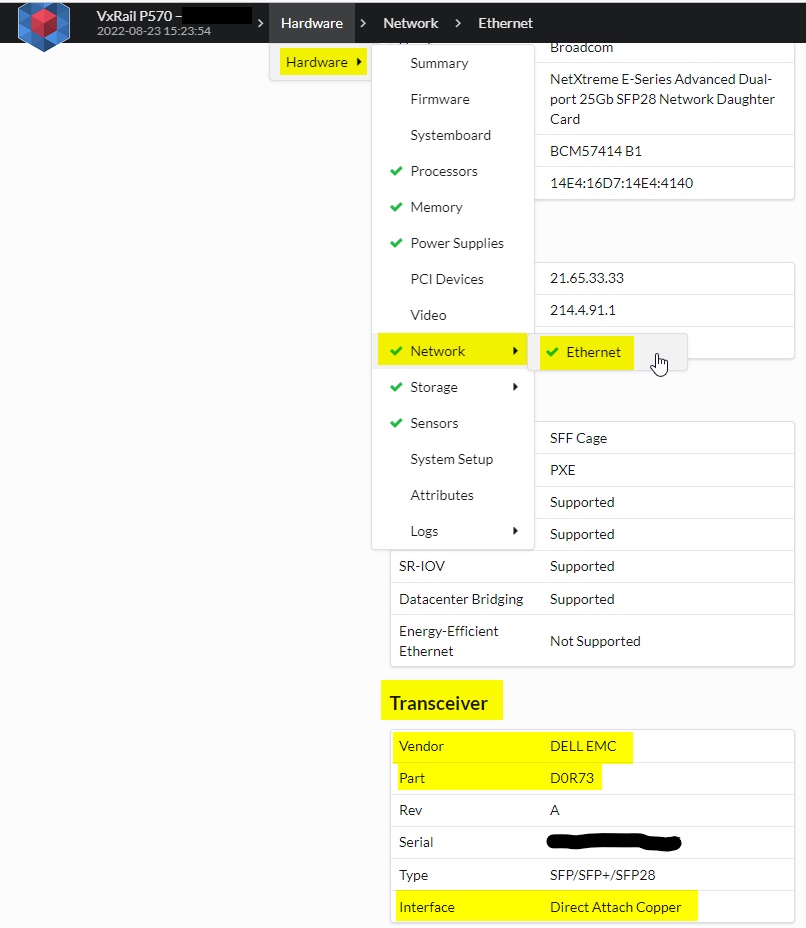
- Tesseract로 TSR을 구문 분석한 후 결과 UI의 하드웨어 > 네트워크 > 이더넷 페이지를 찾아 트랜시버 섹션을 찾습니다.
- 여기에서 InterfaceType, PartNumber, VendorName 등을 확인합니다.
예:
ESXi(및 해당 로그)를 사용하여 네트워크 트랜시버 유형을 확인하는 방법:
방법 1: ESXi CLI
- SSH를 통해 노드에 연결합니다.
- 다음 명령을 실행하여
.txt노드의 파일/tmp디렉토리
/usr/lib/vmware/vm-support/bin/nicinfo.sh > /tmp/nicinfo.sh.txt
- 검색 대상:
/tmp/nicinfo.sh.txt키워드에 대한 파일 케이블 유형
참고: DA = DAC, FIBER = 광 케이블, Twisted Pair = 구리/이더넷
예 1:
NIC:  vmnic1

NICInfo:
   Advertised Auto Negotiation: true
   Advertised Link Modes: Auto, 10000BaseT/Full
   Auto Negotiation: true
   Cable Type: DA
...
예 2:
NIC:  vmnic0

NICInfo:
   Advertised Auto Negotiation: true
   Advertised Link Modes: Auto, 1000BaseSR/Full, 10000BaseSR/Full
   Auto Negotiation: true
   Cable Type: FIBRE
  ...
예 3:
NIC:  vmnic0

NICInfo:
   Advertised Auto Negotiation: true
   Advertised Link Modes: Auto, 1000BaseT/Full, 100BaseT/Full, 100BaseT/Half, 10BaseT/Full, 10BaseT/Half
   Auto Negotiation: true
   Cable Type: Twisted Pair
 ...
방법 2: ESXi 로그 번들 - vm-support
- 위의 방법 1에서 자세히 설명된 것과 동일한 출력이 로그 번들의
/commands/nicinfo.sh.txt파일에 정의된 대로 사용하는 것이 중요합니다.
물리적 Dell 스위치의 CLI를 사용하여 네트워크 트랜시버("Dell Qualified"인 경우)의 유형 또는 폼 팩터를 확인하는 방법:
- SSH를 통해 관리자로 스위치에 연결합니다.
- 다음 명령을 실행합니다.
show inventory media
(이 명령은 운영 체제 9 및 운영 체제 10 모두에서 작동함)
예 1:
Top_TOR>show inventory media
Slot   Port     Type        Media               Serial Number        Dell Qualified
------------------------------------------------------------------------------------
   1      1     SFP+        10GBASE-CU3M          16127xxxx            Yes
   1      2              Media not present or accessible
   1      3     SFP+        10GBASE-CU3M          16144xxxx            Yes
   1      4              Media not present or accessible
...
예 2:
VCF-Bottom-TOR# show inventory media
-----------------------------------------------------------------------------------------------------------------
                                  System Inventory Media
-----------------------------------------------------------------------------------------------------------------
Node/Slot/Port      Form-Factor              Media                    Serial-Number            Qualified
-----------------------------------------------------------------------------------------------------------------
1/1/1               SFP+           SFP+ 10GBASE-CR-2.0M                    CN05CWK60xxxxxC          true
1/1/2               Not Present
...
1/1/17              SFP28          SFP28 25GBASE-CR-2.0M                   CN0LXD000xxxxx5          true
1/1/18              Not Present
...
1/1/53              QSFP28         QSFP28 100GBASE-CR4-0.5M                CN0APX00xxxxxxH          true
1/1/54              Not Present
Cisco Nexus 스위치의 CLI를 사용하여 네트워크 트랜시버의 파트 번호를 확인하는 방법:
- SSH를 통해 관리자로 스위치에 연결합니다.
- 다음 명령을 실행합니다.
show interface Ethernet X/X transceiver details
예:
switch# show interface ethernet 1/1 transceiver details
Ethernet1/1
     transceiver is present
     type is 10Gbase-SR
     name is CISCO-SOMETHING
     part number is SPP5100SR-C1
...
Affected Products
VxRail, VxRail 460 and 470 Nodes, VxRail Appliance Series, VxRail D Series Nodes, VxRail D560, VxRail D560F, VxRail E Series Nodes, VxRail E460, VxRail E560, VxRail E560FProducts
VxRail G Series Nodes, VxRail E560N, VxRail E660, VxRail E660F, VxRail E660N, VxRail E665, VxRail E665F, VxRail E665N, VxRail G560, VxRail G560F, VxRail P Series Nodes, VxRail P470, VxRail P570, VxRail P570F, VxRail P580N, VxRail P670F, VxRail P670N
, VxRail P675F, VxRail P675N, VxRail S Series Nodes, VxRail S470, VxRail S570, VxRail S670, VxRail Software, VxRail V Series Nodes, VxRail V470, VxRail V570, VxRail V570F, VXRAIL V670F, VxRail VD-4510C, VxRail VD-4520C, VxRail VD Series Nodes, VxRail VE-660, VxRail VE-6615, VxRail VP-760, VxRail VP-7625, VxRail VS-760
...
Article Properties
Article Number: 000202677
Article Type: How To
Last Modified: 23 May 2025
Version: 8
Find answers to your questions from other Dell users
Support Services
Check if your device is covered by Support Services.