PowerProtect and IDPA: DP4400 Failure detected on Internal Dual SD Module SD 1/2
Summary: For DP4400, the Internal Dual Secure Digital (SD) Module (IDSDM) may report as failed. As the SD card is not in use for DP4400 (Gen14, R740xd) models, other than factory, the IDSDM can be disabled to prevent this alert from appearing again. The steps below show how to disable the "Internal SD Card Port" in the iDRAC. A system reboot is required. No SD card replacement is needed. ...
This article applies to
This article does not apply to
This article is not tied to any specific product.
Not all product versions are identified in this article.
Instructions
A similar error message is found in the Dell PowerEdge Technical Support Report (TSR) log:
OR you may see similar errors on the Server Console: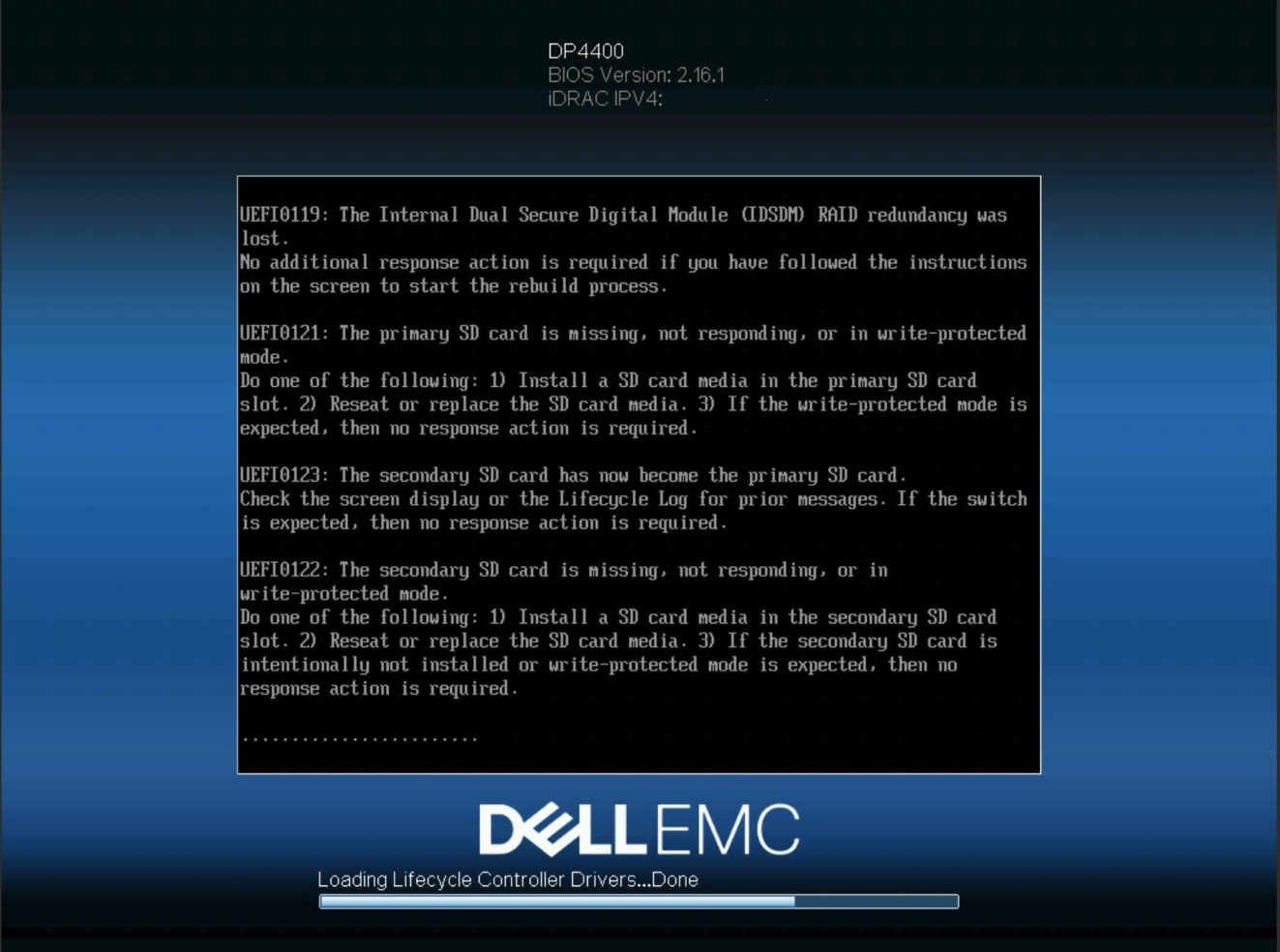
Or Similar Errors in the LifeCycle log in IDRAC: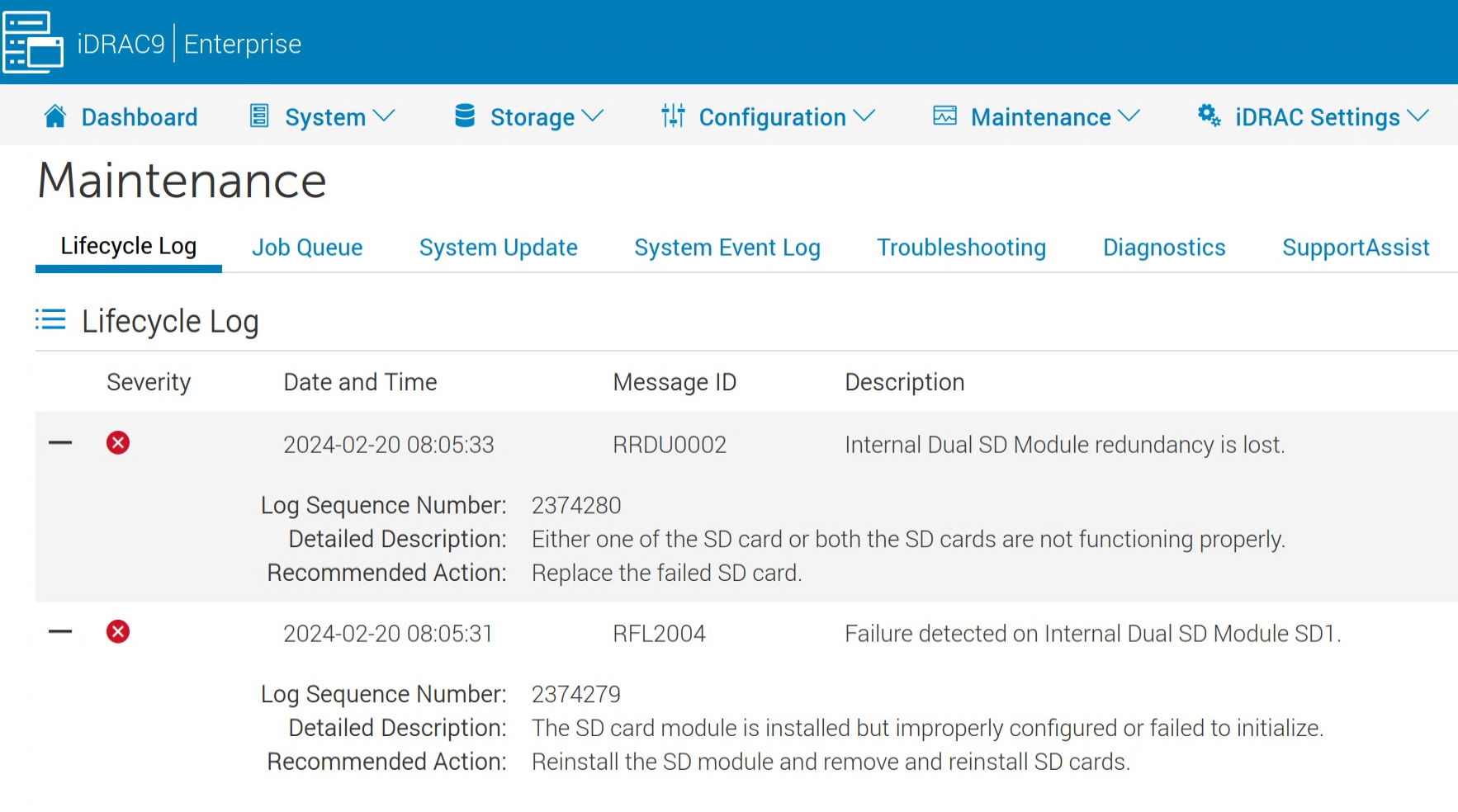
NOTE: This procedure is applicable to DP4400 only.
DO NOT apply the same procedure on other models, DP5x00, or DP8x00.
DO NOT apply the same procedure on other models, DP5x00, or DP8x00.
To disable the IDSDM, log in to the iDRAC, then go to Configuration > BIOS Settings > Integrated Devices, update the "Internal SD Card Port" as "Off" and "Apply" the configuration.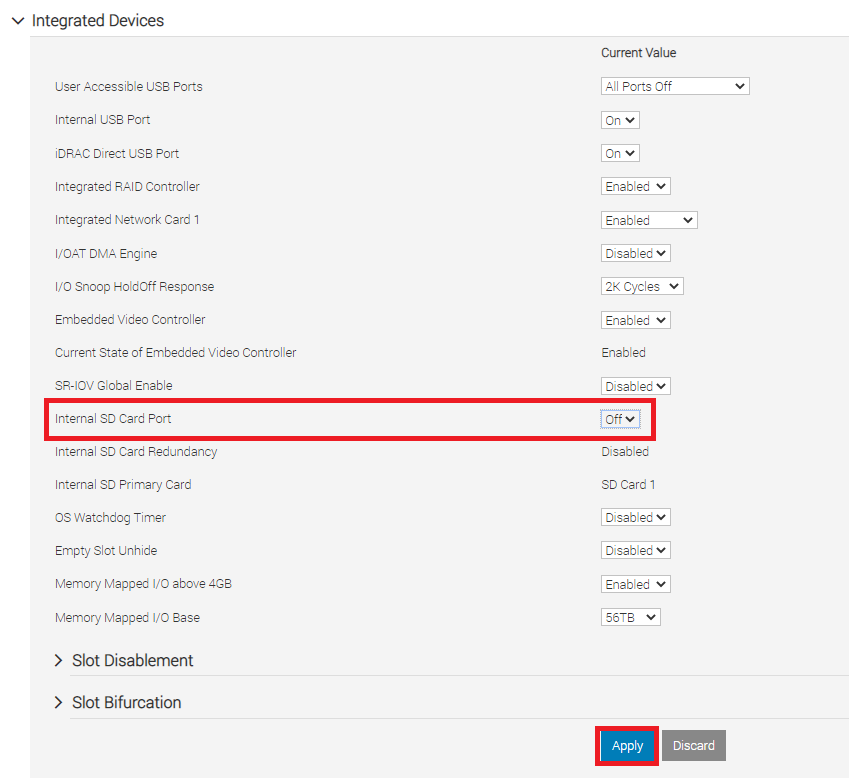
NOTE: If you are getting the Alerts or Errors and the option to Disable Internal SD is not present, then it could indicate a legitimate issue with the IDSDM module. Contact DELL Support for further assistance in that instance.
At the bottom of the page:
- Select "At Next Reboot," if the DP4400 is still up and running, then shut down the DP4400 from ACM.
IDPA: Proper shutdown process for the Integrated Data Protection Appliance
NOTE: Selecting "Apply and Reboot," only if the DP4400 has been previously shut down and the system is ready for a reboot.

A pending job is added to the Job Queue: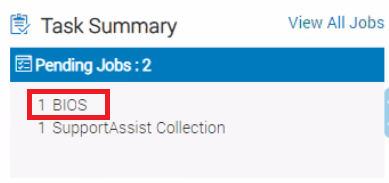
Properly shut down and then restart the DP4400 so that the configuration can take effect.
To properly shut down a DP4400, the instructions from the "Service Procedures Guide for DP4400 " can be found under the "Shut down the PowerProtect Data Protection Series Appliance" section.
In short, in the ACM dashboard Home tab, click the Shutdown Appliance icon:
Enter the ACM root password, and click Yes: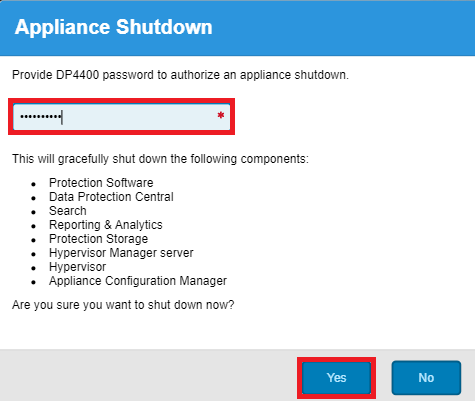
When the DP4400 is shut down, power it on again from the iDRAC page:
When the system starts up completely (the ACM UI shows all the components are green), if the iDRAC still shows an error, reboot the iDRAC:
Maintenance > Diagnostics > Reboot iDRAC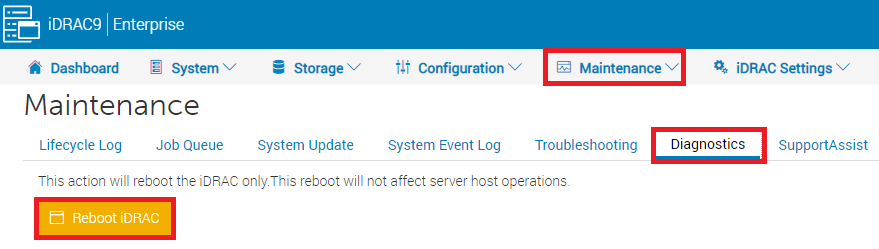
After the iDRAC restarted, it would return to a healthy state: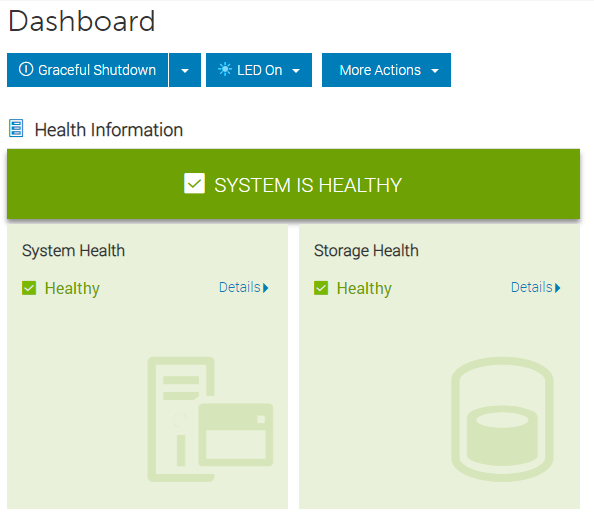
Additional Information
NOTE:
On the R640, the internal SD card is also not in use (rather, it has a BOSS card)
On R630, the ESXi operating system resides on the internal SD cards, so it is critical and cannot be handled in the same way.
On the R640, the internal SD card is also not in use (rather, it has a BOSS card)
On R630, the ESXi operating system resides on the internal SD cards, so it is critical and cannot be handled in the same way.
Affected Products
PowerProtect DP4400Article Properties
Article Number: 000204218
Article Type: How To
Last Modified: 04 Jun 2025
Version: 9
Find answers to your questions from other Dell users
Support Services
Check if your device is covered by Support Services.