PowerFlex: Upgrading15G PowerEdge Running CPLD 1.0.7 Hang During POST Event Code PST0210
Summary: PowerFlex R650 R750 nodes with Complex Programmable Logic Device (CPLD) firmware 1.0.7 or earlier may is unavailable at POST when BIOS 1.8.2 and iDRAC 6.00.30.202 are installed, triggering iDRAC PowerFlex alerts. ...
This article applies to
This article does not apply to
This article is not tied to any specific product.
Not all product versions are identified in this article.
Symptoms
Caution: PowerFlex node must be put in the proper Maintenance Mode before shutdown\reboot PowerFlex: How to Reboot a PowerFlex Node
15G PowerFlex R650 and R750 Custom Node, Appliance, and Rack with CPLD firmware version 1.0.7 (or lower) installed may encounter a hang during POST when updating to RCM, IC, or OpenManage Enterprise (OME) packages that include BIOS 1.8.2 and iDRAC 6.00.30.202 (or newer versions of BIOS and iDRAC).
Note: If you encounter the POST error below, you must immediately run a TSR collection from the iDRAC and check the box to enable Debug Logs before performing any other operation including a reboot. This gives support the BIOS debug log information they must debug further.
- iDRAC Dashboard Error:
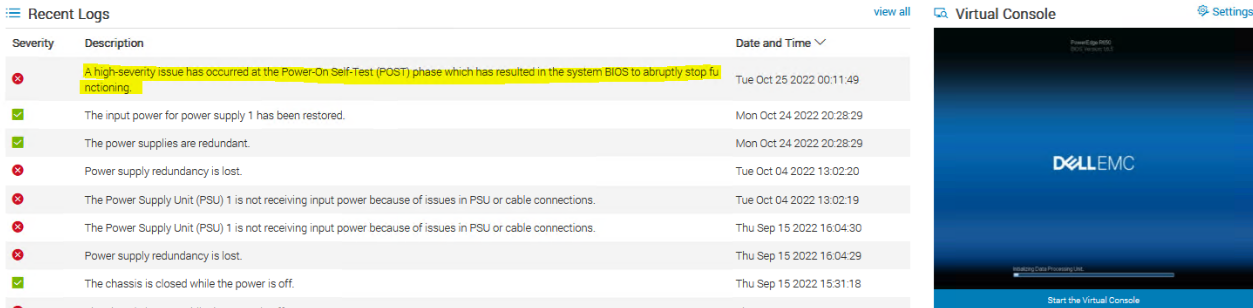
- PowerFlex Manager Alerts Tab Error:

- Life cycle Log Event (seen in TSR log):

Cause
This is an issue with CPLD 1.0.7 (or lower) firmware version that prevents successful deployment and/or installation of RCM, IC, or OpenManage Enterprise (OME) packages that include BIOS 1.8.2 and iDRAC 6.00.30.202 (or newer versions of BIOS and iDRAC).
Resolution
Caution: PowerFlex node must be put in the proper Maintenance Mode before shutdown\reboot PowerFlex: How to Reboot a PowerFlex Node
The CPLD firmware should be updated manually to version 1.0.8 prior to deploying, updating, and or installing BIOS 1.8.2 and iDRAC 6.00.30.202.
*There are prerequisites that must be fulfilled prior to any update to CPLD version 1.0.8.
BIOS version must be at 1.5.5 or higher, before updating CPLD.
iDRAC version must be at 5.10.10.05 or higher, before updating CPLD.
*CPLD must be updated separately and requires a reboot before updating other firmware or software.
Note: If you encounter a POST error on boot after CPLD is upgraded, perform a cold reboot the host a second time to ensure the node boots without error.
CPLD is not included in any RCM, IC and or OpenManage Enterprise (OME) catalog. However, BIOS and iDRAC are in the catalogs.
The catalogs below will require at least one (or more) updates to reach the required minimum BIOS and iDRAC versions necessary to update the CPLD to version 1.0.8.
If the customer system was last updated or deployed from PowerFlex custom node 15G OpenManage Enterprise (OME) Catalog for February 2022, you must update to PowerFlex custom node 15G OpenManage Enterprise (OME) Catalog for May 2022 or later before updating to CPLD version 1.0.8.
*Customer system cannot be updated directly to PowerFlex custom node 15G OpenManage Enterprise (OME) Catalog for January 2023 from PowerFlex custom node 15G OpenManage Enterprise (OME) Catalog for February 2022 (requires multiple updates).
To Update PowerFlex Custom Nodes.
First confirm the current version of CPLD firmware on the node, before performing the update:
- Using iDRAC web UI to confirm current CPLD firmware (requires iDRAC IP address):
- To check if your nodes are affected, log in to each node iDRAC
- - Select: System→Inventory→Firmware Inventory - then scroll down to find "System CPLD"
- Using iDRAC IP through Putty to confirm current CPLD firmware (requires iDRAC IP address):
-
Using iDRAC IP through Windows command prompt for Redfish API to confirm current CPLD firmware:racadm get BIOS.sysinformation.SystemCpldVersion
- username:password: https://<idrac ip>/redfish/v1/UpdateService/FirmwareInventory(Shows all firmware, not just CPLD)
- Cmd>curl -k -u root:xxxxx -X GET https://<idrac ip>/redfish/v1/UpdateService/FirmwareInventory
Once current CPLD firmware version has been confirmed, download the CPLD firmware using this link and update to CPLD version 1.0.8 using the instructions below: PowerEdge CPLD R750/R750xa/R650 Version 1.0.8
For information about updating a single component, see the articles below.
Note: When performing tasks on a node that requires it to be, shut down or restarted, do so gracefully. Operating system upgrades and patches, and other maintenance activities, like part replacement, require shutting down or rebooting a node.
If updating the entire cluster suite (BIOS, Firmware, Driver pack), see the following links for instructions and downloads:
-
Managing PowerFlex Custom Node Using Dell OpenManage Enterprise (Customer Login is needed)
Before attempting any upgrade action, read the following:
-
Ensure that all data is protected by using Protected Maintenance Mode (PMM) for storage only and hyperconverged nodes housing SVMs during the CPLD upgrade process. Place ESXi nodes into Maintenance Mode (MM).
Once the CPLD version is verified and an update is confirmed necessary, follow the steps below to update the CPLD to version 1.0.8:
1. Clear the job queue:
racadm -r <iDRAC_IP> -u root -p <password> jobqueue delete -i ALL2. Show the currently installed CPLD version by pulling the system inventory and filtering down to the CPLD firmware version:
racadm -r <iDRAC_IP> -u root -p <password> swinventory | grep CPLD -A4 | egrep "CPLD|Version"3. Install the CPLD firmware package (note, this may have a slightly different structure depending on where the file is located locally or remotely):
racadm -r <iDRAC_IP> -u root -p <password> update -f CPLD_Firmware_N9YTC_WN64_1.0.8_A00.EXE4. Monitor the job queue for progress and completion of CPLD download to LC:
racadm -r <iDRAC_IP> -u root -p <password> jobqueue view | grep CPLD -B1 -A15. Reboot the server from within the OS.
*Customer system cannot be updated directly to PowerFlex rack release 3.5.7.1 or 3.6.3.1 from PowerFlex rack release 3.5.6.1 or 3.6.2.1 (requires multiple updates).
If the customer system was last updated or deployed from PowerFlex appliance release IC_38.356.00, IC_38.356.01, IC_38.362.00, IC_38.362.01, you must update to PowerFlex appliance release IC_38.356.03, IC_38.362.03 or later before updating to CPLD version 1.0.8.
*Customer system cannot be updated directly to PowerFlex appliance release IC_38.357.01 or IC_38.363.01 from PowerFlex appliance release IC_38.356.00, IC_38.356.01, IC_38.362.00, IC_38.362.01 (requires multiple updates).
To Update PowerFlex Rack and PowerFlex Appliance
First confirm the current version of CPLD firmware on the node, before performing the update:
- Using iDRAC web UI to confirm current CPLD firmware (requires iDRAC IP address):
- To check if your nodes are affected, log in to each node iDRAC
- - Select: System→Inventory→Firmware Inventory - then scroll down to find "System CPLD"
- Using iDRAC IP through Putty to confirm current CPLD firmware (requires iDRAC IP address)
racadm get BIOS.sysinformation.SystemCpldVersion - Using iDRAC IP through Windows command prompt for Redfish API to confirm current CPLD firmware:
-
- username:password: https://<idrac ip>/redfish/v1/UpdateService/FirmwareInventory
- (shows all firmware, not just CPLD)
-
- Cmd>curl -k -u root:xxxxx -X GET https://<idrac ip>/redfish/v1/UpdateService/FirmwareInventory
Once the current CPLD firmware version has been confirmed, download the CPLD firmware using this link and update to CPLD version 1.0.8 using the instructions below: PowerEdge CPLD R750/R750xa/R650 Version 1.0.8
Note: When performing tasks on a node that requires it to be, shut down or restarted, do so gracefully. Operating system upgrades and patches, and other maintenance activities, like part replacement, require shutting down or rebooting a node.
Before attempting any upgrade action, read the following:
-
Ensure that all data is protected by using Protected Maintenance Mode (PMM) for storage only and hyperconverged nodes housing SVMs during the CPLD upgrade process. Place ESXi nodes into Maintenance Mode (MM).
Once CPLD version is verified and an update is confirmed necessary, follow the steps below to update the CPLD to version 1.0.8:
1. Clear the job queue:
2. Show the currently installed CPLD version by pulling the system inventory and filtering down to the CPLD firmware version:
3. Install the CPLD firmware package (note, this may have a slightly different structure depending on where the file is located locally or remotely):
4. Monitor the job queue for progress and completion of CPLD download to LC:
5. Reboot the server from within the OS.
1. Clear the job queue:
racadm -r <iDRAC_IP> -u root -p <password> jobqueue delete -i ALL2. Show the currently installed CPLD version by pulling the system inventory and filtering down to the CPLD firmware version:
racadm -r <iDRAC_IP> -u root -p <password> swinventory | grep CPLD -A4 | egrep "CPLD|Version"3. Install the CPLD firmware package (note, this may have a slightly different structure depending on where the file is located locally or remotely):
racadm -r <iDRAC_IP> -u root -p <password> update -f CPLD_Firmware_N9YTC_WN64_1.0.8_A00.EXE4. Monitor the job queue for progress and completion of CPLD download to LC:
racadm -r <iDRAC_IP> -u root -p <password> jobqueue view | grep CPLD -B1 -A15. Reboot the server from within the OS.
Additional Information
Caution: When making single component upgrades: For PowerFlex Rack and PowerFlex Appliance performing single component upgrades, contact the account team.
Affected Products
PowerFlex rack, PowerFlex Appliance, PowerFlex appliance connectivity, PowerFlex appliance HW, PowerFlex appliance Intelligent Catalog Software, PowerFlex appliance R650, PowerFlex appliance R6525, PowerFlex appliance R660, PowerFlex appliance R6625
, Powerflex appliance R750, PowerFlex custom node R650, PowerFlex custom node R750, PowerFlex appliance R640, PowerFlex appliance R740XD
...
Products
VxFlex Ready Nodes, PowerFlex custom node, PowerFlex appliance R760, PowerFlex appliance R7625, PowerFlex appliance R860, PowerFlex custom node, PowerFlex custom node HW, PowerFlex custom node R6525, PowerFlex custom node R660
, PowerFlex custom node R6625, PowerFlex custom node R760, PowerFlex custom node R7625, PowerFlex custom node R860, PowerFlex rack connectivity, PowerFlex rack HW, PowerFlex rack RCM Software, PowerFlex Software, VxFlex Ready Node, VxFlex Ready Node R640, VxFlex Ready Node R740xd, PowerFlex appliance R7525, PowerFlex appliance R840, VxFlex Ready Node R840, VxRack Flex-PowerEdge 14G
...
Article Properties
Article Number: 000205925
Article Type: Solution
Last Modified: 30 Sep 2026
Version: 25
Find answers to your questions from other Dell users
Support Services
Check if your device is covered by Support Services.