How to Take Unified Computing System Backup and Restore It
Summary: This article explains the procedure to create Full State and All Configuration backups using Unified Computing System (UCS) Manager UI. Also, the steps to restore the All Configuration backups using Import Operation from UCS Manager are explained. ...
This article applies to
This article does not apply to
This article is not tied to any specific product.
Not all product versions are identified in this article.
Instructions
There are four types of backup configuration files that we can create:
When we perform a backup through Cisco UCS Manager, we take a snapshot of all, or part of the system configuration and export the file to a location on our network. We cannot use Cisco UCS Manager to backup data on the servers.
We can perform a backup while the system is up and running. The backup operation only saves information from the management plane. It does not have any impact on the server or network traffic.
Procedure to create Full State Backup:

Procedure to create All Configuration Backup:
Procedure to import (restore) All Configuration Backup:

Additional Information:
- Full State: This is a binary file that can be used to restore the system during disaster recovery. Also, when we are upgrading UCS Fabric interconnect from 6200 to 6300 Series or old Fabric Interconnect fails, and we must RMA it. We cannot use this file for import operations. We can only perform a restore through the initial system setup.
- All Configuration: This consists of all System and Logical Configuration settings in a single XML file.
- System Configuration: This is an XML file of all system configuration settings which have usernames, roles, and locales.
- Logical Configuration: This is an XML file of all logical configuration settings which have service profiles that are related, VLANs and VSANs' connectivity, pools, and policies.
When we perform a backup through Cisco UCS Manager, we take a snapshot of all, or part of the system configuration and export the file to a location on our network. We cannot use Cisco UCS Manager to backup data on the servers.
We can perform a backup while the system is up and running. The backup operation only saves information from the management plane. It does not have any impact on the server or network traffic.
Procedure to create Full State Backup:
- Log in to the UCS Manager using admin privilege.
- In the Navigation pane, click the Admin tab.
- Click the All node.
- In the Work pane, click the General tab.
- In the Actions area, click Backup Configuration.
- In the Backup Configuration dialog box, click Create Backup Operation.
- In the Create Backup Operation dialog box, complete the below fields:
- Admin State: Enabled
- Type: Full State
- Location of Backup File: Local File System
- Filename: <filename>.bin
Figure 1: Create Backup Operation-Full State
- Click OK. (It might take a few minutes to complete the operation.)
- If the UCS Manager displays a confirmation dialog box, click OK.
- View the progress of the backup operation by clicking the down arrows on the FSM Details bar.
- Click OK to close the Backup Configuration dialog box.
Procedure to create All Configuration Backup:
- In the Navigation pane, click the Admin tab.
- Click the All node.
- In the Work pane, click the General tab.
- In the Actions area, click Backup Configuration.
- In the Backup Configuration dialog box, click Create Backup Operation.
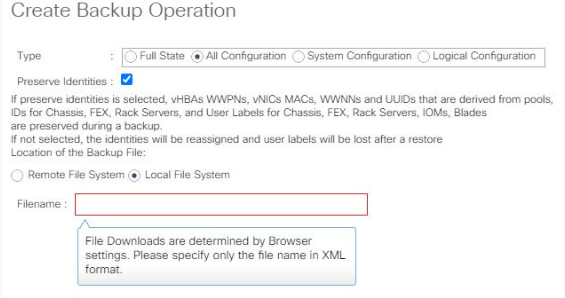
- In the Create Backup Operation dialog box, complete the below fields:
- Admin State: Enabled
- Type: All Configuration
- Preserved Identities: Checked
- Location of Backup File: Local File System
- Filename: <filename>.xml
Figure 2: Create Backup Operation-All Configuration
- Click OK. (It might take a few minutes to complete the operation.)
- In the confirmation dialog box, click OK.
- View the progress of the backup operation by clicking the down arrows on the FSM Details bar.
- Click OK to close the Backup Configuration dialog box.
Procedure to import (restore) All Configuration Backup:
- In the Navigation pane, click the Admin tab.
- Click the All node.
- In the Work pane, click the General tab.
- In the Actions area, click Import Configuration.
- In the Import Configuration dialog box, click Create Import Operation.
- In the Create Import Operation dialog box, complete the below fields:
- Admin State: Enabled
- Action: Merge
- Location of Backup File: Local File System
- Filename: <choose the .xml configuration file which should be imported>
Figure 3: Create Backup Operation-Restore
- Click OK. (It might take a few minutes to complete the operation.)
- In the confirmation dialog box, click OK.
- View the progress of the import operation by clicking the down arrows on the FSM Details bar.
- Click OK to close the Import Configuration dialog box.
Additional Information:
- Admin state can be:
- Enabled - Cisco UCS runs the backup or import operation when OK is clicked.
- Disabled - Cisco UCS Manager does not run the backup or import operation when OK is clicked. The backup or import must be manually run from the backup or import Configuration dialog box.
- During import, any port mode changes cause the switch to reboot.
- During import, when Action is chosen as:
- Merge - The configuration information is merged with the existing information. If there are conflicts, the system replaces the current system information with the information in the import configuration file.
- Replace - The system takes each object in the import configuration file and overwrites the corresponding object in the current configuration.
Affected Products
VMware OEM Products with ProSupportArticle Properties
Article Number: 000206703
Article Type: How To
Last Modified: 23 Oct 2024
Version: 2
Find answers to your questions from other Dell users
Support Services
Check if your device is covered by Support Services.