PowerEdge: How to Make VMware vCenter Server Appliance Log Rotation More Effective
Summary: This article provides a tested way to configure the logging of the vCenter Server Appliance for more effective rotations to avoid /storage/log becoming full.
This article applies to
This article does not apply to
This article is not tied to any specific product.
Not all product versions are identified in this article.
Instructions
Facts:
VMware vCenter Server Appliance (vCSA) 7.x
vCSA 7.x log rotation is less effective than previous versions. By default, rotations are slower, more events are kept, and the /storage/log/rsyslogd directory grows rapidly. This leads to excessive size of log bundles and the /storage/log location filling up.
Procedure:
Set up a more efficient log rotation using the steps below:
Always take an offline snapshot of your vCenter Server making any changes.
- Reduce the log rotation of the EAM service by setting a more appropriate limit of days to keep in rotation, for example 30 days. See VMware article 85249
.
On the vCenter Server shell, run the following commands:
- Back up the file:
/usr/lib/vmware-eam/web/conf/server.xml # cp /usr/lib/vmware-eam/web/conf/server.xml /usr/lib/vmware-eam/web/conf/server.xml.bak - Using the text editor vi, modify the server.xml file that was backed up in the first step. Locate the line:
<Valve className="org.apache.catalina.valves.AccessLogValve" - Add the following parameter:
-
Save the changes, and restart the ESXi Agent Manager service.maxDays="<numberOfDays>"See the example screenshot below:
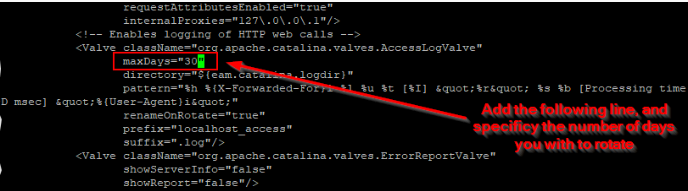
Figure 1: Max Days Setting
- Restart the EAM:
# service-control --restart vmware-eam - Correct issue with imfile overshoot. See VMware article 81327
- Take a backup of the original postgres-archiver syslog configuration:
# cp /etc/vmware-syslog/vmware-services-vmware-postgres-archiver.conf /etc/vmware-syslog/vmware-services-vmware-postgres-archiver.conf.orig - Using text editor vi, edit:
/etc/vmware-syslog/vmware-services-vmware-postgres-archiver.conf - Comment out the existing content, using
#, and add the content below:# vmware-postgres-archiver logs input(type="imfile" File="/var/log/vmware/vpostgres/pg_archiver.log.stdout" Tag="postgres-archiver" Severity="info" Facility="local0") input(type="imfile" File="/var/log/vmware/vpostgres/pg_archiver.log.stderr" Tag="postgres-archiver" Severity="info" Facility="local0") d. Restart rsyslog: # systemctl restart rsyslog - Set log rotation configurations for SSO, EAM, and lookups
- Copy the files that are attached to VMware article 85475
configs.zip > Your vCenter Server ----------- ------------------- SSO_server.xml > /usr/lib/vmware-sso/vmware-sts/conf/server.xml SSO_logging.properties > /usr/lib/vmware-sso/vmware-sts/conf/logging.properties LOOKSVC_server.xml > /usr/lib/vmware-lookupsvc/conf/server.xml LOOKSVC_logging.properties > /usr/lib/vmware-lookupsvc/conf/logging.properties - Restart the vmware-stsd and lookups services:
# service-control --stop vmware-stsd && service-control --start vmware-stsd # service-control --stop lookupsvc && service-control --start lookupsvc - Copy "tomcat_compress.cron" file "tomcat_compress.zip" to /etc/cron.d on the vCenter Server appliance.
- If required, reduce the logrotate from four weeks to two weeks using vi to edit the file:
/etc/logrotate.conf - If required, reduce the procstate log rotation from 10 to 5 using vi to edit the file:
/etc/logrotate.d/procstate.lr - Stop the rsyslog service. This command does not fully stop the service. A reboot is necessary during a change window.
systemctl stop rsyslog - Clean out the
/storage/log/vmware/rsyslogddirectory. - The
/storage/loglocation and the/var/loglocations are the same.
Additional Information
Videos
Affected Products
C Series, HS Series, Rack Servers, Tower Servers, Poweredge C4140, PowerEdge C6400, PowerEdge C6420, PowerEdge C6520, PowerEdge C6525, PowerEdge C6600, PowerEdge C6615, PowerEdge C6620, PowerEdge HS5610, PowerEdge HS5620, PowerEdge R240
, PowerEdge R250, PowerEdge R260, PowerEdge R340, PowerEdge R350, PowerEdge R360, PowerEdge R440, PowerEdge R450, PowerEdge R470, PowerEdge R540, PowerEdge R550, PowerEdge R570, PowerEdge R640, PowerEdge R6415, PowerEdge R650, PowerEdge R650xs, PowerEdge R6515, PowerEdge R6525, PowerEdge R660, PowerEdge R660xs, PowerEdge R6615, PowerEdge R6625, PowerEdge R670, PowerEdge R740, PowerEdge R740XD, PowerEdge R740XD2, PowerEdge R7415, PowerEdge R7425, PowerEdge R750, PowerEdge R750XA, PowerEdge R750xs, PowerEdge R7515, PowerEdge R7525, PowerEdge R760, PowerEdge R760XA, PowerEdge R760xd2, PowerEdge R760xs, PowerEdge R7615, PowerEdge R7625, PowerEdge R770, PowerEdge R7715, PowerEdge R7725, PowerEdge R840, PowerEdge R860, PowerEdge R940, PowerEdge R940xa, PowerEdge R960, PowerEdge T130, PowerEdge T140, PowerEdge T150, PowerEdge T160, PowerEdge T30, PowerEdge T330, PowerEdge T340, PowerEdge T350, PowerEdge T360, PowerEdge T40, PowerEdge T430, PowerEdge T440, PowerEdge T550, PowerEdge T560, PowerEdge T630, PowerEdge T640
...
Article Properties
Article Number: 000206920
Article Type: How To
Last Modified: 10 Apr 2025
Version: 2
Find answers to your questions from other Dell users
Support Services
Check if your device is covered by Support Services.