OS10ネットワーク コマンドのトラブルシューティング
Summary: OS10ネットワーク コマンドのトラブルシューティング。
This article applies to
This article does not apply to
This article is not tied to any specific product.
Not all product versions are identified in this article.
Instructions
デフォルトのログイン認証情報。
ログイン:admin
パスワード:admin
すべてのコマンドを表示するには、 Show コマンドの後に Enter キーを押します。
s1# show version
s1# show boot
s1# show spanning-tree active
s1# show interface status | no-more

フィルター オプション:find、except、grep。
s1# show ip route
show tech-supportを収集するには
PuTTYセッションをテキスト ファイルに記録します。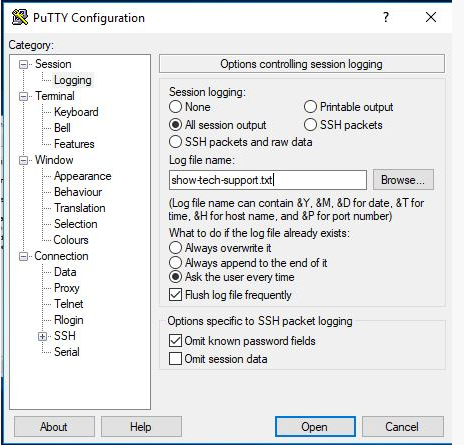
このコマンドを実行すると、すべての情報が画面に一覧表示されます。
s1# show tech-support
SOSreportバンドルの生成方法
スイッチのフラッシュに保存されたカーネル レベルのサポート バンドル:
s1# generate support-bundle
このコマンドは、作成された最新のバンドルを表示します。
s1# dir supportbundle
s1# copy supportbundle://sosreport-OS10-dateandtime.tar.xz
(タブをクリックして、コピー先のオプションを表示します
また、(DellサーバーでSupportAssistを使用するように設定されている場合)SupportAssist転送を実行できます。
これにより、すべてのログがスイッチからSupportAssistサーバーに転送されます。
s1# support-assist activity full-transfer start-now
SupportAssistの構成を確認するには、次の手順を実行します。
s1# configure
s1(config) # support-assist
s1(conf-support-assist)# show

s1(conf-support-assist)# exit
s1(config)
トラブルシューティング時にエラーメッセージが画面に表示されないようにするには、次の手順を実行します。
s1(config)# logging console enable
s1(config)# logging console disable
s1(config)# end
コンソールに報告されるエラーの重大度を変更するには、次の手順を実行します。
s1(config)# logging console severity log-crit
s1(config)#logging console enable
ログをデフォルトにリセットするには、次の手順を実行します。
s1(config)# no logging console severity
Affected Products
StorageArticle Properties
Article Number: 000207120
Article Type: How To
Last Modified: 30 Sep 2025
Version: 4
Find answers to your questions from other Dell users
Support Services
Check if your device is covered by Support Services.