Dell Optimizer Collaboration Touchpad (CTP) Feature Does Not Work
Summary: Learn how to use CTP feature on Latitude 9330, Dell Pro 13 Premium and Latitude 9440 2-in-1.
This article applies to
This article does not apply to
This article is not tied to any specific product.
Not all product versions are identified in this article.
Symptoms
Dell Optimizer Collaboration Touchpad (CTP) feature may not work on the laptop.
Affected Models:
- Latitude 9330 and Dell Pro 13 Premium
- Latitude 9440 2-in-1
Cause
The Dell Optimizer Collaboration touchpad feature requires the installation of Dell Optimizer (DO) and the Zoom, or the Microsoft Teams for work or school application, and must also be enabled in the BIOS.
Resolution
The Collaboration Touchpad is available on Dell Latitude 9330, Dell Pro 13 Premium and Latitude 9440 2-in-1 computers. The Collaboration Touchpad is a hardware functionality that displays four icons on your touchpad (Figure 1 for Latitude 9330 and Dell Pro 13 Premium and Figure 2 for Latitude 9440 2-in-1).
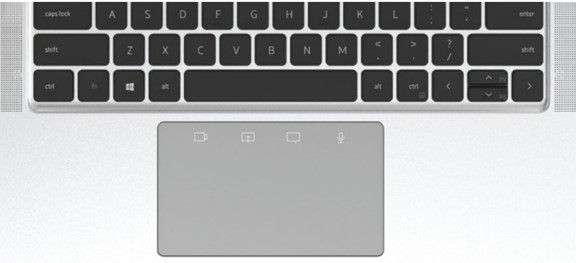
(Figure 1. Collaboration Touchpad displays four icons on your Latitude 9330 and Dell Pro 13 Premium touchpad)
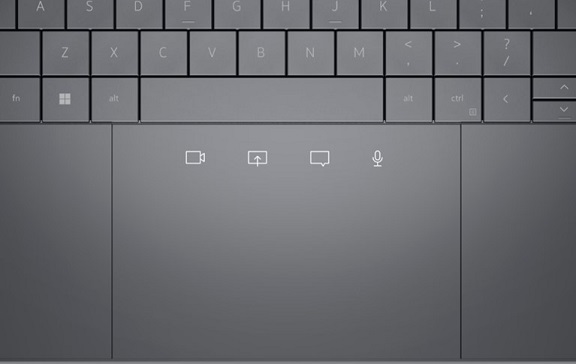
(Figure 2. Collaboration Touchpad displays four icons on your Latitude 9440 2-in-1 touchpad)
It allows you to turn on or off your camera, share screen, chat, and microphone status during a Zoom or Microsoft Teams call. Icons on your touchpad illuminate when a Zoom call starts.
To enable this functionality, ensure that you need the followings:
- Dell Optimizer version 3.1 or higher for Latitude 9330 and Dell Pro 13 Premium.
- Dell Optimizer version 4.0 or higher for Latitude 9440 2-in-1.
- Zoom Client version 5.9.3 or higher.
- Microsoft Teams for work or school
Note: Dell Optimizer version 4.1.3 introduces Collaboration Touch Pad (CTP) support for Microsoft Teams as well. In earlier versions of Dell Optimizer, CTP Support was for Zoom only. This feature only works with Microsoft Teams for work or school and not Teams for home.
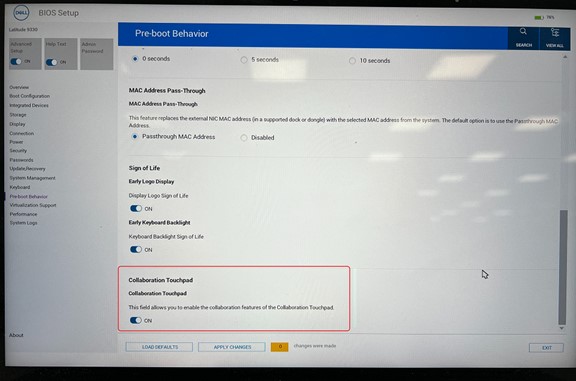
- The Collaboration Touchpad enabled in the BIOS.
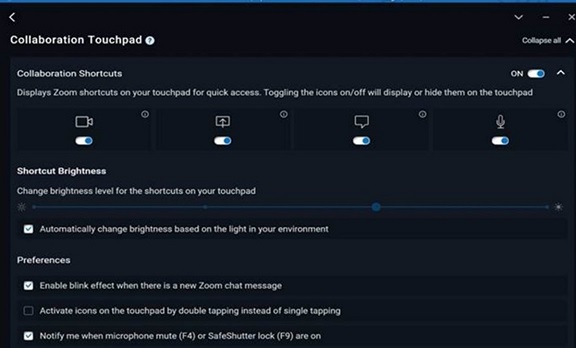
- Run Dell Optimizer and go to the collaboration touchpad menu to ensure it is enabled.
Note: On system boot up, Dell Optimizer service takes some time to start to comply with Microsoft requirement. Hence, you can expect features such as Presence Detection feature to be ready in few minutes.
For more information about Dell Optimizer, see Dell Optimizer User's Guide.
For more information about Dell Optimizer, see Dell Optimizer User's Guide.
Additional Information
How to use your Collaborative Touchpad
Duration: 00:02:23
When available, closed caption (subtitles) language settings can be chosen using the Settings or CC icon on this video player.
Affected Products
Dell Optimizer, Dell Pro 13 Premium PA13250, Latitude 9330, Latitude 9440 2-in-1Article Properties
Article Number: 000207321
Article Type: Solution
Last Modified: 16 May 2026
Version: 13
Find answers to your questions from other Dell users
Support Services
Check if your device is covered by Support Services.