Enabling RDS Cal with MPSA license
Summary: This article provides guidance for enabling RDS Cal with Microsoft MPSA licensing. purchased from Dell.
This article applies to
This article does not apply to
This article is not tied to any specific product.
Not all product versions are identified in this article.
Instructions
The Microsoft Product and Services Agreement (MPSA) is a transactional licensing agreement for commercial, government, and academic organizations with a minimum of 250 users/devices. MPSA works best for organizations that want to license on-premises software and cloud services from Microsoft, or both, as needed, without the commitment of the entire organization to a single contract with no end date. Software Assurance is optional.
When the customer purchases the license from Dell, they are granted access to the Business Center (BA) portal, which must be accessed via the following link: https://businessaccount.microsoft.com/
The email account used in the portal must be the same as the one used in the purchase of the licenses.
After accessing the BA portal, it is necessary to populate the information contained in the portal and place it in the RDS server.
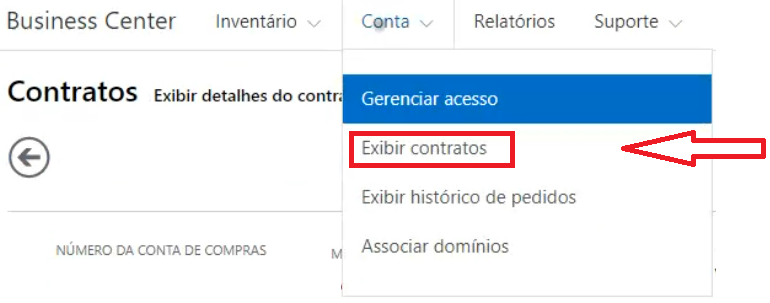
Navigate to the "Account" tab -> "View Contracts"
Now open the license manager in windows server and right-click on the server name and select the "Properties"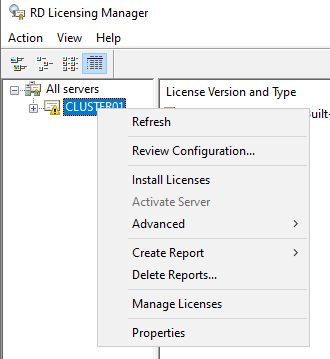
option Select the "Required Information" tab and correctly populate the information in the selected fields, using the BA portal data:
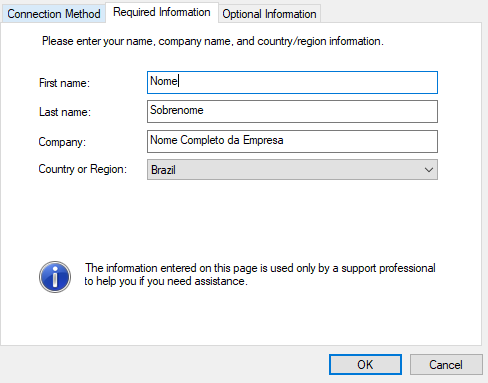
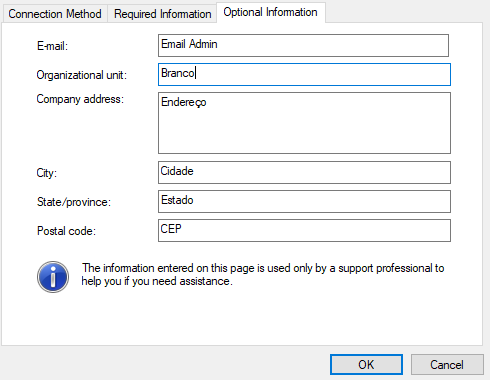
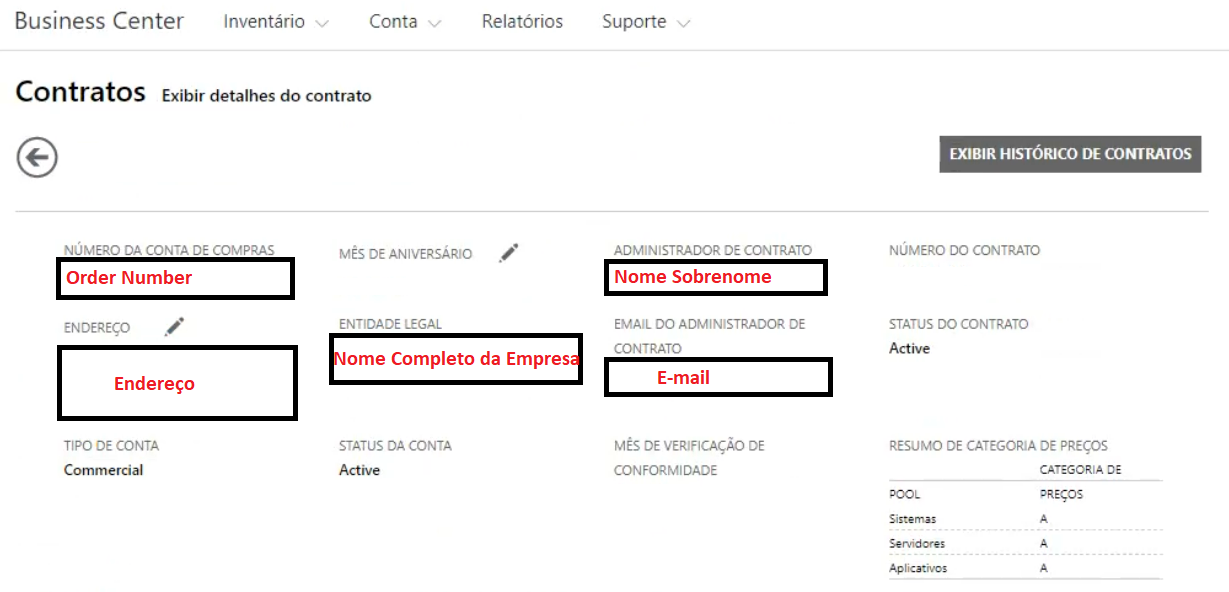
From OK to save the information to the RDS Server.
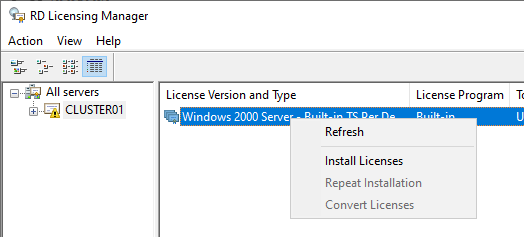
Right-click to Install a New License (Cal RDS)
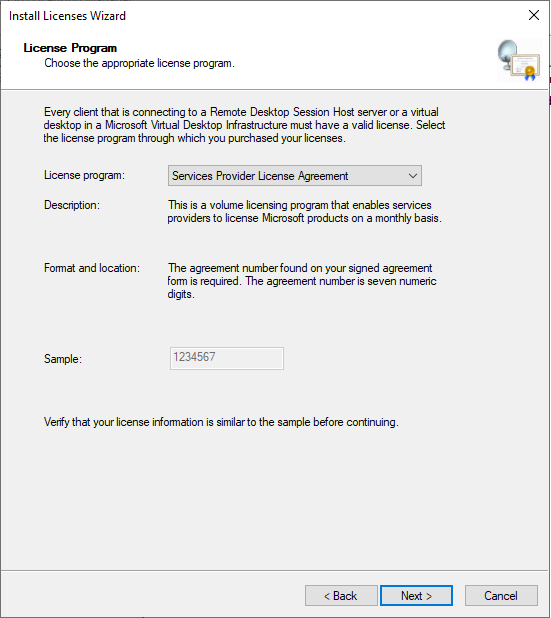
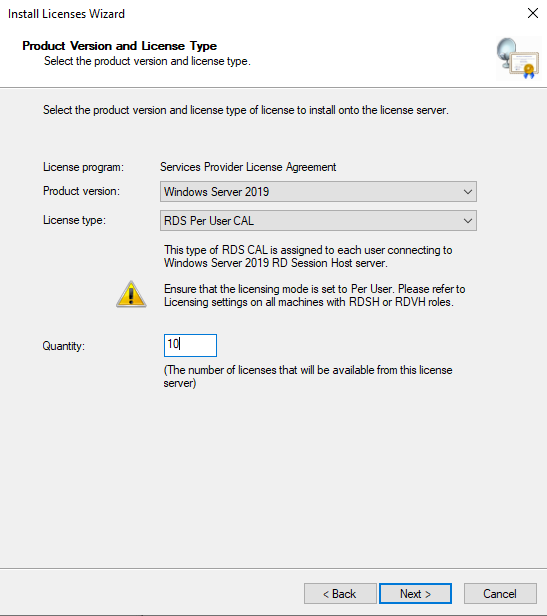
Proceed to the next screen and then select the option called "Services Provider License Agreement"
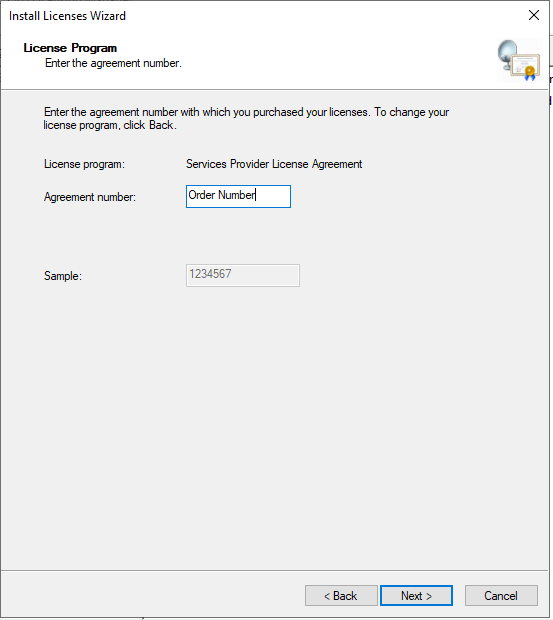
Fill out the order number. This number is available on the BA portal.
Now go back to the BA portal and change to the Account tab -> View order
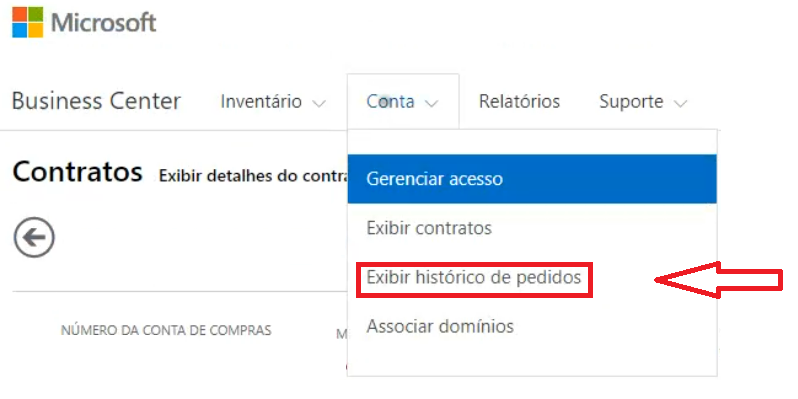 history Click on the order number to see the details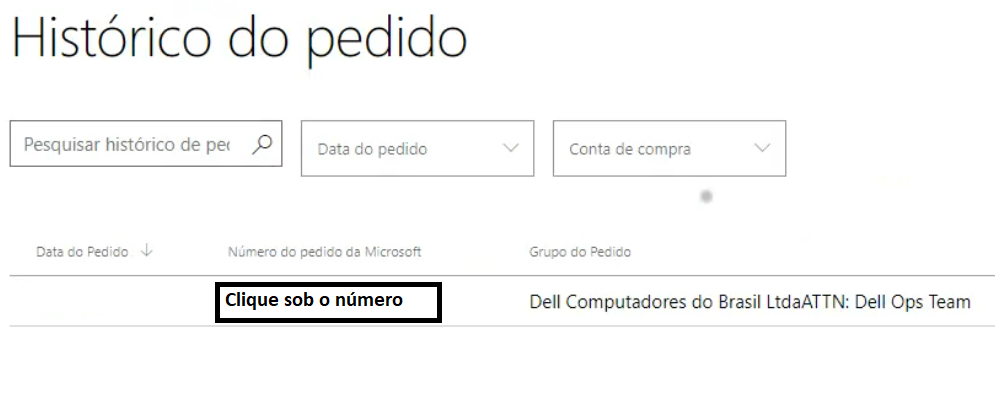
Check now the cal type purchased by the customer (User or Device) and cal number.
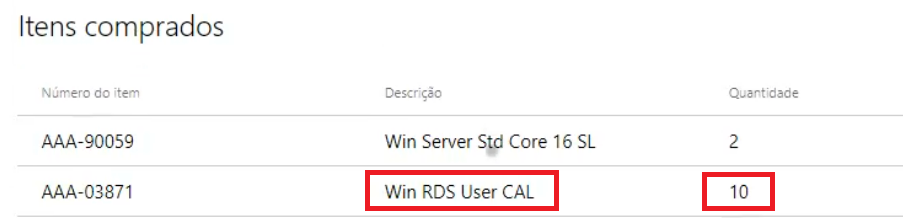
With this information go back to the RDS manager on the windows server and add the information and activate the licenses.
When the customer purchases the license from Dell, they are granted access to the Business Center (BA) portal, which must be accessed via the following link: https://businessaccount.microsoft.com/
The email account used in the portal must be the same as the one used in the purchase of the licenses.
After accessing the BA portal, it is necessary to populate the information contained in the portal and place it in the RDS server.
Navigate to the "Account" tab -> "View Contracts"
Now open the license manager in windows server and right-click on the server name and select the "Properties"
option Select the "Required Information" tab and correctly populate the information in the selected fields, using the BA portal data:
From OK to save the information to the RDS Server.
Right-click to Install a New License (Cal RDS)
Proceed to the next screen and then select the option called "Services Provider License Agreement"
Fill out the order number. This number is available on the BA portal.
Now go back to the BA portal and change to the Account tab -> View order
history Click on the order number to see the details
Check now the cal type purchased by the customer (User or Device) and cal number.
With this information go back to the RDS manager on the windows server and add the information and activate the licenses.
Affected Products
Microsoft Windows Server 2016, Microsoft Windows Server 2019, Microsoft Windows Server 2022, Microsoft 365 from DellArticle Properties
Article Number: 000208285
Article Type: How To
Last Modified: 28 Jan 2025
Version: 2
Find answers to your questions from other Dell users
Support Services
Check if your device is covered by Support Services.