VxRail: How to know which VM is locking a vmdk file
Summary: This article explains how to identify the VM that is using your vmdk and preventing it from being deleted.
This article applies to
This article does not apply to
This article is not tied to any specific product.
Not all product versions are identified in this article.
Instructions
Sometimes, when using the option "Delete from Disk" on a Virtual Machine (VM), it results on not having the VM folder deleted and still has having the VM's old vmdks in it, usually that vmdk is still in use, so it is locked and that is why it could not be deleted.
This frequently happens when using Snapshots, and it could be related to various reasons such as a third-party backup software, VMware Horizon, or more.
The traditional way of resolving this is to check all cluster VMs settings one by one until you find the VM that is still using the vmdk file. However, there is another method much faster that can be applied on this situation:
Step-by-step guide:
This frequently happens when using Snapshots, and it could be related to various reasons such as a third-party backup software, VMware Horizon, or more.
The traditional way of resolving this is to check all cluster VMs settings one by one until you find the VM that is still using the vmdk file. However, there is another method much faster that can be applied on this situation:
- On this example, two test VMs were created to reproduce this issue:
myVM-01
Test-VM-01
- Also, two vmdks were created for VM myVM-01:
myVM-01.vmdk
myVM-01_1.vmdk
- Then, myVM-01_1.vmdk was disconnected from its original VM and added (attached) it to VM Test-VM-01.
- Test-VM-01 is powered ON, so the newly attached vdisk myVM-01_1.vmdk is locked and cannot be deleted.
- Finally, the VM myVM-01 was deleted from disk but, as expected, the vmdk was not deleted:
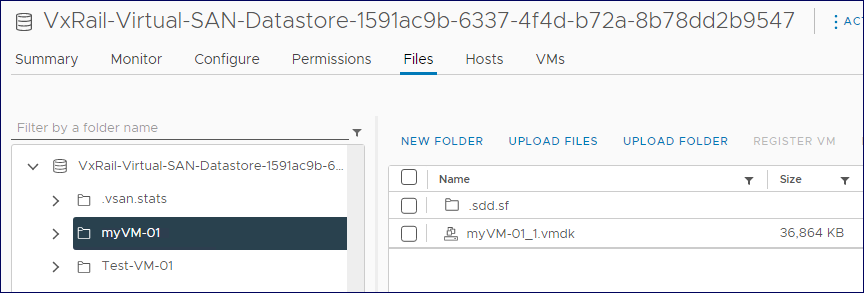
Step-by-step guide:
- Open an SSH session to one of the VxRail(vSAN) ESXi hosts.
- Change the directory to the VM folder where the said vmdk is located.
[root@vcxxxxxx-esx01:~] cd /vmfs/volumes/VxRail-Virtual-SAN-Datastore-1591ac9b-6337-4f4d-b72a-8b78dd2b9547/myVM-01/
[root@vcxxxxxx-esx01:/vmfs/volumes/vsan:522f8adc3102b750-7ce28cbf91a437bc/9ebf0164-4e7c-20f0-c91f-00505683bcb2]
- Get the vmdk UUID with command: grep RW vmdk_name.vmdk
[root@vcxxxxxx-esx01:/vmfs/volumes/vsan:522f8adc3102b750-7ce28cbf91a437bc/9ebf0164-4e7c-20f0-c91f-00505683bcb2] grep RW myVM-01_1.vmdk
RW 20971520 VMFS "vsan://522f8adc3102b750-7ce28cbf91a437bc/9fbf0164-b6e0-ec93-d3d9-00505683bcb2"
[root@vcxxxxxx-esx01:/vmfs/volumes/vsan:522f8adc3102b750-7ce28cbf91a437bc/9ebf0164-4e7c-20f0-c91f-00505683bcb2]
- Get vmdk .lck file that has the same vmdk UUID from the previous command in its name: ls -lah .*.lck or ls -lah *.lck if the lock file is not hidden.
[root@vcxxxxxx-esx01:/vmfs/volumes/vsan:522f8adc3102b750-7ce28cbf91a437bc/9ebf0164-4e7c-20f0-c91f-00505683bcb2] ls -lah .*.lck
-rw-------    1 root     root           0 Mar  3 09:36 .9fbf0164-b6e0-ec93-d3d9-00505683bcb2.lck
[root@vcxxxxxx-esx01:/vmfs/volumes/vsan:522f8adc3102b750-7ce28cbf91a437bc/9ebf0164-4e7c-20f0-c91f-00505683bcb2] ls -lah *.lck
ls: *.lck: No such file or directory
[root@vcxxxxxx-esx01:/vmfs/volumes/vsan:522f8adc3102b750-7ce28cbf91a437bc/9ebf0164-4e7c-20f0-c91f-00505683bcb2]
- From the above output, the vmdk's lock file can be seen as hidden.
- Check who is the node owner of the lock with command: vmfsfilelockinfo -p <.lck_filename>
[root@vcxxxxxx-esx01:/vmfs/volumes/vsan:522f8adc3102b750-7ce28cbf91a437bc/9ebf0164-4e7c-20f0-c91f-00505683bcb2] vmfsfilelockinfo -p .9fbf0164-b6e0-ec93-d3d9-00505683bcb2.lck vmfsfilelockinfo Version 2.0 Looking for lock owners on ".9fbf0164-b6e0-ec93-d3d9-00505683bcb2.lck" ".9fbf0164-b6e0-ec93-d3d9-00505683bcb2.lck" is locked in Exclusive mode by host having mac address ['00:xx:xx:xx:xx:a4'] Trying to make use of Fault Domain Manager ---------------------------------------------------------------------- Found 4 ESX hosts using Fault Domain Manager. ---------------------------------------------------------------------- Searching on Host vcxxxxxx-esx02.vxxx.local Searching on Host vcxxxxxx-esx04.vxxx.local Searching on Host vcxxxxxx-esx01.vxxx.local Searching on Host vcxxxxxx-esx03.vxxx.local MAC Address : 00:xx:xx:xx:xx:a4 Host owning the lock on file is vcxxxxxx-esx03.vxxx.local, lockMode : Exclusive Total time taken : 0.4937002270016819 seconds. [root@vcxxxxxx-esx01:/vmfs/volumes/vsan:522f8adc3102b750-7ce28cbf91a437bc/9ebf0164-4e7c-20f0-c91f-00505683bcb2]- From above output it can be seen that the lock owner is host vcxxxxxx-esx03.vxxx.local.
- Open an SSH session to the node owner.
- Find the VM that has that vmdk attached to it, command: find /vmfs/volumes/* -name *.vmx -exec grep -Hi vmdk_name.vmdk {} \;
[root@vcxxxxxx-esx03:~] find /vmfs/volumes/* -name *.vmx -exec grep -Hi myVM-01_1.vmdk {} \; /vmfs/volumes/vsan:522f8adc3102b750-7ce28cbf91a437bc/66bf0164-d6f2-2682-c1d1-00505683bcb2/Test-VM-01.vmx:scsi0:1.fileName = "/vmfs/volumes/vsan:522f8adc3102b750-7ce28cbf91a437bc/9ebf0164-4e7c-20f0-c91f-00505683bcb2/myVM-01_1.vmdk" grep: /vmfs/volumes/vsan:522f8adc3102b750-7ce28cbf91a437bc/faa1de62-1cfc-948c-f01c-005056833d65/VxRail Manager.vmx: Device or resource busy grep: /vmfs/volumes/vsan:522f8adc3102b750-7ce28cbf91a437bc/d1b6de62-3871-269d-eee4-005056832fb7/vCLS-0017eb10-16d2-470a-86eb-caac2239ff2f.vmx: Device or resource busy grep: /vmfs/volumes/vsan:522f8adc3102b750-7ce28cbf91a437bc/5d97de62-64d5-a2c4-9e85-005056833d65/VMware vCenter Server Appliance.vmx: Device or resource busy /vmfs/volumes/vsan:522f8adc3102b750-7ce28cbf91a437bc/9ebf0164-4e7c-20f0-c91f-00505683bcb2/myVM-01.vmx:scsi0:1.fileName = "myVM-01_1.vmdk" [root@vcxxxxxx-esx03:~]- The find command shows two VMs that have our vmdk in their configuration files (.vmx).
- As the command output shows, it is possible to find the VM that has that specific vmdk assigned to it, which is Test-VM-01 VM.
- Now, as the VM is identified, the lock can be removed on that vmdk by removing it from the VM Edit Settings, and then deleting it manually.
Affected Products
VxRail, VMware ESXi, VMware vCenter Server, VMware VSAN, VxRail Appliance Family, VxRail Appliance SeriesArticle Properties
Article Number: 000210772
Article Type: How To
Last Modified: 18 Oct 2023
Version: 3
Find answers to your questions from other Dell users
Support Services
Check if your device is covered by Support Services.