Linux: How to find the hard drive serial number and physical slot mapping in a PowerEdge server from the OS or SOS report
Summary: The steps listed below explain how to locate the serial number, vendor, firmware version, and physical slot mapping of an SAS/SATA/SSD hard drive on PowerEdge servers running Linux Operating System or from the gathered SOS report. ...
This article applies to
This article does not apply to
This article is not tied to any specific product.
Not all product versions are identified in this article.
Instructions
Two SAS SSD hard drives were installed on Slots 0 and 1, respectively, as we could observe when reviewing the Physical Disks information from the Storage Section on the IDRAC user interface.
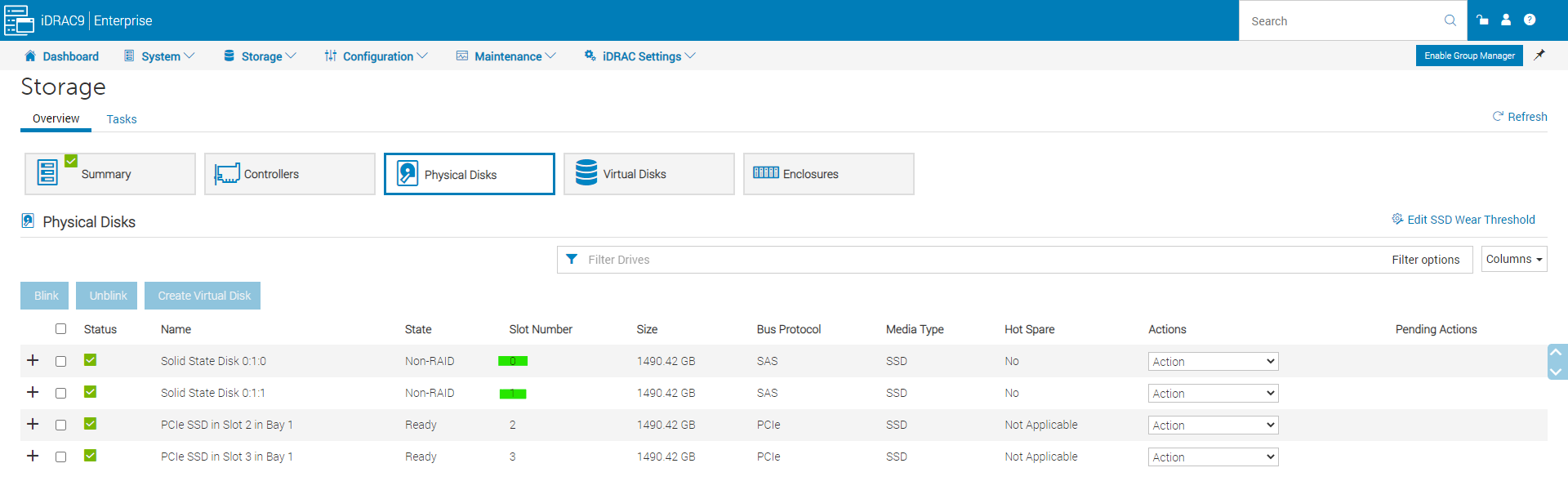
The following physical block device name is displayed by the lsblk command on the Linux Operating System:

Run the below
To quickly determine the Physical Drive number and mapping, we can compare the same with the TSR report or with IDRAC on the PowerEdge Server.
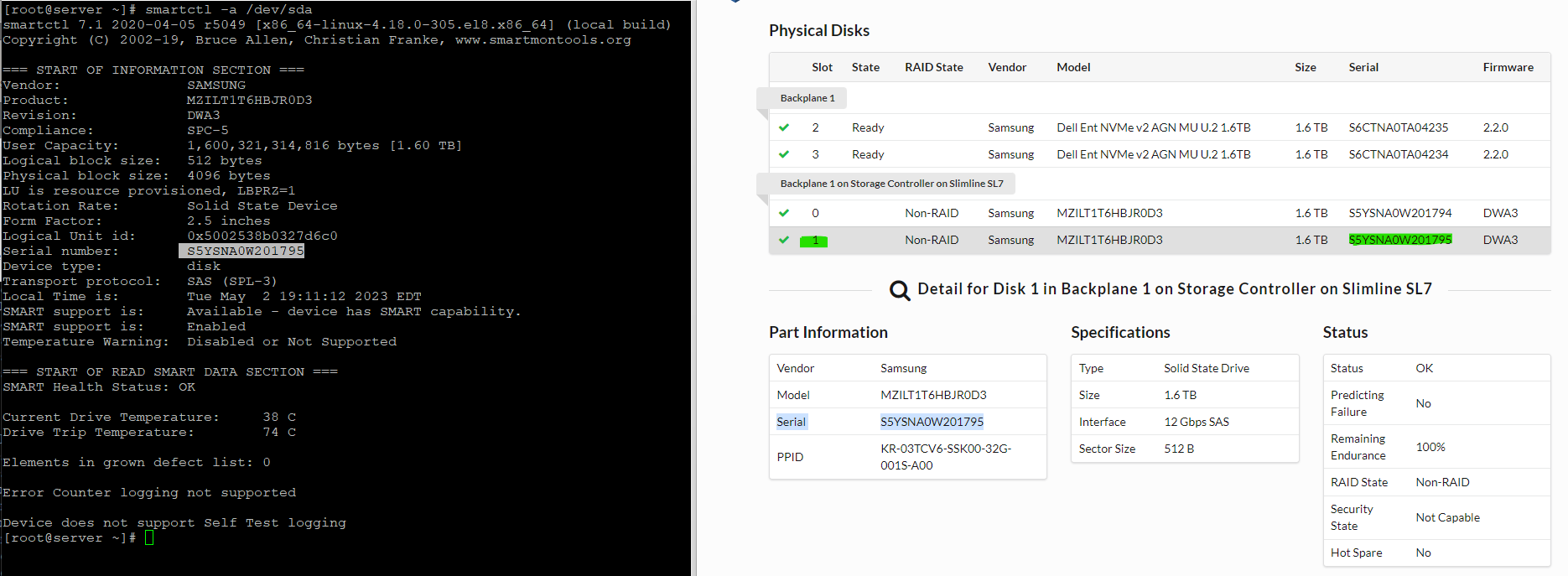


Similar to that, after extracting the operating system log (sosreport), move forward to the


The following physical block device name is displayed by the lsblk command on the Linux Operating System:
Run the below
smartctl command to get more information.
#smartctl -a <device-name>As a result, the command output shown below provides specific details on the hard drive's serial number, hard drive size, firmware version, and vendor information.
To quickly determine the Physical Drive number and mapping, we can compare the same with the TSR report or with IDRAC on the PowerEdge Server.
Similar to that, after extracting the operating system log (sosreport), move forward to the
sos_commands/ata subdirectory to get the smartctl test result as seen below.
Affected Products
SUSE Linux Enterprise Server 12, Red Hat Enterprise Linux Version 7, Red Hat Enterprise Linux Version 9, Red Hat Enterprise Linux Version 8, SUSE Linux Enterprise Server 15, Ubuntu Server LTSProducts
PowerEdge XR2, Poweredge C4140, PowerEdge C6420, PowerEdge C6520, PowerEdge C6525, PowerEdge C6615, PowerEdge C6620, PowerEdge FC640, PowerEdge M640, PowerEdge M640 (for PE VRTX), PowerEdge MX5016s, PowerEdge MX740C, PowerEdge MX750c
, PowerEdge MX760c, PowerEdge MX840C, PowerEdge R240, PowerEdge R250, PowerEdge R260, PowerEdge R340, PowerEdge R350, PowerEdge R360, PowerEdge R440, PowerEdge R450, PowerEdge R540, PowerEdge R550, PowerEdge R640, PowerEdge R6415, PowerEdge R650, PowerEdge R650xs, PowerEdge R6515, PowerEdge R6525, PowerEdge R660, PowerEdge R660xs, PowerEdge R6615, PowerEdge R6625, PowerEdge R740, PowerEdge R740XD, PowerEdge R740XD2, PowerEdge R7415, PowerEdge R7425, PowerEdge R750, PowerEdge R750XA, PowerEdge R750xs, PowerEdge R7515, PowerEdge R7525, PowerEdge R760, PowerEdge R760XA, PowerEdge R760xd2, PowerEdge R760xs, PowerEdge R7615, PowerEdge R7625, PowerEdge R840, PowerEdge R860, PowerEdge R940, PowerEdge R940xa, PowerEdge R960, PowerEdge T140, PowerEdge T150, PowerEdge T160, PowerEdge T340, PowerEdge T350, PowerEdge T360, PowerEdge T440, PowerEdge T550, PowerEdge T560, PowerEdge T640, PowerEdge XE2420, PowerEdge XE7420, PowerEdge XE7440, PowerEdge XE8545, PowerEdge XE8640, PowerEdge XE9640, PowerEdge XE9680, PowerEdge XR11, PowerEdge XR12, PowerEdge XR4000r, PowerEdge XR4510c, PowerEdge XR4520c, PowerEdge XR8000r, PowerEdge XR8610t, PowerEdge XR8620t
...
Article Properties
Article Number: 000212962
Article Type: How To
Last Modified: 20 Aug 2025
Version: 6
Find answers to your questions from other Dell users
Support Services
Check if your device is covered by Support Services.