PowerFlex 3.X: Gateway Log Collection
Summary: Steps to collect the PowerFlex Gateway log.
This article applies to
This article does not apply to
This article is not tied to any specific product.
Not all product versions are identified in this article.
Instructions
PowerFlex Gateway Log Collection -
1. First you log in to the gateway.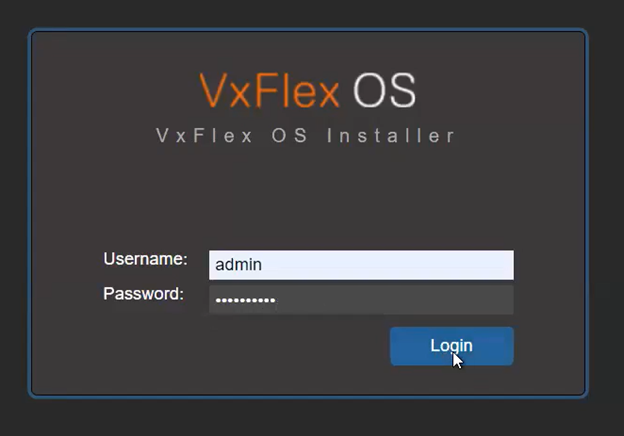
2. From the gateway home screen, go to maintain screen. You need the following:
- Primary MDM IP - You can get this from PFxM in any service using Powerflex. You can also get this from the Presentation Server under the MDM section on the side bar.
- MDM username - This is always admin unless someone has changed it.
- MDM Password - This is set by the customer.
- LIA Password - This is set by the customer.
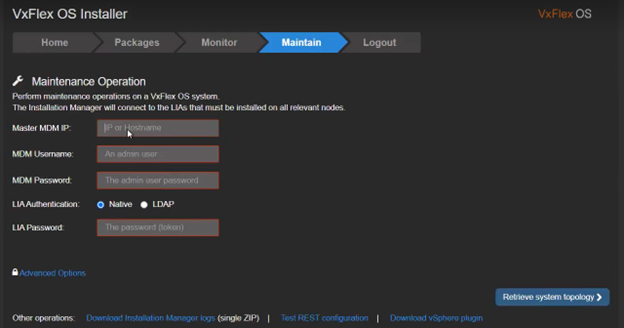
3. Once you have entered the credentials, click the 'Retrieve System Topology' button at the bottom of the screen.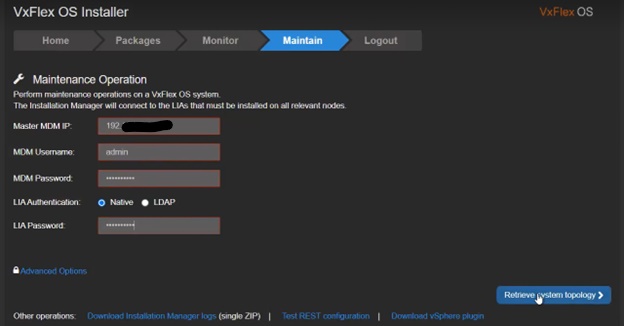
4. On the maintain screen go to the bottom of the page and click the 'System Logs and Analysis' drop down button and select 'Collect Logs.'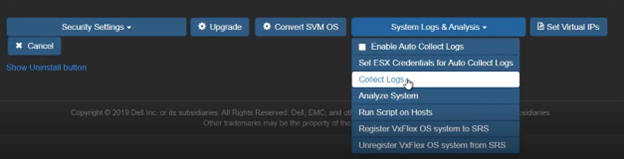
5. If any of the nodes in your environment are ESXi nodes you must enter their ESXi root passwords, and then select the nodes from the list presented. There is an option to use the same password for all nodes. If the nodes have individual passwords, they can be entered with their specific nodes as well.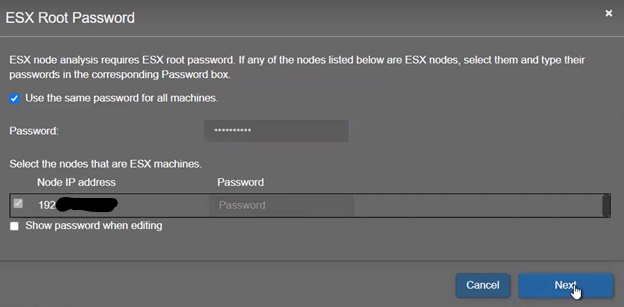
6. Reenter the MDM password and select the boxes for 'Collect debug information' and 'Include all nodes in log collection'. If you are not doing a full log collection, do not select the "Include all nodes in log collection" box. Instead select the nodes from the list presented.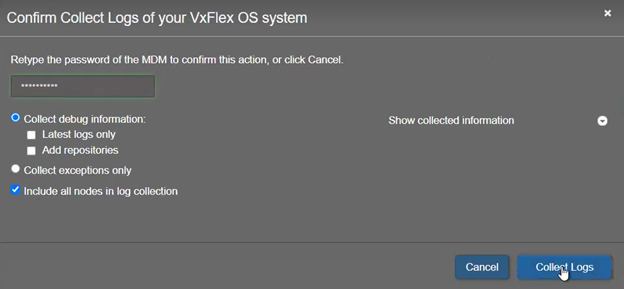
7. Once the logs collection process has begun, you can go to the monitor tab to view its progress.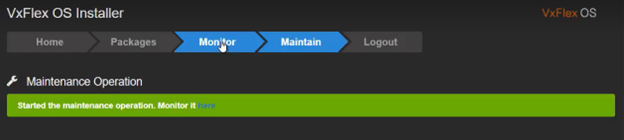
8. The larger the environment the longer a full log collection takes. The collection will also give status updates which go into slightly more detail about what is happening with a node’s log collection progress.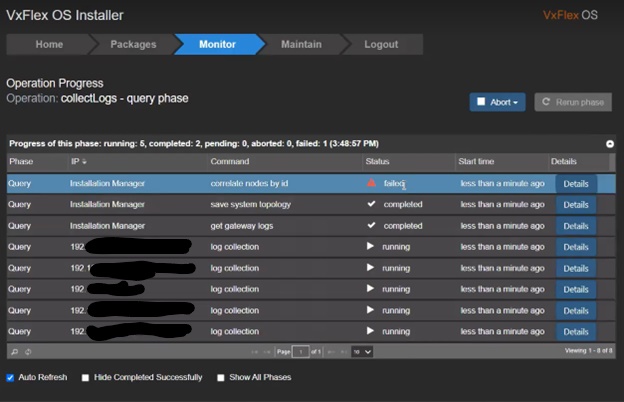
9. Once the operation is completed, you can click the 'Abort' drop down button, and then click 'Entire operation' which will take you to a screen to download the logs.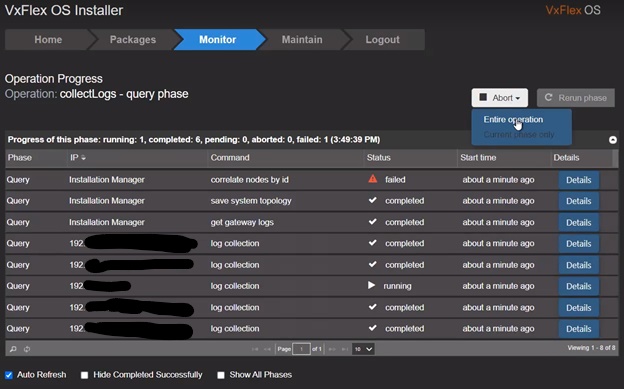
10 The blinking link in the middle of the screen downloads the logs, once it is clicked a .zip a file shows as downloading in the bottom-left corner of the browser window.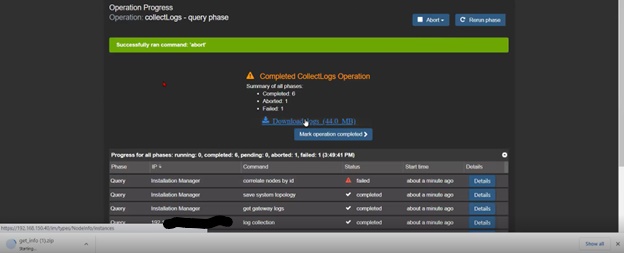
11 To view the files inside, you have to extract the files to a different folder.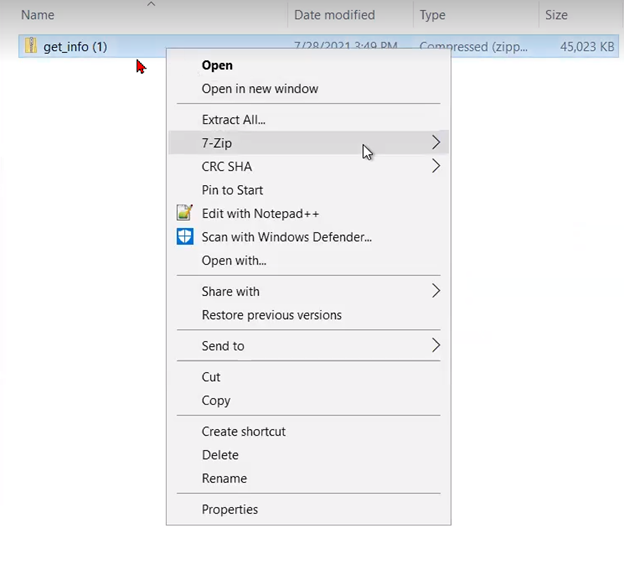
12 If you are unaware of which of the nodes is the Primary MDM, then the files sizes give you a clue. The largest file belongs to the Primary MDM, and the file name will include the node’s IP addresses.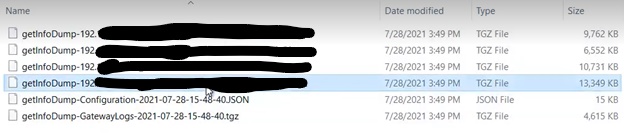
Affected Products
PowerFlex rack connectivity, PowerFlex rack HWArticle Properties
Article Number: 000213024
Article Type: How To
Last Modified: 08 Dec 2025
Version: 4
Find answers to your questions from other Dell users
Support Services
Check if your device is covered by Support Services.