PowerFlex 3.x: How to Remove or Add A Service in PFxM
Summary: Removing A Service | Adding A Service KB | Re-Adding A Service
This article applies to
This article does not apply to
This article is not tied to any specific product.
Not all product versions are identified in this article.
Instructions
Removing A Service


Re-Adding A Service or Adding A Service




- When you plan on removing a service, in PowerFlex Manager, go to the services tab, click the service you are working on, and click the edit button in the service information area to the far right.
- Once you are in edit, remember to copy (save) the name of the service since it is required after removal.
- Next, click the remove service button in the service actions area. Click remove service. Once selected, on the next page, choose the managed option, and click the remove button.
Re-Adding A Service or Adding A Service
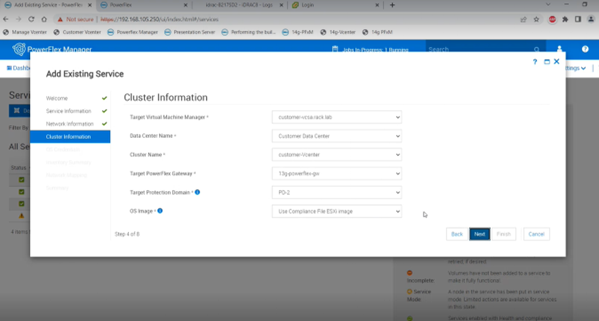
- Go to the services tab in PowerFlex Manager and click the "add existing service" button towards the top.
- Enter the service information for the service. (Remember the previously used service name if readding a previous service, and the type of service. Recommended going with the default catalog for the firmware and compliance section.)
- Choose Full Network Automation or Partial Network Automation. (depends on which option the previous service used or customer preference)
- Use the default options for the cluster information section or enter in required information.
- Enter the operating system information and credentials
- Review the inventory summary. (gateways, clusters, nodes, storage)
- On the next page, go to the network-mapping section. Choose the options listed in the second screenshot below unless the customer requires otherwise.
- Next, review the summary page and click the finish option below.
Additional Information
Do not delete a service unless you will never use the service ever again or if you do not plan to readd it in the future. Only use the remove option when removing the service, so you can readd it later if needed.
Videos
.
Affected Products
Hyper-converged SystemsArticle Properties
Article Number: 000213177
Article Type: How To
Last Modified: 22 Jun 2025
Version: 3
Find answers to your questions from other Dell users
Support Services
Check if your device is covered by Support Services.