RHEL: How to install or reinstall RPM packages in Red Hat Linux's rescue mode
Summary: The instructions below explain how to install or reinstall the RPM package in Red Hat Enterprise Linux's rescue mode by booting the server from a RHEL ISO image. If the server cannot boot, log in to the operating system or is unable to install any RPM packages, this step below would be helpful. ...
This article applies to
This article does not apply to
This article is not tied to any specific product.
Not all product versions are identified in this article.
Instructions
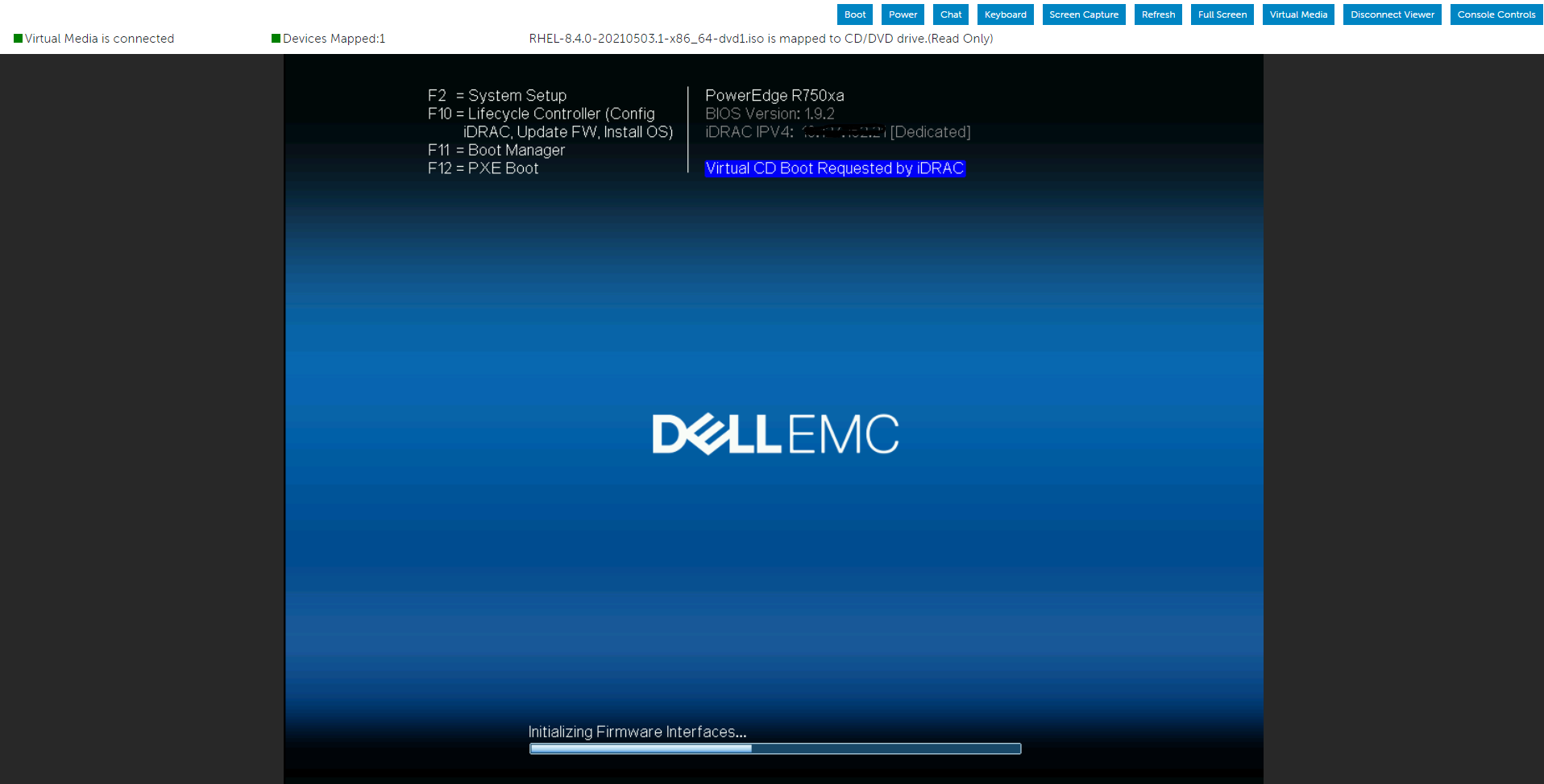
Let us use IDRAC’s virtual media to mount the operating system iso image and then boot the server from a virtual optical drive.
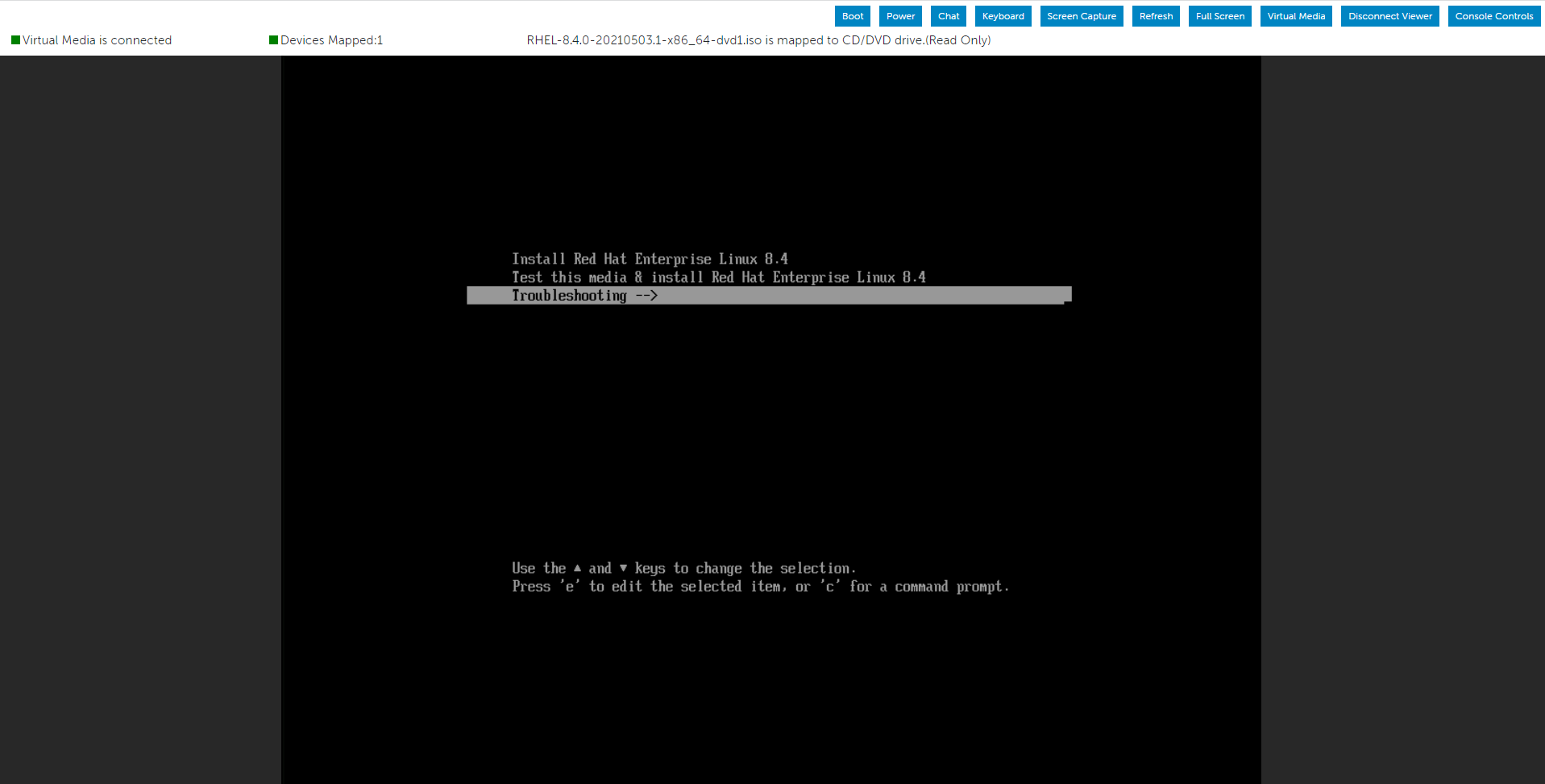
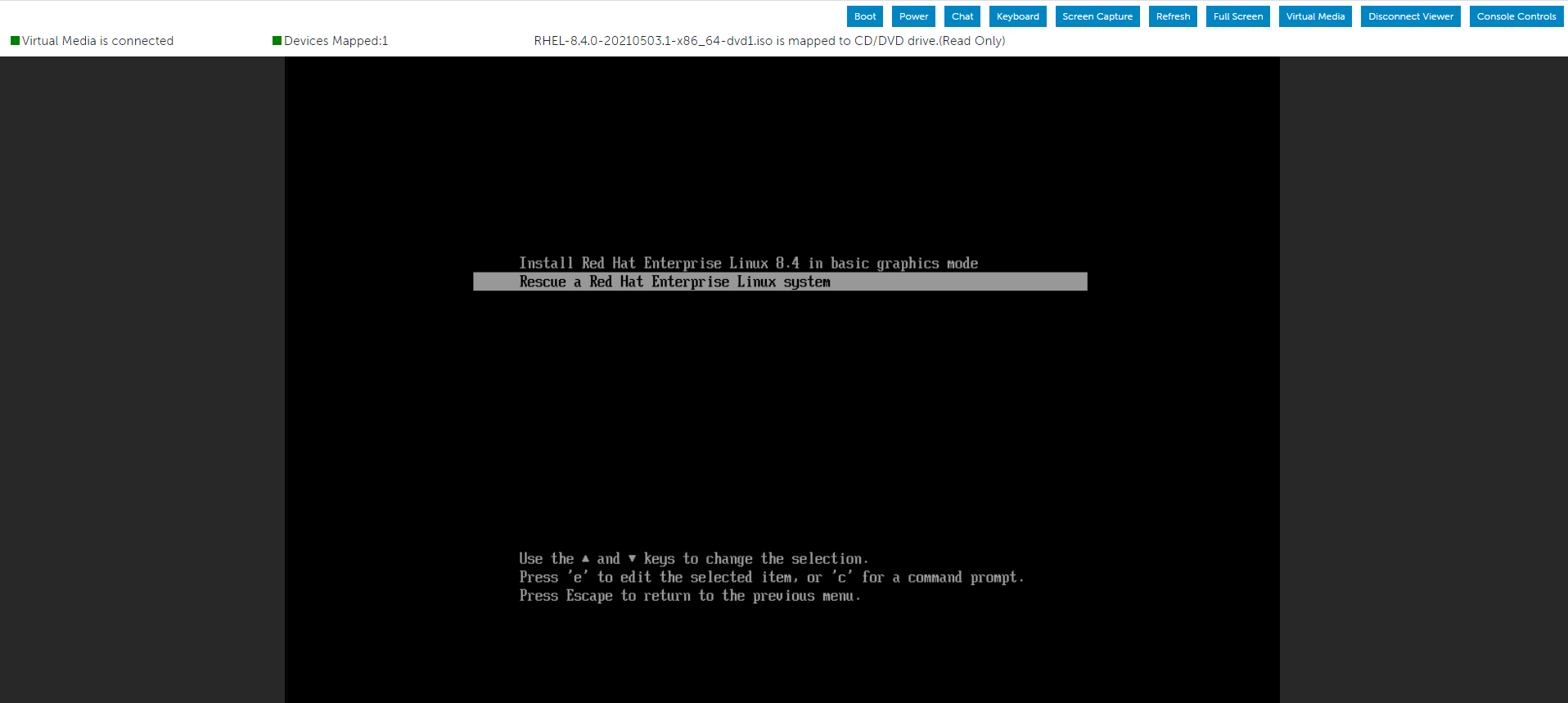
Select the Troubleshooting option from the menu, and then choose the Rescue option.
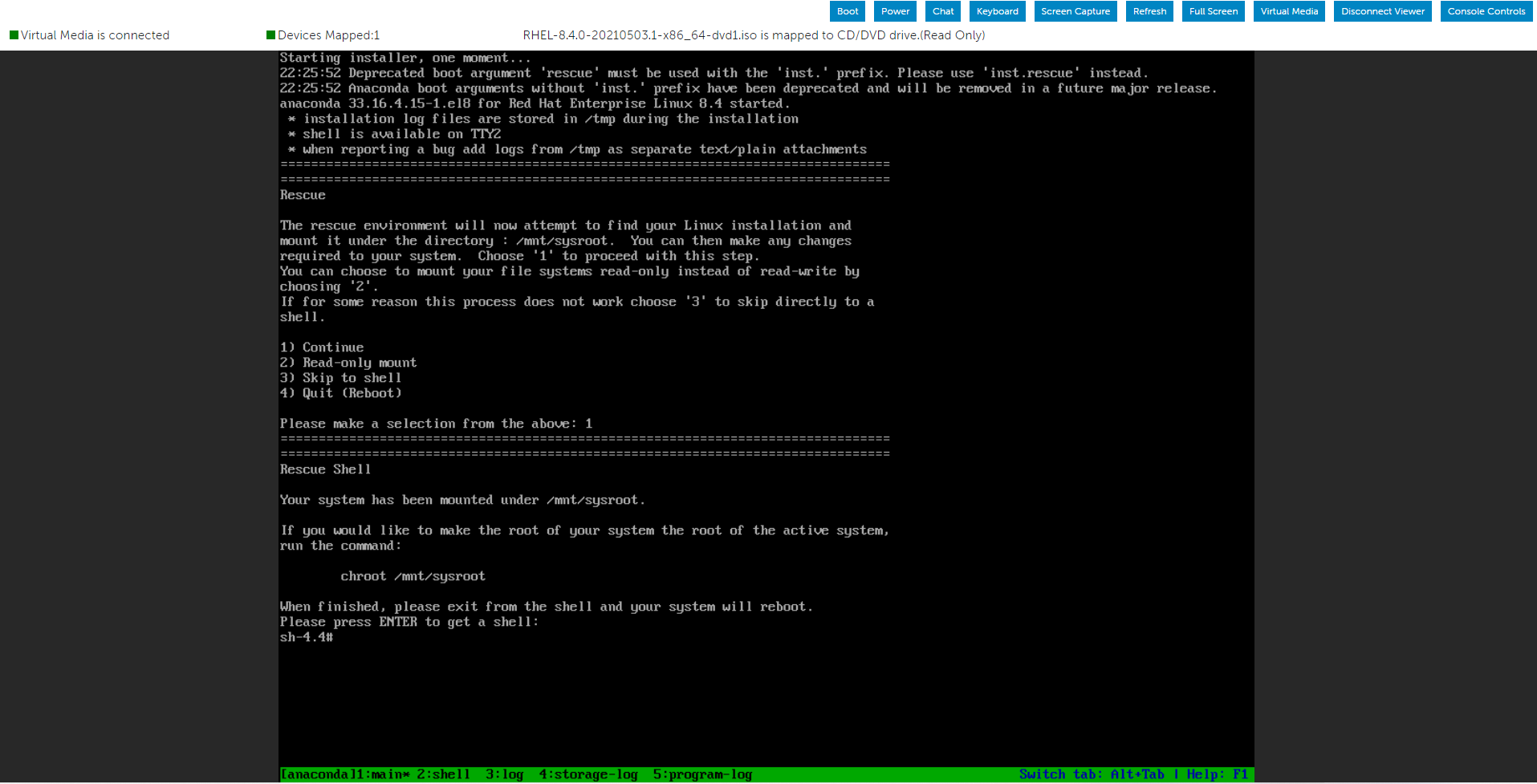
After the system has entered the Rescue environment, create a directory and mount the ISO image inside it.

You can now use the Packages folder that we mounted using the Operating System ISO image to look for the necessary RPM file.

As a demonstration, I could locate the wanted place when I searched for the "openssl-libs" RPM packages in both the Packages folders.
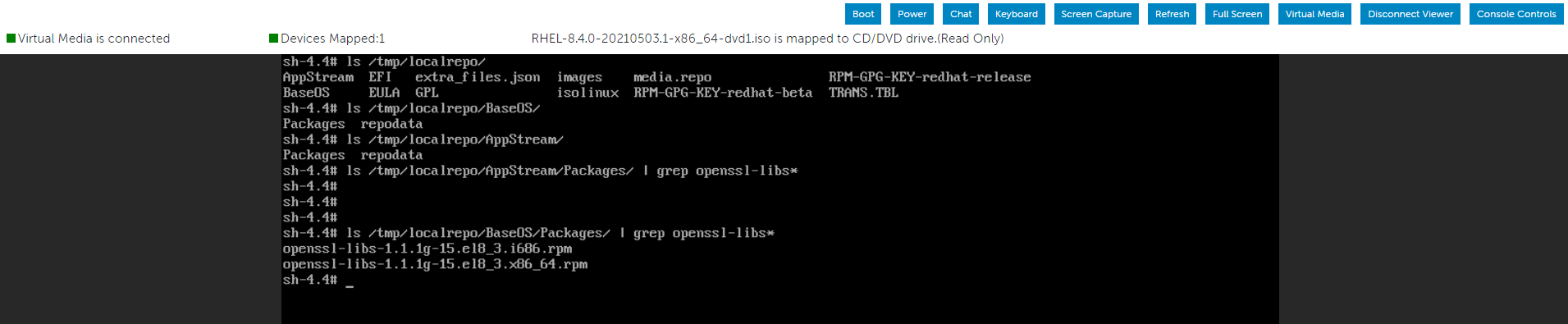
The option below allows installing the RPM package inside the root partition:
After installing the RPM packages, use the below command to exit the current environment and restart the server.
Select the Troubleshooting option from the menu, and then choose the Rescue option.
After the system has entered the Rescue environment, create a directory and mount the ISO image inside it.
You can now use the Packages folder that we mounted using the Operating System ISO image to look for the necessary RPM file.
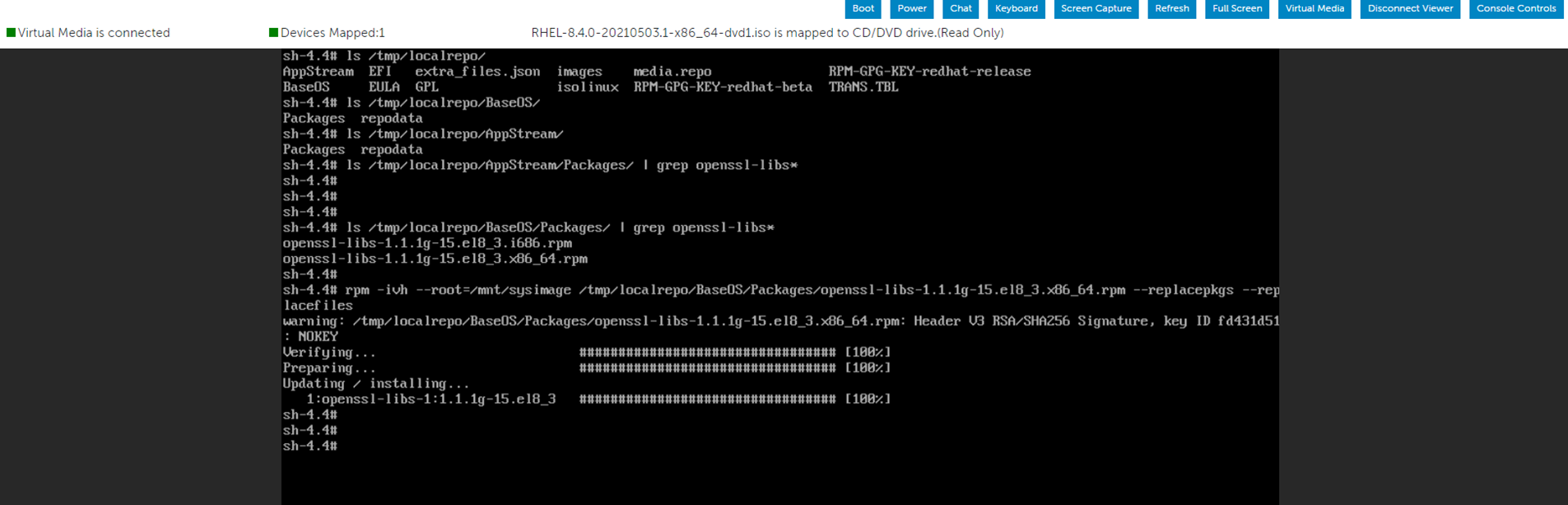
As a demonstration, I could locate the wanted place when I searched for the "openssl-libs" RPM packages in both the Packages folders.
The option below allows installing the RPM package inside the root partition:
"--root=/mnt/sysimage"
After installing the RPM packages, use the below command to exit the current environment and restart the server.
# RPM -ivh --root=/mnt/sysimage <Location_Of_RPM_Package> --replacepkgs --replacefiles
# exit
Affected Products
Red Hat Enterprise Linux Version 7, Red Hat Enterprise Linux Version 9, Red Hat Enterprise Linux Version 8Article Properties
Article Number: 000213359
Article Type: How To
Last Modified: 17 Dec 2024
Version: 5
Find answers to your questions from other Dell users
Support Services
Check if your device is covered by Support Services.