PowerEdge: The system cannot boot into Red Hat Linux because error while loading shared libraries: libcrypto.so.1.1
Summary: The procedures listed below shows to how to troubleshoot a system not booting into its Red Hat Enterprise Linux operating system. Error: libcrypto.so.1.1: Unable to open shared object file: No such file or directory. ...
This article applies to
This article does not apply to
This article is not tied to any specific product.
Not all product versions are identified in this article.
Instructions
From one of the working server, we confirmed the following information about this missing shared library file's (libcrypto.so.1.1) default location and the associated RPM package:
Let us use PowerEdge Server IDRAC’s virtual media to mount the Red Hat operating system iso image. And boot the server from this virtual optical drive to install the required missing shared library file.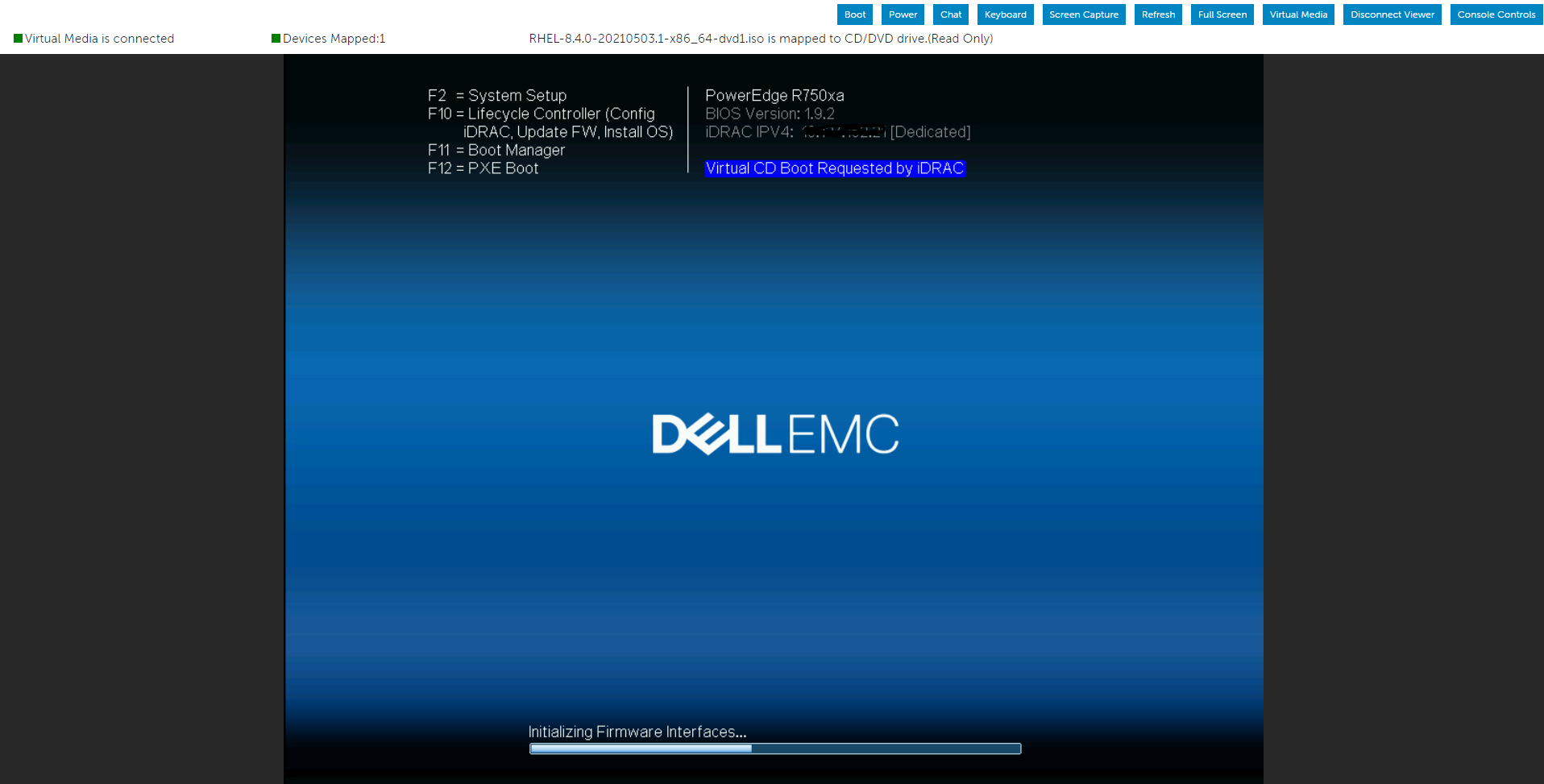
Select the Troubleshooting option from the menu, and then choose the Rescue option.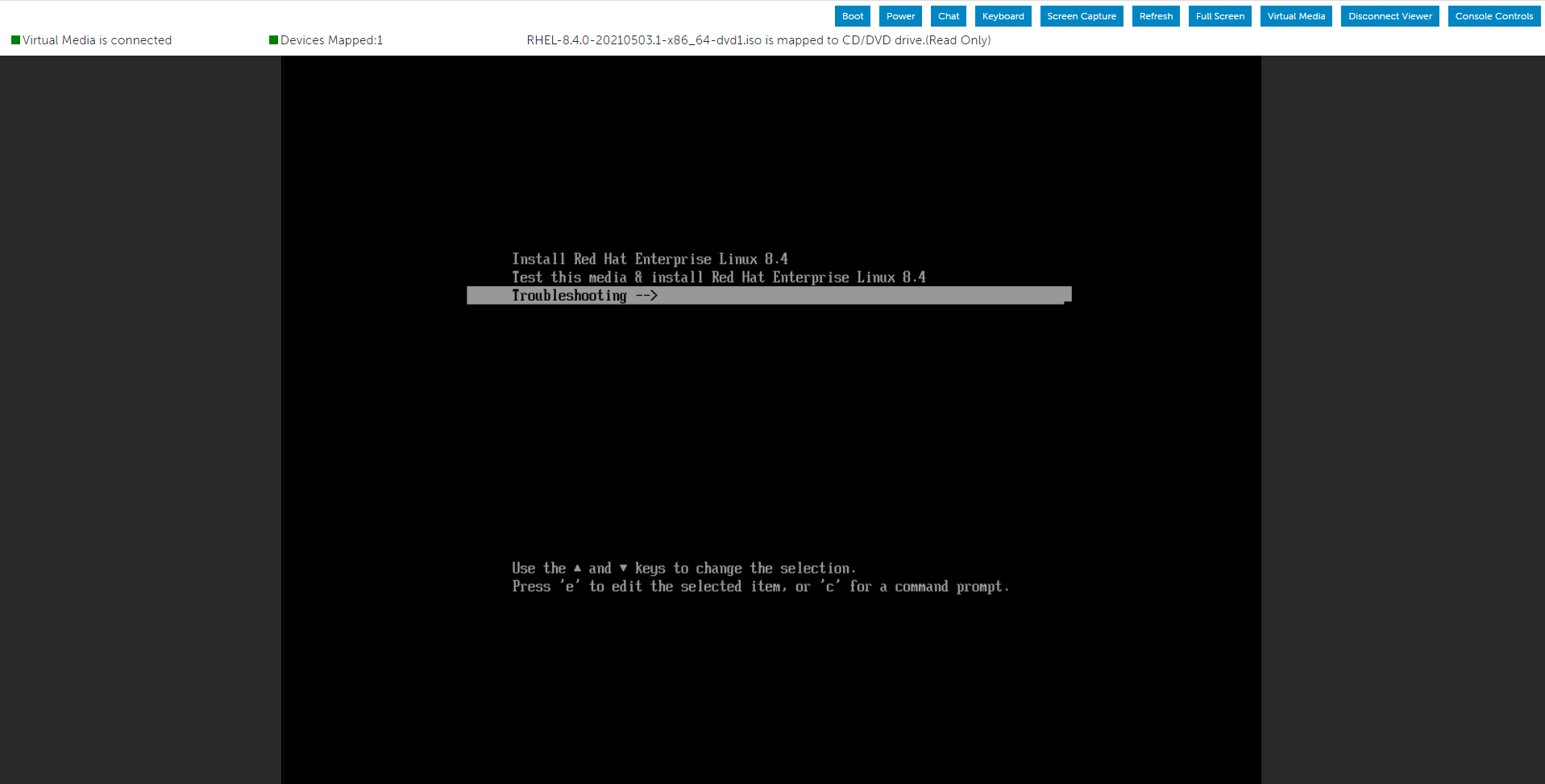


We noticed the below error events “error while loading shared libraries: libcrypto.so.1.1: Cannot open shared object file: No such file or directory"

Let us create a directory and mount the operating system ISO image inside it. We may now use the Packages folder that we mounted using the Red Hat Operating System ISO image. Using it, we can look for the necessary RPM packages to be installed.
Verify the installation status once the appropriate RPM package has been installed. Once this has been done and verified, we may exit the present environment and restart the system.

You can find an additional article under additional info for guidance on the RPM installation in rescue mode.
Additional Information
Affected Products
Red Hat Enterprise Linux Version 6, Red Hat Enterprise Linux Version 7, Red Hat Enterprise Linux Version 9Products
PowerEdge XR2, PowerEdge FC640, PowerEdge M640, PowerEdge M640 (for PE VRTX), PowerEdge MX5016s, PowerEdge MX740C, PowerEdge MX750c, PowerEdge MX760c, PowerEdge MX840C, PowerEdge R250, PowerEdge R260, PowerEdge R340, PowerEdge R350, PowerEdge R360
, PowerEdge R440, PowerEdge R450, PowerEdge R540, PowerEdge R550, PowerEdge R640, PowerEdge R6415, PowerEdge R650, PowerEdge R650xs, PowerEdge R6515, PowerEdge R6525, PowerEdge R660, PowerEdge R660xs, PowerEdge R6615, PowerEdge R6625, PowerEdge R740, PowerEdge R740XD, PowerEdge R740XD2, PowerEdge R7415, PowerEdge R7425, PowerEdge R750, PowerEdge R750XA, PowerEdge R750xs, PowerEdge R7515, PowerEdge R7525, PowerEdge R760, PowerEdge R760XA, PowerEdge R760xd2, PowerEdge R760xs, PowerEdge R7615, PowerEdge R7625, PowerEdge R840, PowerEdge R860, PowerEdge R940, PowerEdge R940xa, PowerEdge R960, PowerEdge T150, PowerEdge T160, PowerEdge T340, PowerEdge T350, PowerEdge T360, PowerEdge T440, PowerEdge T550, PowerEdge T560, PowerEdge T640, PowerEdge XE2420, PowerEdge XR11, PowerEdge XR12, PowerEdge XR4510c, PowerEdge XR4520c, PowerEdge XR8610t, PowerEdge XR8620t
...
Article Properties
Article Number: 000213477
Article Type: How To
Last Modified: 26 Dec 2024
Version: 4
Find answers to your questions from other Dell users
Support Services
Check if your device is covered by Support Services.