How to Locate the USB Dongle for the Dell Pro Keyboard and Mouse KM5221W
Summary: Learn about how to locate the Dell Pro Keyboard and Mouse KM5221W USB dongle by following these step-by-step instructions.
This article applies to
This article does not apply to
This article is not tied to any specific product.
Not all product versions are identified in this article.
Instructions
The Dell Pro Keyboard and Mouse KM5221W uses one common USB wireless dongle for both the keyboard and mouse.
Affected Keyboard:
- Dell Pro Keyboard and Mouse KM5221W
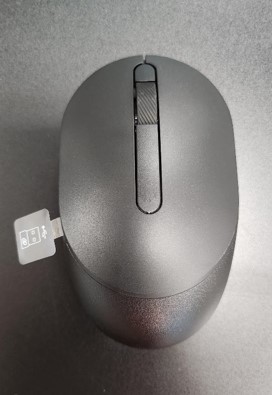
- When unboxing the KM5221W, look for the USB dongle label sticking out from the mouse.
- Gently remove the mouse top cover and then locate the dongle.
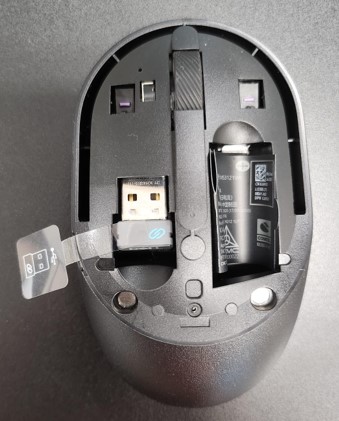
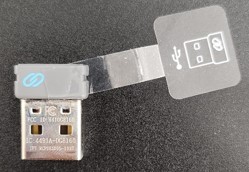
- Remove the USB dongle from the dongle storage within the mouse.
- Go to Support for Dell Pro Keyboard and Mouse KM5221W and reference the Dell Pro Keyboard and Mouse KM5221W Quick Setup Guide or the User Guide to complete the setup.
Affected Products
Alienware, Dell All-in-One, Dell Pro All-in-One, Dell Pro Max Micro, Dell Pro Max Slim, Dell Pro Max Tower, Dell Pro Micro, Dell Pro Slim, Dell Pro Tower, Dell Slim, Dell Tower, Inspiron, OptiPlex, Vostro, XPS, G Series, Chromebook, G Series
, Alienware, Dell Plus, Dell Pro, Dell Pro Max, Dell Pro Plus, Dell Pro Premium, Inspiron, Latitude, Dell Pro Rugged, Vostro, XPS, Fixed Workstations, Mobile Workstations, Dell Pro Max Micro XE FCM2250, Dell Pro Keyboard and Mouse KM5221W
...
Article Properties
Article Number: 000214907
Article Type: How To
Last Modified: 07 May 2025
Version: 5
Find answers to your questions from other Dell users
Support Services
Check if your device is covered by Support Services.