Come individuare il dongle USB per la tastiera e il mouse Dell Pro KM5221W
Summary: Scopri come individuare la tastiera e il mouse Dell Pro KM5221W dongle USB seguendo queste istruzioni dettagliate.
This article applies to
This article does not apply to
This article is not tied to any specific product.
Not all product versions are identified in this article.
Instructions
Il KM5221W di tastiere e mouse Dell Pro utilizza un dongle senza fili USB comune sia per la tastiera che per il mouse.
Tastiera interessata:
- Mouse e tastiera Dell Pro KM5221W
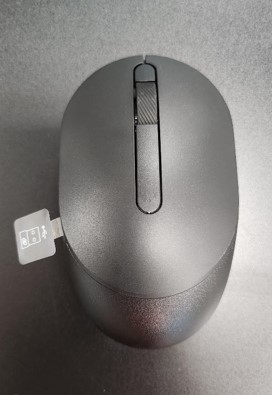
- Quando si disimballa il KM5221W, cercare l'etichetta del dongle USB che sporge dal mouse.
- Rimuovere delicatamente il coperchio superiore del mouse e individuare il dongle.
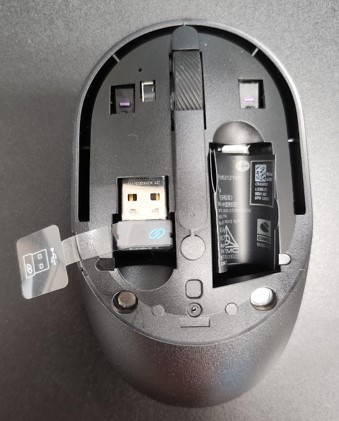
- Rimuovere il dongle USB dal relativo alloggiamento all'interno del mouse.
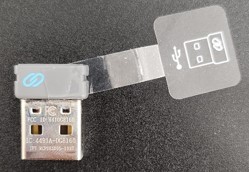
- Accedere alla KM5221W Supporto per tastiera e mouse Dell Pro e fare riferimento alla Guida all'installazione rapida di KM5221W o alla Guida utente per completare la configurazione.
Affected Products
Alienware, Dell All-in-One, Dell Pro All-in-One, Dell Pro Max Micro, Dell Pro Max Slim, Dell Pro Max Tower, Dell Pro Micro, Dell Pro Slim, Dell Pro Tower, Dell Slim, Dell Tower, Inspiron, OptiPlex, Vostro, XPS, G Series, Chromebook, G Series
, Alienware, Dell Plus, Dell Pro, Dell Pro Max, Dell Pro Plus, Dell Pro Premium, Inspiron, Latitude, Dell Pro Rugged, Vostro, XPS, Fixed Workstations, Mobile Workstations, Dell Pro Max Micro XE FCM2250, Dell Pro Keyboard and Mouse KM5221W
...
Article Properties
Article Number: 000214907
Article Type: How To
Last Modified: 07 May 2025
Version: 5
Find answers to your questions from other Dell users
Support Services
Check if your device is covered by Support Services.