De USB-dongle voor het Dell Pro toetsenbord en de muis vinden KM5221W
Summary: Volg deze stapsgewijze instructies om de Dell Pro toetsenbord en muis KM5221W USB-dongle te vinden.
This article applies to
This article does not apply to
This article is not tied to any specific product.
Not all product versions are identified in this article.
Instructions
De Dell Pro toetsenbord en muis KM5221W gebruikt één gemeenschappelijke draadloze USB-dongle voor zowel het toetsenbord als de muis.
Getroffen toetsenbord:
- Dell Pro toetsenbord en muis KM5221W
- Let bij het uitpakken van de KM5221W op het label van de USB-dongle dat uit de muis steekt.

- Verwijder voorzichtig de kap van de muis en zoek vervolgens de dongle.

- Verwijder de USB-dongle uit de donglestorage in de muis.
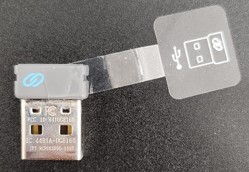
- Ga naar Support voor Dell Pro toetsenbord en muis KM5221W en raadpleeg de Dell Pro KM5221W Snelstartgids voor het toetsenbord en de muis of de gebruikershandleiding om de installatie te voltooien.
Affected Products
Alienware, Dell All-in-One, Dell Pro All-in-One, Dell Pro Max Micro, Dell Pro Max Slim, Dell Pro Max Tower, Dell Pro Micro, Dell Pro Slim, Dell Pro Tower, Dell Slim, Dell Tower, Inspiron, OptiPlex, Vostro, XPS, G Series, Chromebook, G Series
, Alienware, Dell Plus, Dell Pro, Dell Pro Max, Dell Pro Plus, Dell Pro Premium, Inspiron, Latitude, Dell Pro Rugged, Vostro, XPS, Fixed Workstations, Mobile Workstations, Dell Pro Max Micro XE FCM2250, Dell Pro Keyboard and Mouse KM5221W
...
Article Properties
Article Number: 000214907
Article Type: How To
Last Modified: 07 May 2025
Version: 5
Find answers to your questions from other Dell users
Support Services
Check if your device is covered by Support Services.