PowerEdge : Suppression d’un abonnement Redfish dans iDRAC9 à l’aide de l’API dans Postman
Summary: Cet article fournit un guide pas à pas sur la suppression des abonnements Redfish (et non sur la désactivation complète de Redfish) dans l’iDRAC9 à l’aide de l’API.
This article applies to
This article does not apply to
This article is not tied to any specific product.
Not all product versions are identified in this article.
Instructions
Les étapes ci-dessous permettent de supprimer les abonnements Redfish existants dans iDRAC9. Redfish reste activé.
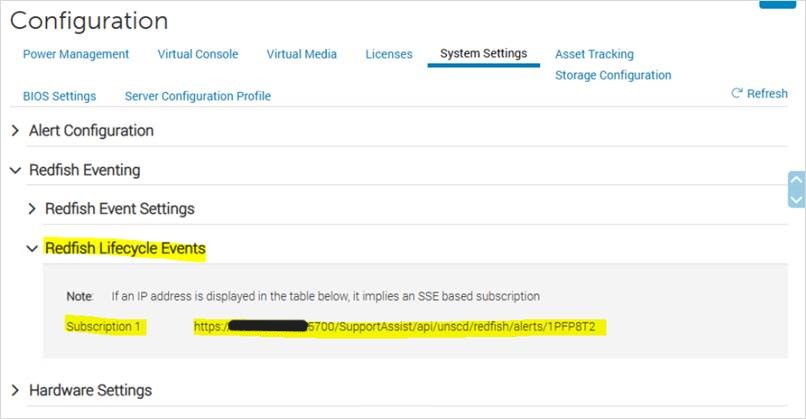
Figure 1 : Configuration avant la suppression des abonnements Redfish
Exemple :

Figure 3 : L’ID d’abonnement est tel qu’indiqué.
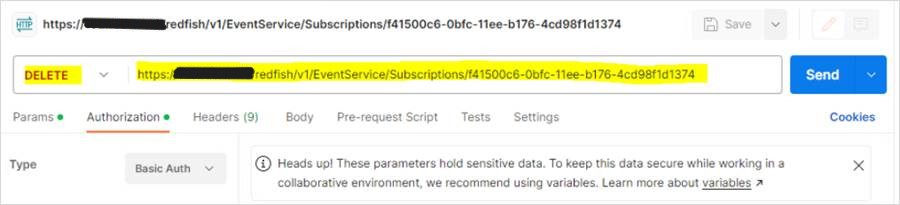
Figure 4 : Utilisez la fonction DELETE.
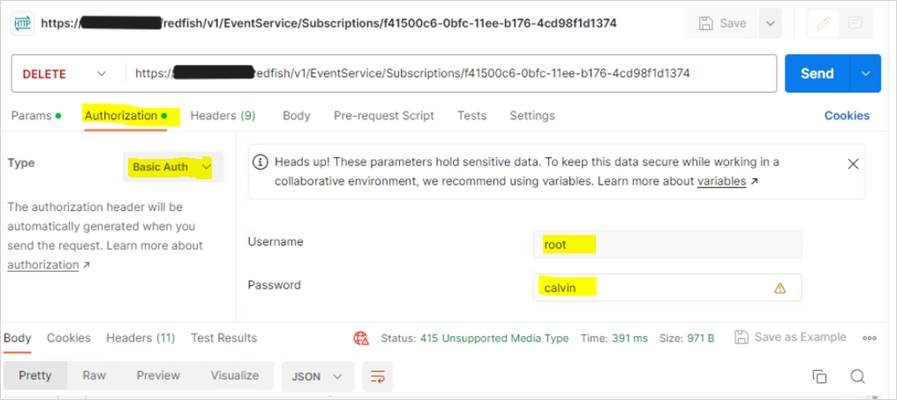
Figure 5 : Spécifiez le nom d’utilisateur et le mot de passe iDRAC dans l’onglet Autorisation.
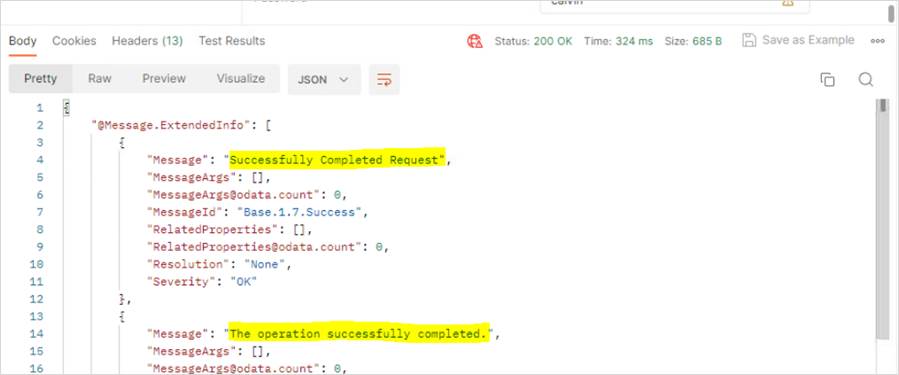
Figure 6 : Les messages « Demande terminée avec succès » et « L’opération s’est terminée avec succès » s’affichent dans la sortie.
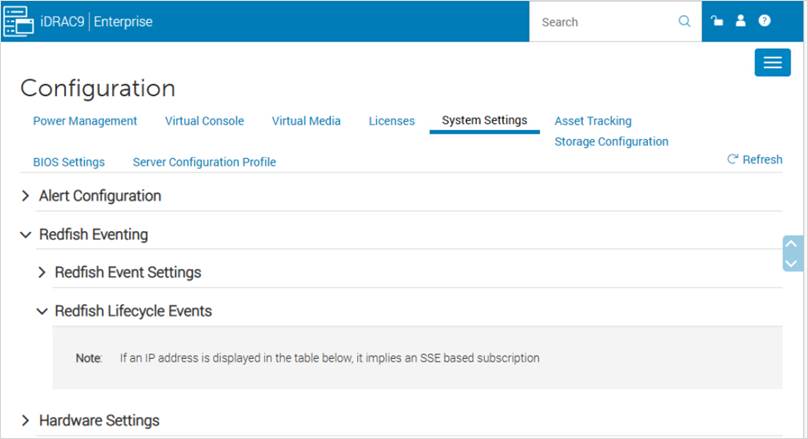
Figure 7 : Configuration après la suppression des abonnements Redfish
INSTRUCTIONS:
Avant d’effectuer les modifications :
Figure 1 : Configuration avant la suppression des abonnements Redfish
- Obtenez l’ID d’abonnement en saisissant ce qui suit dans le navigateur :
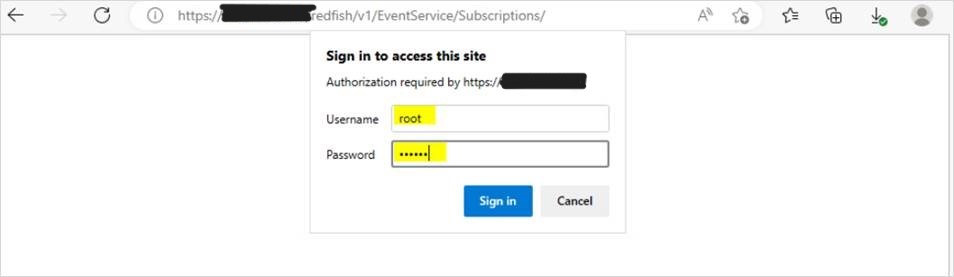
https://<iDRAC IP>/redfish/v1/EventService/Subscriptions/
Lorsque vous y êtes invité, spécifiez les informations d’identification iDRAC.
Figure 2 : Ajoutez les informations d’identification iDRAC à l’invite.
Exemple :
L’ID d’abonnement est le suivant :
Figure 3 : L’ID d’abonnement est tel qu’indiqué.
- Ouvrez le logiciel Postman :
-
- Utilisez la fonction DELETE et saisissez ce qui suit :
https://<iDRAC IP>/redfish/v1/EventService/Subscriptions/<subscription ID>
Figure 4 : Utilisez la fonction DELETE.
-
- Accédez à l’onglet Autorisation, sélectionnez Basic Auth comme Type, puis spécifiez le nom d’utilisateur et le mot de passe iDRAC.
Figure 5 : Spécifiez le nom d’utilisateur et le mot de passe iDRAC dans l’onglet Autorisation.
-
- Cliquez sur Envoyer, puis sur Successfully Completed Request » et « The operation completed » s’affichent dans la sortie.
Figure 6 : Les messages « Demande terminée avec succès » et « L’opération s’est terminée avec succès » s’affichent dans la sortie.
- Déconnectez-vous, puis reconnectez-vous à l’iDRAC. Vous pouvez également actualiser la page iDRAC.
Figure 7 : Configuration après la suppression des abonnements Redfish
Affected Products
iDRAC9Products
PowerEdge XR2, Poweredge C4140, PowerEdge C6420, PowerEdge C6520, PowerEdge C6525, PowerEdge C6615, PowerEdge C6620, PowerEdge R250, PowerEdge R260, PowerEdge R350, PowerEdge R360, PowerEdge R440, PowerEdge R450, PowerEdge R540, PowerEdge R550
, PowerEdge R640, PowerEdge R6415, PowerEdge R650, PowerEdge R650xs, PowerEdge R6515, PowerEdge R6525, PowerEdge R660, PowerEdge R660xs, PowerEdge R6615, PowerEdge R6625, PowerEdge R740, PowerEdge R740XD, PowerEdge R740XD2, PowerEdge R7415, PowerEdge R7425, PowerEdge R750, PowerEdge R750XA, PowerEdge R750xs, PowerEdge R7515, PowerEdge R7525, PowerEdge R760, PowerEdge R760XA, PowerEdge R760xd2, PowerEdge R760xs, PowerEdge R7615, PowerEdge R7625, PowerEdge R840, PowerEdge R860, PowerEdge R940, PowerEdge R940xa, PowerEdge R960, PowerEdge T150, PowerEdge T160, PowerEdge T340, PowerEdge T350, PowerEdge T360, PowerEdge T440, PowerEdge T550, PowerEdge T560, PowerEdge T640, PowerEdge XE2420, PowerEdge XE7420, PowerEdge XE7440, PowerEdge XE8545, PowerEdge XE8640, PowerEdge XE9640, PowerEdge XE9680, PowerEdge XR11, PowerEdge XR12, PowerEdge XR4510c, PowerEdge XR4520c, PowerEdge XR5610, PowerEdge XR7620, PowerEdge XR8610t, PowerEdge XR8620t
...
Article Properties
Article Number: 000215102
Article Type: How To
Last Modified: 02 Jan 2025
Version: 3
Find answers to your questions from other Dell users
Support Services
Check if your device is covered by Support Services.