PowerProtect Data Manager:ファイル システム エージェントのバックアップを手動でマウントする方法
Summary: この記事では、ddfsrcコマンドを使用してPowerProtect Data Managerファイル システム エージェントのバックアップを手動でマウントする方法について説明します。
This article applies to
This article does not apply to
This article is not tied to any specific product.
Not all product versions are identified in this article.
Instructions
PowerProtect Data Manager FileSystemエージェント バックアップのリストアのトラブルシューティング中に、PowerProtect Data Manager UIからFLRリストアを実行できなかった場合に、失敗または応答停止が原因で、ユーザーはコマンドを使用して手動でバックアップのマウントを試行し、次の手順を実行できます。
データをリストアする必要があるソース クライアントで実行するコマンド:
ローカル バックアップ クエリー:
データをリストアする必要があるソース クライアントで実行するコマンド:
- データをリストアするソース サーバーに接続します。
- 次のコマンドを使用して、ローカルまたはリモートに保存されたバックアップ関連情報をクエリーします。
ddfsadmin
ヒント:要求されたデータを生成された新しいファイルから収集できるように、各コマンドの出力を.txtファイルにリダイレクトすることをお勧めしています。これらのファイルは、実行されたトラブルシューティング手順の一部としてSRにも添付する必要があります。
ロックボックス情報のクエリー:
次のコマンドを実行して、既存のData Domain IPまたは名前、バックアップに使用されるストレージ ユニット、DDBoostユーザーを識別します。
次のコマンドを実行して、既存のData Domain IPまたは名前、バックアップに使用されるストレージ ユニット、DDBoostユーザーを識別します。
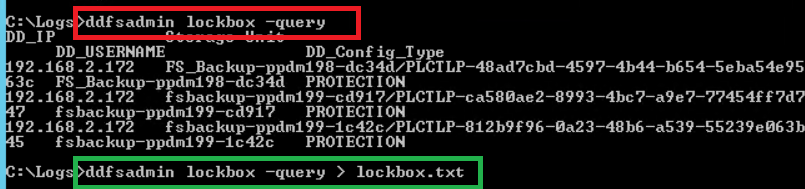
ddfsadmin lockbox -query
図1: コマンド ddfsadmin lockbox -query の結果のスクリーンショット
コマンド オプション:
ddfsadmin

usage: ddfsadmin backup [options]
   query -help: to print the help.
   query -local [-v=] [-t=[h = hour,d = days,w = weeks,m = months]: query the local record file for listing backups.
   query -remote -d= -s= -u= [-p=
- ] [-c=] [-v=] [-t=[h = hour,d = days,w = weeks,m = months]: query the record file on PowerProtect DD System for listing backups. Example: ddfsadmin backup query -local -v="C:\\" -t=5d
ローカル バックアップ クエリー:
次のコマンドを実行して、ローカルDB
に格納されているこのクライアントの既存のバックアップのリストを取得します。これらのバックアップはローカルで報告されるバックアップであり、Data Domain自体によって報告されたバックアップとは異なる場合があります。既存のバックアップの一部が正しく期限切れになり、Data Domain側から削除されている可能性がありますが、ローカル データベースはまだ更新されていないため、次のコマンドを参照してください。


リストアが実行されるホストで実行するコマンド:
リストアが実行されたホストで、次のコマンドを実行する必要があります。
ddfsrcを使用して、選択したバックアップを手動でマウントします。
次のコマンドを使用して、コマンドを実行するホストにバックアップを手動でマウントします。これにより、デフォルトでフォルダーの下にあるマウント ポイントを介してバックアップが使用可能になり、参照できるようになります。

に格納されているこのクライアントの既存のバックアップのリストを取得します。これらのバックアップはローカルで報告されるバックアップであり、Data Domain自体によって報告されたバックアップとは異なる場合があります。既存のバックアップの一部が正しく期限切れになり、Data Domain側から削除されている可能性がありますが、ローカル データベースはまだ更新されていないため、次のコマンドを参照してください。
ddfsadmin backup query -local
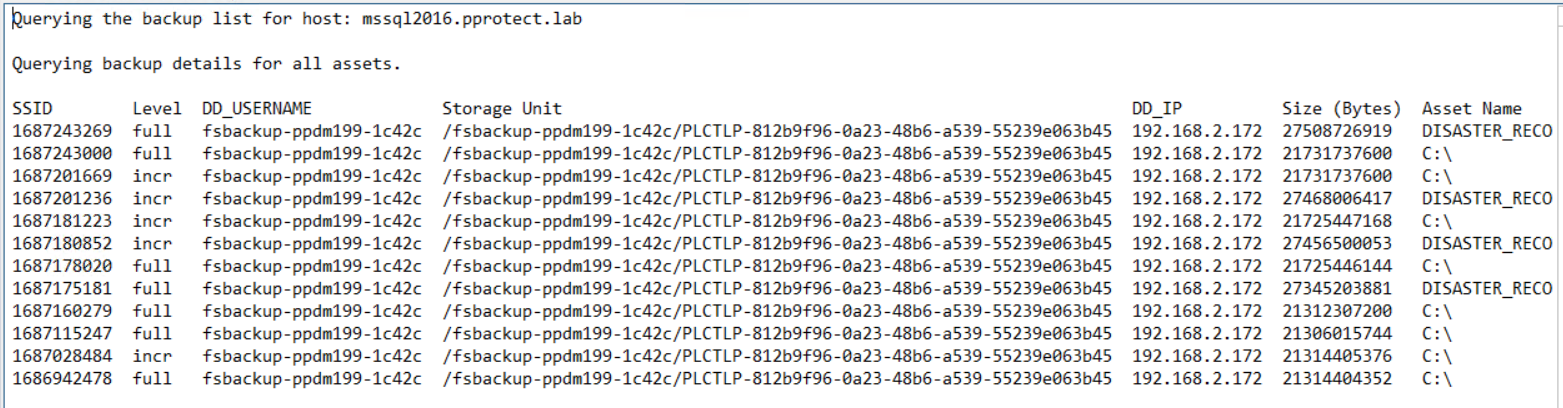
図2:コマンド ddfsadmin backup query -local の結果のスクリーンショット
ファイルはlocalbck.txtです(これは、前のコマンドの出力をリダイレクトすることによって生成できるファイルです。
ddfsadmin backup query -local > localbck.txt.
図3:すべての資産のバックアップの詳細のスクリーンショット
リモート バックアップ クエリー:
次のコマンドを実行して、指定したストレージ ユニットの下のData Domainに格納されているこのクライアントの既存のバックアップのリストを取得します。
次のコマンドを実行して、指定したストレージ ユニットの下のData Domainに格納されているこのクライアントの既存のバックアップのリストを取得します。
ddfsadmin backup query -remote -d=DD_name_IP -s=SU_name -u=DDBoost_user
例
以前に収集したlockbox.txtコマンドの出力を使用して、次の手順を実行します。
ddfsadmin backup query -remote -d=192.168.2.172 -s=/fsbackup-ppdm199-1c42c/PLCTLP-812b9f96-0a23-48b6-a539-55239e063b45 -u=fsbackup-ppdm199-1c42c
図4:コマンド ddfsadmin backup query -remote の結果のスクリーンショット
リストアが実行されるホストで実行するコマンド:
リストアが実行されたホストで、次のコマンドを実行する必要があります。
- クライアントAのクライアントAをリカバリするには、クライアントAで コマンドを実行します。
- クライアントBのクライアントAをリカバリするには、クライアントBで コマンドを実行し、ddfsrc -c clientAが定義されていることを確認します。
ddfsrcを使用して、選択したバックアップを手動でマウントします。
次のコマンドを使用して、コマンドを実行するホストにバックアップを手動でマウントします。これにより、デフォルトでフォルダーの下にあるマウント ポイントを介してバックアップが使用可能になり、参照できるようになります。
DPSAPPS_install_dir/fsagent/tmp/BBB
ddfsrc command options
   Usage: ddfsrc [OPTION]... STRING
      STRING can be a file path string, key=value string, or a flag string.

   -c
      Specifies the client index name, such as a hostname or clustername.

   -d
      Specifies the destination directory into which files are recovered. Combined with -I, specifies the file level recovery.

   -h  [=]
      DFA_SI_DD_HOST=hostname         Data target hostname is mandatory.
      DFA_SI_DD_USER=username         Data target username is mandatory.
      DFA_SI_DEVICE_PATH=device_path         A device path is mandatory.
      DFA_SI_DD_LOCKBOX_PATH=lockbox_path     If credentials were not added in the default lockbox path, a lockbox path is mandatory. Default lockbox path is C:\Program Files\DPSAPPS\fsagent\lockbox.
      DDBOOST_COMPRESSED_RESTORE=TRUE|FALSE     Specifies whether to compress the data transfer. The TRUE setting specifies the compressed data transfer. The default value is FALSE.

   -i  [nNoOrRyY]
      N or n                     Specifies to discard (do not overwrite) identical files during recovery.
      O or o                     Specifies to overwrite, but if the file is locked, not overwrite at reboot.
      R or r                     Specifies to rename if the recovered file is identical.
      Y or y                     Specifies to overwrite and replace at reboot if file is locked.

   -I
      Specifies the file from which to extract the restored file names. Combined with -d, specifies the file level recovery.
   -r
      Specifies the target directory into which files are recovered, such as local disk C:\ or D:\, directory E:\restore_directory on Windows, or directory /restore_directory on Linux.

   -S
      Specifies the backup ID that will be used to perform recovery.

   -g
      Specifies to discard upward folder hierarchy during file level recovery.
ddfsrc mount/unmount command syntax

ddfsrc -c source_client_from_which_backup_will_be_restored -S backup_id/SSID -h DFA_SI_DD_HOST=DD_name/IP -h DFA_SI_DD_USER=DDBoostUser DFA_SI_DEVICE_PATH=Storage_Unit -k mount/unmount
例
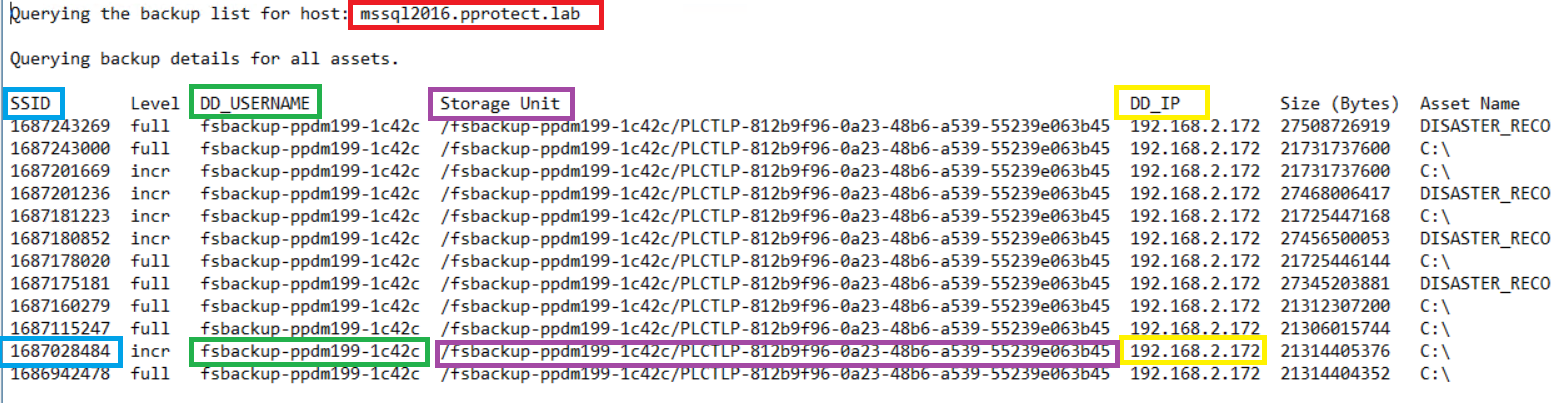
ddfsadminコマンド クエリーで以前に収集した情報を使用する場合:
図5:ddfsadminコマンド クエリーの詳細のスクリーンショット
ddfsrc -c MSSQL2016.pprotect.lab -S 1687028484 -h DFA_SI_DD_HOST=192.168.2.172 -h DFA_SI_DD_USER=fsbackup-ppdm199-1c42c -h DFA_SI_DEVICE_PATH=/fsbackup-ppdm199-1c42c/PLCTLP-812b9f96-0a23-48b6-a539-55239e063b45 -k mount
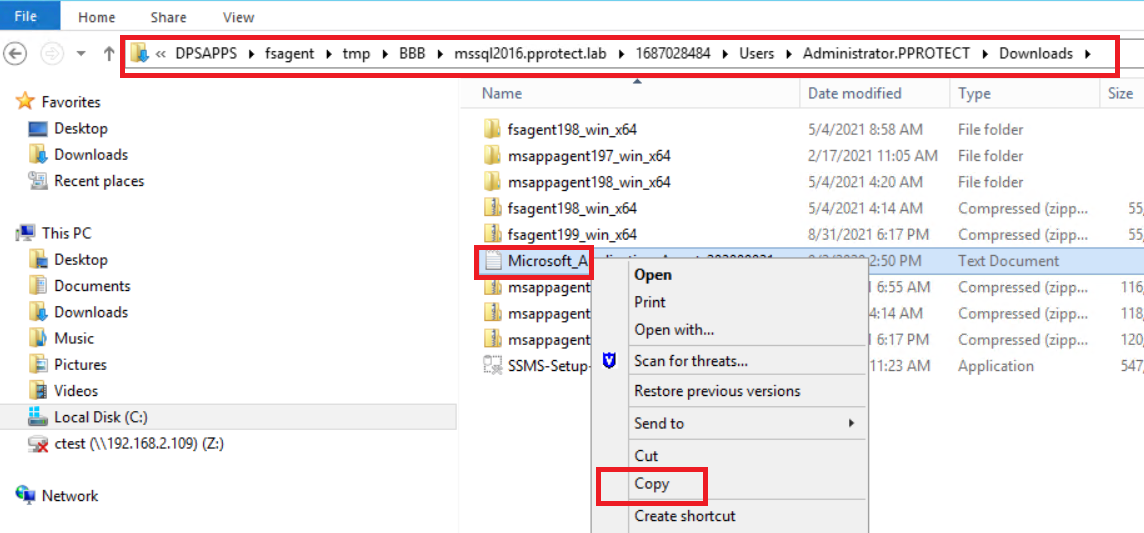
上記のコマンドは、デフォルトのマウント パス フォルダーで選択した増分バックアップをマウントします。この場合、通常のファイル エクスプローラーを使用してアクセスできます。
図6:ファイル アドレス
図7:スクリーンショット ファイルアドレスの場所
マウントされたバックアップから選択したリストア パスにファイルまたはフォルダーを手動でコピーできます。
ヒント:上記のコマンドは、コマンド ddfsrc -D9 に -D [0-9] フラグを追加することで、ファイル システムのバックアップ マウントの問題をデバッグするためにも使用できます。
操作が完了したら、-kアンマウントを使用して同じコマンドを実行して、バックアップをアンマウントすることを忘れないでください。
ddfsrc -c MSSQL2016.pprotect.lab -S 1687028484 -h DFA_SI_DD_HOST=192.168.2.172 -h DFA_SI_DD_USER=fsbackup-ppdm199-1c42c -h DFA_SI_DEVICE_PATH=/fsbackup-ppdm199-1c42c/PLCTLP-812b9f96-0a23-48b6-a539-55239e063b45 -k unmount
Affected Products
PowerProtect SoftwareArticle Properties
Article Number: 000215181
Article Type: How To
Last Modified: 05 Jul 2023
Version: 2
Find answers to your questions from other Dell users
Support Services
Check if your device is covered by Support Services.