Zeitweiliges oder verzerrtes Audio bei der Freigabe von Multimedia-Inhalten in einer Telefonkonferenz
Summary: Dieser Artikel enthält Informationen zu Multimedia-Audioinhalten, die während einer Telefonkonferenz freigegeben werden und für andere Teilnehmer verzerrt oder unterbrochen werden können. Dies tritt auf, wenn Sie Desktop-PCs und Laptops mit Intel Prozessoren der 12. und 13. Generation verwenden. ...
This article applies to
This article does not apply to
This article is not tied to any specific product.
Not all product versions are identified in this article.
Symptoms
Es kann vorkommen, dass der Ton der Multimediainhalte (online gestreamt oder lokal gespeichert) verzerrt oder unterbrochen wird. Dies tritt bei der Verwendung von Konferenzanwendungen wie Teams und Zoom auf.
Verwenden Sie ein USB-Headset? Überprüfen Sie die Probleme mit dem USB-Headset-Audio bei der Verwendung von Videokonferenzanwendungen unter Windows 11.
Betroffene Modelle:
- Dell DCXXXXX
- Dell 14-DC14250
- Dell 15 DC15250
- Dell Pro Essentials
- Dell Pro 14 Essential PV14250
- Dell Pro 15 Essential PV15250
- Inspiron
- Inspiron 13 5320
- Inspiron 13 5330
- Inspiron 14 5420
- Inspiron 14 5430
- Inspiron 14 7420 2-in-1
- Inspiron 14 7430 2-in-1-System
- Inspiron 14 Plus 7420
- Inspiron 14 Plus 7430
- Inspiron 14R 5421
- Inspiron 15 3520
- Inspiron 15 3530
- Inspiron 16 5620
- Inspiron 16 5630
- Inspiron 16 7620 2-in-1
- Inspiron 16 7630 2-in-1-System
- Inspiron 16 Plus 7620
- Inspiron 16 Plus 7630
- Inspiron 24 5410 All-in-One
- Inspiron 27 7710 All-in-One
- Inspiron 27 7720 All-in-One
- Latitude
- Latitude 3140
- Latitude 3330
- Latitude 3340
- Latitude 3430
- Latitude 3440
- Latitude 3530
- Latitude 3540
- Latitude 5330
- Latitude 5340
- Latitude 5430
- Latitude 5431
- Latitude 5440
- Latitude 5530
- Latitude 5531
- Latitude 5540
- Latitude 7230 Rugged Extreme Tablet
- Latitude 7330
- Latitude 7340
- Latitude 7430
- Latitude 7440
- Latitude 7530
- Latitude 7640
- Latitude 9330
- Latitude 9430
- Latitude 9440 2-in-1-System
- Dell Pro 13 Premium
- OptiPlex
- OptiPlex 3000 Micro
- OptiPlex 5000 Micro
- OptiPlex 5400 All-In-One
- OptiPlex 7000 Micro
- OptiPlex 7010-Tower
- OptiPlex 7400 All-In-One
- OptiPlex All-in-One 7410
- OptiPlex Micro 7010
- OptiPlex Small Form Factor 7010
- Precision
- Precision 3260 Compact
- Precision 3460 Small Form Factor
- Precision 3470
- Precision 3570
- Precision 3571
- Precision 3580
- Precision 3581
- Precision 3660 Tower
- Precision 3660 XE Tower
- Precision 5470
- Precision 5480
- Precision 5570
- Precision 5680
- Precision 5770
- Precision 7670
- Precision 7680
- Precision 7770
- Precision 7780
- Vostro
- Vostro 14 3430
- Vostro 15 3530
- Vostro 16 5630
- Vostro 3420
- Vostro 3520
- Vostro 5320
- Vostro 5620
- Vostro 7620
- XPS
- XPS 13 9315
- XPS 13 9315 2-in-1
- XPS 13 Plus 9320
- XPS 15 9520
- XPS 15 9530
- XPS 17 9720
- XPS 17 9730
Cause
Mit der Funktion " Hintergrundgeräusche anderer entfernen " in Dell Optimizer oder MyDell und der Einstellung " Rauschen entfernen " in Waves MaxxAudio Pro-Anwendungen wird versucht, nichtmenschliche Stimmen von Konferenzgesprächsteilnehmern zu entfernen.
Der Ton des Multimedia-Inhalts kann als nicht-menschliche Stimme behandelt werden, und diese Funktionen entfernen den Audio.
Resolution
Überprüfen Sie, ob eine der folgenden Anwendungen auf Ihrem Computer installiert ist. Dell Optimizer, MyDell oder Waves MaxxAudio Pro. Wenn die Anwendung Dell Optimizer oder MyDell installiert ist, überprüfen Sie, ob die Einstellung Hintergrundgeräusche anderer entfernen aktiviert ist. Wenn die Anwendung Waves MaxxAudio Pro installiert ist, überprüfen Sie, ob die Einstellung Remove Noise aktiviert ist.
Um das Problem mithilfe der Dell Optimizer-Anwendung zu beheben, deaktivieren Sie die Funktion Hintergrundgeräusche anderer entfernen .
- Öffnen Sie die Anwendung Dell Optimizer .
- Wählen Sie Audio im Abschnitt "Verbessern Sie Ihre Dell Erfahrung " aus (Abbildung 1).
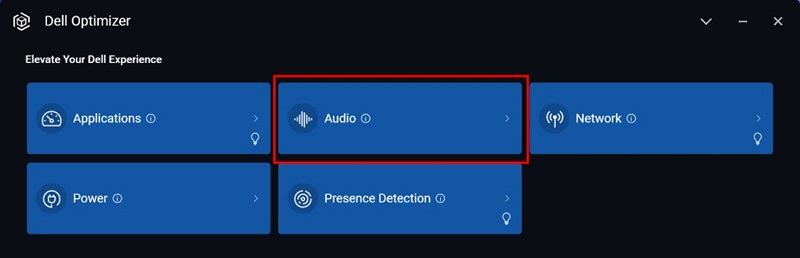
Abbildung 1. Auswählen von Audio im Abschnitt "Verbessern Sie Ihre Dell Erfahrung"
- Setzen Sie die Funktion Hintergrundgeräusche anderer entfernen auf AUS (Abbildung 2).

Abbildung 2. Setzen Sie die Funktion "Hintergrundgeräusche anderer entfernen" auf AUS.
Um das Problem mithilfe der Anwendung MyDell zu beheben, deaktivieren Sie die Funktion Hintergrundgeräusche anderer entfernen .
- Öffnen Sie die Anwendung MyDell . Wählen Sie auf der Begrüßungsseite Audio aus (Abbildung 3).

Abbildung 3. Auswählen von Audio
- Wählen Sie die Registerkarte Sprachqualität aus (Abbildung 4).

Abbildung 4. Registerkarte "Sprachqualität"
- Setzen Sie die Funktion Hintergrundgeräusche anderer entfernen auf AUS (Abbildung 5).

Abbildung 5. Entfernen Sie die Funktion "Hintergrundgeräusche" anderer.
Um das Problem mit der Anwendung Waves MaxxAudio Pro zu beheben, deaktivieren Sie die Funktion "Rauschen entfernen ".
- Öffnen Sie die Anwendung Waves MaxxAudio Pro .
- Wählen Sie die Registerkarte Voice aus.
- Setzen Sie unter Lautsprechereinstellung die Funktion Rauschen entfernenauf AUS (Abbildung 6).

Abbildung 6. Setzen Sie die Funktion "Rauschen entfernen" auf AUS.
Hinweis: Wenn die Waves Maxx-Audioeinstellungen nicht verfügbar sind, gehen Sie zu Windows-Systemsteuerung>Systemton und aktivieren Sie die Option "Audio verbessern " für das verwendete Mikrofon oder den verwendeten Lautsprecher.
Additional Information
Empfohlene Artikel
Hier sind einige empfohlene Artikel zu diesem Thema, die für Sie von Interesse sein könnten.
Affected Products
Dell 14 DC14250, Dell 15 DC15250, Dell Optimizer, Dell Pro 13 Premium PA13250, Dell Pro 14 Essential PV14250, Dell Pro 15 Essential PV15250, Inspiron 13 5320, Inspiron 13 5330, Inspiron 14 5420, Inspiron 14 5430, Inspiron 14 7420 2-in-1
, Inspiron 14 Plus 7420, Inspiron 14 7430 2-in-1, Inspiron 14 Plus 7430, Inspiron 14R 5421, Inspiron 15 3520, Inspiron 15 3530, Inspiron 16 5620, Inspiron 16 5630, Inspiron 16 7620 2-in-1, Inspiron 16 Plus 7620, Inspiron 16 7630 2-in-1, Inspiron 16 Plus 7630, Inspiron 24 5410 All-in-One, Inspiron 27 7710 All-in-One, Inspiron 27 7720 All-in-One, Latitude 3140, Latitude 7230 Rugged Extreme Tablet, Latitude 3330, Latitude 3340, Latitude 5330, Latitude 5340, Latitude 7330, Latitude 7340, Latitude 9330, Latitude 3430, Latitude 3440, Latitude 5431, Latitude 5440, Latitude 7430, Latitude 7440, Latitude 9430, Latitude 9440 2-in-1, Latitude 3530, Latitude 3540, Latitude 5530, Latitude 5531, Latitude 5540, Latitude 7530, Latitude 7640, Latitude 5430, MyDell, OptiPlex 3000 Micro, OptiPlex 5000 Micro, OptiPlex 5400 All-In-One, OptiPlex 7000 Micro, OptiPlex Tower 7010, OptiPlex Micro 7010, OptiPlex Small Form Factor 7010, OptiPlex 7400 All-In-One, OptiPlex All-In-One 7410, Precision 3660 XE Tower, Precision 3470, Precision 5470, Precision 5480, Precision 3570, Precision 3571, Precision 3580, Precision 3581, Precision 5570, Precision 5680, Precision 7670, Precision 7680, Precision 5770, Precision 7770, Precision 7780, Precision 3260 Compact, Precision 3460 Small Form Factor, Precision 3660 Tower, Vostro 5320, Vostro 3420, Vostro 14 3430, Vostro 3520, Vostro 15 3530, Vostro 5620, Vostro 16 5630, Vostro 7620, XPS 13 9315 2-in-1, XPS 13 9315, XPS 13 Plus 9320, XPS 15 9520, XPS 15 9530, XPS 17 9720, XPS 17 9730
...
Products
Inspiron 15 3520, Inspiron 15 3530, Inspiron 16 5620, Inspiron 16 5630, Inspiron 16 7620 2-in-1, Inspiron 16 Plus 7620, Inspiron 16 7630 2-in-1, Inspiron 16 Plus 7630, Inspiron 24 5410 All-in-One, Inspiron 27 7710 All-in-One
, Inspiron 27 7720 All-in-One, Latitude 3140, Latitude 7230 Rugged Extreme Tablet, Latitude 3330, Latitude 3340, Latitude 5330, Latitude 5340, Latitude 7330, Latitude 7340, Latitude 9330, Latitude 3430, Latitude 3440, Latitude 5431, Latitude 5440, Latitude 7430, Latitude 7440, Latitude 9430, Latitude 9440 2-in-1, Latitude 3530, Latitude 3540, Latitude 5530, Latitude 5531, Latitude 5540, Latitude 7530, Latitude 7640, Latitude 5430, OptiPlex 3000 Micro, OptiPlex 5000 Micro, OptiPlex 5400 All-In-One, OptiPlex 7000 Micro, OptiPlex Tower 7010, OptiPlex Micro 7010, OptiPlex Small Form Factor 7010, OptiPlex 7400 All-In-One, OptiPlex All-In-One 7410, Precision 3660 XE Tower, Precision 3470, Precision 5470, Precision 5480, Precision 3570, Precision 3571, Precision 3580, Precision 3581, Precision 5570, Precision 5680, Precision 7670, Precision 7680, Precision 5770, Precision 7770, Precision 7780, Precision 3260 Compact, Precision 3460 Small Form Factor, Precision 3660 Tower, Vostro 5320, Vostro 3420, Vostro 14 3430, Vostro 3520, Vostro 15 3530, Vostro 5620, Vostro 16 5630, Vostro 7620, XPS 13 9315 2-in-1, XPS 13 9315, XPS 13 Plus 9320, XPS 15 9520, XPS 15 9530, XPS 17 9720, XPS 17 9730
...
Article Properties
Article Number: 000215376
Article Type: Solution
Last Modified: 17 Oct 2025
Version: 17
Find answers to your questions from other Dell users
Support Services
Check if your device is covered by Support Services.