PPDM vProxy disconnects with "no route to host"
Summary: PowerProtect Data Manager vProxy backups fail with "no route to host" because backups use the NBD transport mode route.
This article applies to
This article does not apply to
This article is not tied to any specific product.
Not all product versions are identified in this article.
Symptoms
PowerProtect Data Manager vProxy backups fail with "no route to host".
The log shows:
The log shows:
2023-06-15T11:43:39.933Z INFO [Timer-1] [][][][][] [c.e.b.v.a.VmdmAlertsClientImpl.processAlert(108)] -  Raise alert id=PEN0002, taskId=null [NameValuePair[name=vCenterName,value=LOCATION vCenter], NameValuePair[name=vproxy,value=VPROXYName [VPROXYName]]]
2023-06-15T11:43:39.942Z ERROR [Timer-1] [][ALERT:PEN0002][][][] [c.e.d.e.c.s.m.DefaultMessageResourceModifier.printAlertLog(143)] -  Date: Jun 15, 2023 06:43:39 AM; Summary: Virtual Machine Proxy VPROXYName [VPROXYName] on vCenter LOCATION vCenter is unreachable or unresponsive.; Details: null; Recommended Action: Contact system administrator.; Detail Summaries: null; Status: UNACKNOWLEDGED

2023-06-15T11:51:20.196Z INFO [vproxyMonitor] [][][][][] [c.e.d.v.c.VProxyManager.descriptionChanged(1218)] -  description changed: 'Unable to check vProxy status. Get "https://VPROXYName:9090/api/v1/VproxyEngines": context deadline exceeded (proxy: VPROXYName [VPROXYName])' - ManagedProxySession(state=Ready, id=b4dd411e-d7dc-46b3-91b1-a4c2f70adbd7)
2023-06-15T11:52:10.265Z INFO [vproxyMonitor] [][][][][] [c.e.d.v.c.VProxyManager.reportComplete(1540)] -  Session completed BackupJobSession(state=Failure, id=e00e81ce-4722-47e3-9f71-07001c6b210c, error: code=500, text=Unable to send Get request:  Get "https://VPROXYName:9090/api/v1/BackupVmSessions/5fa7be6e-b127-48ac-8490-99e8ed49c292": dial tcp ##.##.##.##:9090 [##.##.##.##]: connect: no route to host (proxy: VPROXYName [VPROXYName]), target=abc)
"error" : "Unable to send Get request:  Get \"https://VPROXYName:9090/api/v1/BackupVmSessions/5fa7be6e-b127-48ac-8490-99e8ed49c292\": dial tcp ##.##.##.##:9090 [##.##.##.##]: connect: no route to host (proxy: VPROXYName [VPROXYName]) (500)",
"proxyHostName" : "VPROXYName [VPROXYName]"
Cause
Backups use the NBD transport mode route. This causes a vProxy to fail.
Resolution
Tune the VM direct engine capacity setting to avoid network bandwidth issues;
This is documented on Page 32 of the following document.
https://dl.dell.com/content/manual45487542-powerprotect-data-manager-19-13-virtual-machine-user-guide.pdf?language=en-us
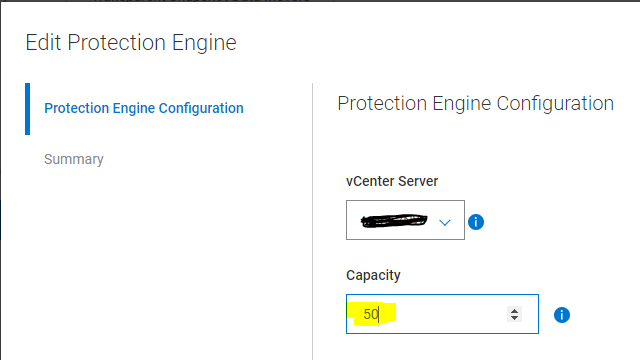
Edit the Capacity setting for a VM Direct Engine.
After adding the VM Direct Engine, you can change the percentage of the protection engine capacity that will be used. For example, you might want to change the Capacity setting to a lower value to avoid network bandwidth issues.
Perform the following steps to change the maximum percentage of the VM Direct Engine that will be used:
1. On the Protection Engines window, select the VM Direct Engine from the table in the VM Direct Engines pane.
2. Click Edit. The Edit Protection Engine wizard displays.
3. On the Protection Engine Configuration page, type a maximum percentage value for Capacity.
4. Click Next until you reach the Summary page.
5. On the Summary page, verify the new value, and then click Finish.
Article Properties
Article Number: 000215904
Article Type: Solution
Last Modified: 20 Sep 2023
Version: 2
Find answers to your questions from other Dell users
Support Services
Check if your device is covered by Support Services.