Dell ThinOS 9 Devices with Attached Nuance PowerMic Integration into Citrix USB Redirection or USB Composite Device Splitting
Summary: This article provides information about integrating THINOS 9 devices with attached Nuance PowerMic into a Citrix shared host environment.
This article applies to
This article does not apply to
This article is not tied to any specific product.
Not all product versions are identified in this article.
Instructions
Affected Operating Systems:
- Dell ThinOS 9
Table of Contents
Overview
Below is a table that summarizes two possible methods.
| Method | Citrix (ICA/HDX) |
|---|---|
| Entire Device USB Redirection (USB Audio and USB HID button controls redirected to the host) | Supported |
| Composite Device Splitting (USB Audio under client control and USB HID button controls redirected to the host) | Supported |
Entire Device USB Redirection Method
- Except for the mouse, all other interfaces are redirected to the VDI session.
- Nuance PowerMic product and Vendor ID
- PowerMic II and PowerMic III >
VID=0554 PID=1001 - PowerMic IV >
VID=0554 PID=0064
- PowerMic II and PowerMic III >
Citrix Host Policies Configuration
- Set Client USB device redirection to Allowed
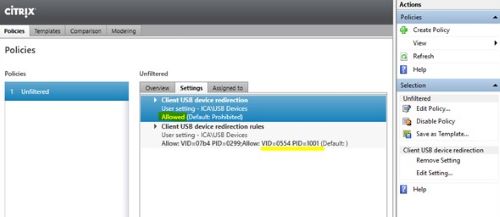
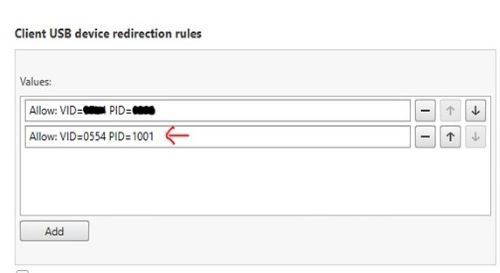
- Add Nuance PowerMic device VID and PID to the Client USB device redirection rules Allow list
 Warning: The next step is a Windows Registry edit:
- Back up the Registry before proceeding, reference How to Back Up and Restore the Registry in Windows
.
- Editing the Registry can cause the computer to become unresponsive on the next reboot.
- Contact Dell Technical Support for assistance if you have concerns about performing this step.
- Back up the Registry before proceeding, reference How to Back Up and Restore the Registry in Windows
- If the published desktop is a server (ex. Windows 2016 or 2019), add the following registry key:
HKLM\Software\Citrix\PortICA\GenericUSB key =>right mouse click => select “New” and select “DWORD (32-bit) value”, then type "UsbAudioEnabled" as the name and set the value to 1
Wyse Management Suite (WMS) group token configuration
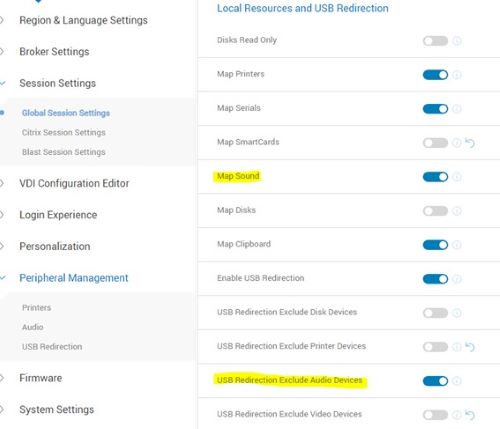
- Session Settings > Global Session Settings > Local Resources and USB Redirection > Enable Map Sound
- Session Settings > Global Session Settings > Local Resources and USB Redirection > Disable USB Redirection Exclude Audio Devices

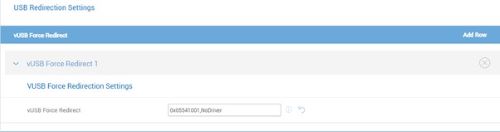
- Peripheral Management > Expand to select USB Redirection Settings > VUSB Force Redirect Settings > Add Row > Enter the device ID > example for PowerMic II or III enter: 0x05541001

- If you experience frequent PowerMic drops, add NoDriver parameter > 0x05541001,NoDriver
Validation
After a Citrix VDI session is launched, the following validation can help to identify if the PowerMic is available for use.
- THINOS device local > System Settings > Peripherals > Audio > no PowerMic in the list

- VDI session desktop > Windows OS > Device Manager > sound, video, and game controller > PowerMic is showing
- VDI session desktop > Windows OS > Device Manager > Audio inputs and outputs > PowerMic is showing
- VDI session desktop > Windows OS > Sounds > Playback or Recording tabs > PowerMic is showing as enabled

- Nuance Dragon Medical One desktop application > PowerMic is showing in Microphone drop down list
Composite USB Device Splitting Method
The following configurations must be provided to enable composite USB device splitting for a Nuance PowerMic device. This allows the USB audio driver support to come from the local client, and the USB HID button controls to be redirected to the Citrix shared host. This method provides more reliable audio effect when the Nuance PowerMic dictation feature is used in a Citrix shared host environment.
- Only the HID buttons are redirected into the VDI session. Other parts such as audio or microphone are kept in the THINOS local device.
- Nuance PowerMic product and Vendor ID
- PowerMic II and Power Mic III >
VID=0554 PID=1001 - Power Mic IV >
VID=0554 PID=0064
- PowerMic II and Power Mic III >
Citrix Host Policies Configuration
- Set Client USB device redirection to Allowed
- Add Nuance PowerMic device VID and PID to the Client USB device redirection rules Allow list


WMS group token policies
The following configurations must be provided to the Wyse Thin Client to enable composite USB device splitting for the Nuance PowerMic device. These configurations allow the client to provide audio driver support, while the USB HID button controls are redirected to the Citrix shared host.
- Session Settings > Global Session Settings > Enable Map Sound
- Session Settings > Global Session Settings > Enable USB Redirection Exclude Audio Devices
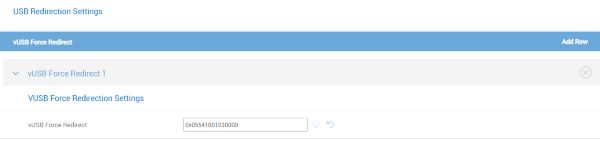
- Peripheral Management > Expand to select USB Redirection > VUSB Force Redirect Settings > Add Row > Enter the device ID > example for Power Mic II or III enter: 0x05541001030000
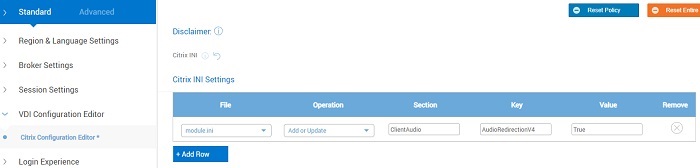
- Advanced > VDI Configuration Editor > Citrix Configuration Editor > Click Add Row
- File drop down list > select: module.ini
- Operation list > select: Add or Update
- Section > enter:
ClientAudio - Key > enter:
AudioRedirectionV4 - Value > enter:
True
- If the following key to support Full USB redirection was added in the Citrix published desktop server, this key must be removed:
HKLM\Software\Citrix\PortICA\GenericUSB "UsbAudioEnabled
Validation
After a Citrix VDI session is launched, the following validation can help to identify if the PowerMic is available for use.
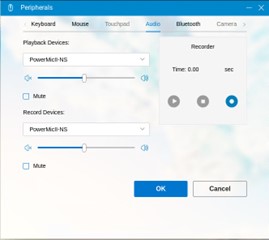
- THINOS device local > System Settings > Peripherals > Audio > PowerMic is showing
- Citrix VDI session > Windows OS > Device Manager > sound, video, and game controller > PowerMic is not showing
- VDI session desktop > Windows OS > Device Manager > Audio inputs and outputs > PowerMic is showing
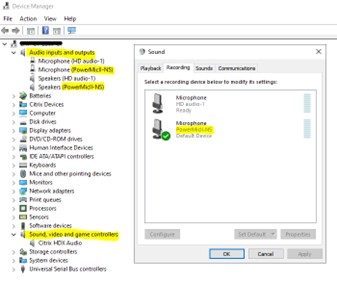
- Citrix VDI session > Windows OS > Sounds > Playback or Recording tabs > PowerMic is showing
- Nuance Dragon Medical One desktop application > PowerMic is showing in Microphone drop down list
Note:
- For split configuration, Sound, Video, and game controller categories are not seen in the Device Manager for Windows servers, example Windows Server 2016.
- If the PowerMic is not listed in the device manager Audio Inputs and Outputs category, cross-check the published desktop sounds Recording and Playback. PowerMic may have a disabled status.
Affected Products
Dell ThinOSArticle Properties
Article Number: 000217691
Article Type: How To
Last Modified: 06 Sep 2024
Version: 5
Find answers to your questions from other Dell users
Support Services
Check if your device is covered by Support Services.