VCF on VxRail: Upgrade Pre-checks "Error Symptom: Manifest xml file not found in"
Summary: SDDC Manager upgrade pre-check error on VxRail clusters. A new radar plugin/script called vxm_root_disk_space_check triggers the error, when there is no VxRail upgrade composite bundle uploaded to the VxRail Manager. The error in the SDDC Manager contains: "General Error: Error Symptom: Manifest xml file not found in. Remediation Action: Upload the bundle again." ...
This article applies to
This article does not apply to
This article is not tied to any specific product.
Not all product versions are identified in this article.
Symptoms
When running upgrade pre-checks using the SDDC Manager UI in an online VCF environment, the VxRail pre-checks fail with:
“General Error: Error Symptom: Manifest xml file not found in . Remediation Action: Please upload the bundle again.”
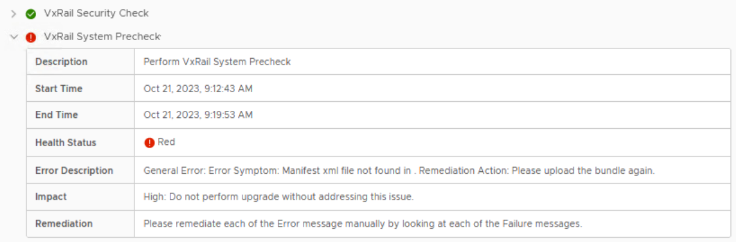
radar.log:
/var/log/msytic/radar.log

   "check_id": "vxm_root_disk_space_check",
   "result": "ERROR",
   "messages": [
      {
         "id": "VXR304VXMD0002",
         "alphaid": "vxm_root_disk_space_check_missing_manifest_file",
         "symptom": "Manifest xml file not found in []."
         "action": "Please upload the bundle again."
         "kb": "",
         "severity": "Error",
         "extension": {
            "symptom_params": [
               "[]"
            ]
         }
      }
   ]
}
Cause
A new radar check script that has been added to the VxRail Manager's radar checks causes the error.
/mystic/radar/plugins/vxm_root_disk_space_check.pyPart of the script checks some manifest files that are in a VxRail upgrade composite bundle. It confirms that the VxRail Manager's root file system contains enough space for the rpms to be installed in the VxRail Manager. Since no VxRail composite upgrade bundle is uploaded to the VxRail Manager, the script/ radar check fails with error:
"Manifest xml file not found in []"This pre-check failure causes SDDC Manager's pre-check failure results.
Resolution
Dell Engineering is investigating this problem. A permanent fix is still in progress. Contact the Dell Customer Support Center or your service representative for assistance and quote this solution ID.
Workaround:
There are two options for the pre-check failure:
1. Ignore the pre-check failure and proceed with the VxRail upgrade. Note: there are other radar checks that check the VxRail Manager's space.
2. Silence the radar check with the steps in the below internal section.
Workaround:
There are two options for the pre-check failure:
1. Ignore the pre-check failure and proceed with the VxRail upgrade. Note: there are other radar checks that check the VxRail Manager's space.
2. Silence the radar check with the steps in the below internal section.
Affected Products
VMWare Cloud on Dell EMC VxRail E560F, VMWare Cloud on Dell EMC VxRail E560N, VxRail E560 VCF, VxRail E560F VCF, VxRail E560N VCF, VxRail G560 VCF, VxRail G560F VCF, VxRail P570 VCF, VxRail P570F VCF, VxRail P580N VCF, VxRail S570 VCF
, VxRail V570 VCF, VxRail V570F VCF
...
Article Properties
Article Number: 000219313
Article Type: Solution
Last Modified: 11 Jul 2025
Version: 3
Find answers to your questions from other Dell users
Support Services
Check if your device is covered by Support Services.