Connectrix SANnav: How to manually create Host and Storage enclosures and map the Host and Storage members
Summary: Host and storage enclosures are useful for viewing hosts and storage in the topology. SANnav automatically discovers or creates some enclosures. You can also manually create host and storage enclosures. ...
This article applies to
This article does not apply to
This article is not tied to any specific product.
Not all product versions are identified in this article.
Instructions
Below is an example to manually create a host enclosure in SANnav and map the host's Host Bus Adapters (HBAs) to the created host.
Host and Storage Mapping: When you create host and storage enclosures in SANnav Management Portal, they are empty, and you must map host or storage ports to the enclosures.
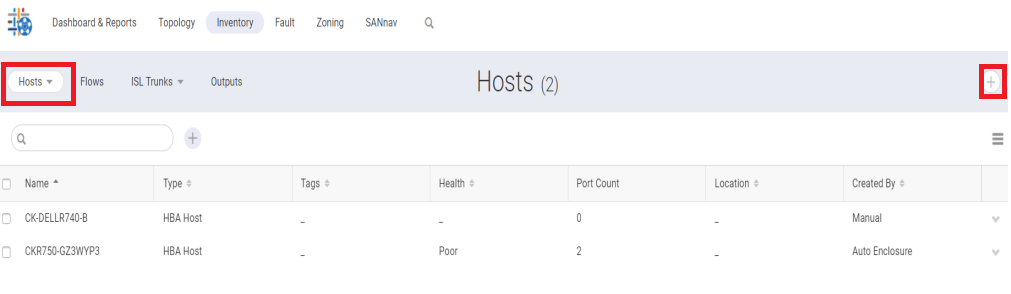
- Go to the Inventory tab and select Hosts in the drop-down section and click Add (+) as shown below:
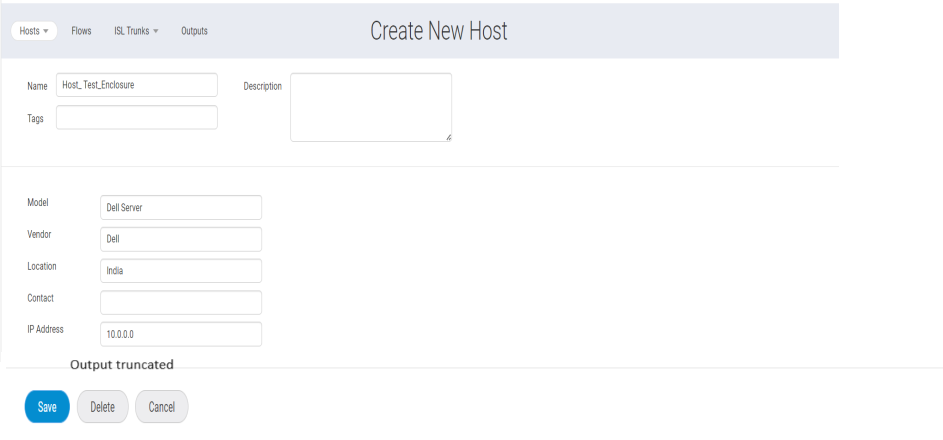
- Enter the Host details, scroll down, and click Save. Only the hostname is mandatory to be entered.
Host and Storage Mapping: When you create host and storage enclosures in SANnav Management Portal, they are empty, and you must map host or storage ports to the enclosures.
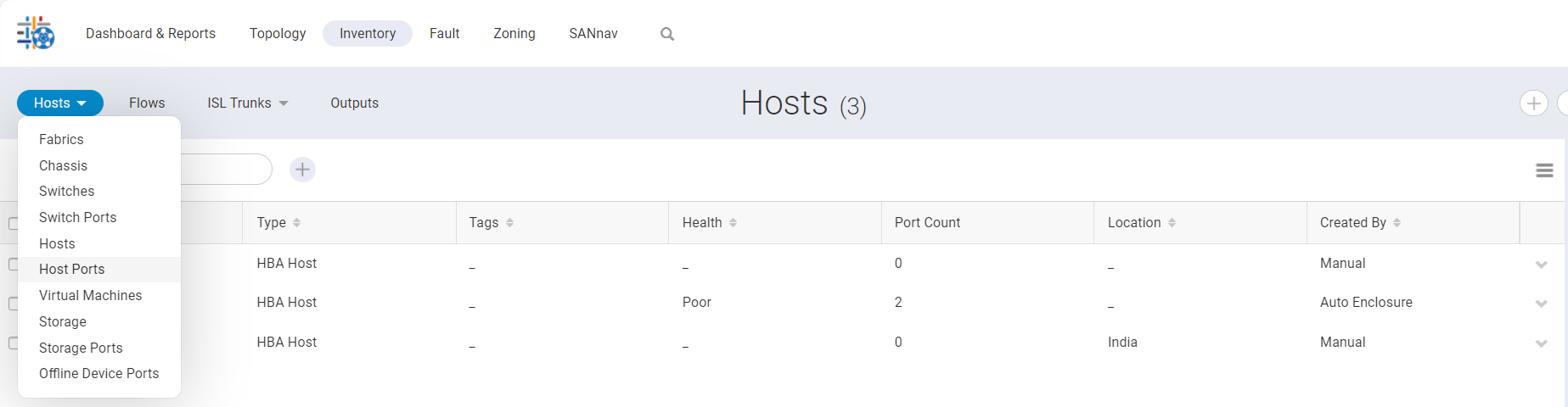
- Go to the Inventory tab and select Host Ports from the drop-down.
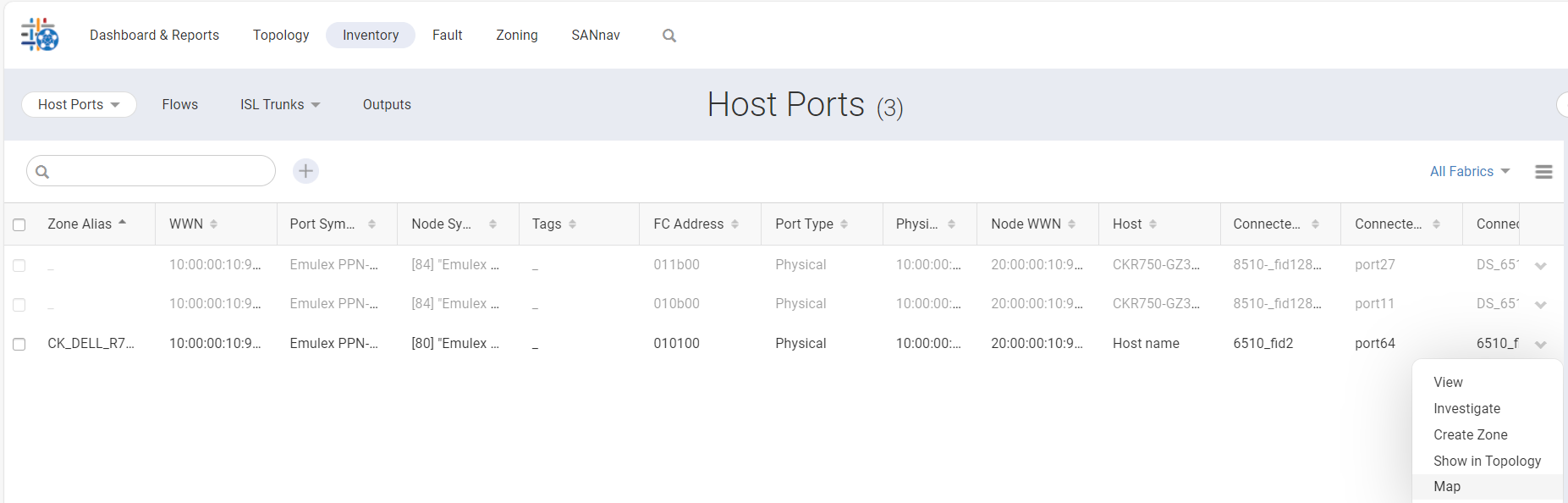
- Click on the drop-down arrow of the concerned host member and select Map.
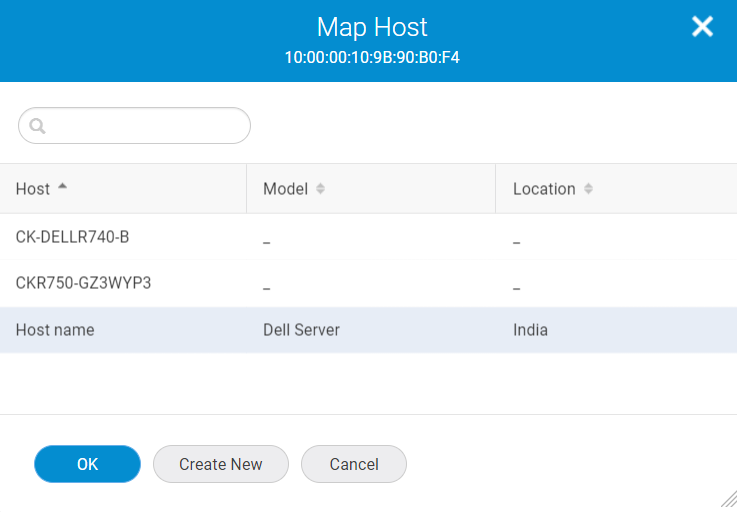
- Select the Associate Host of the member and click OK.
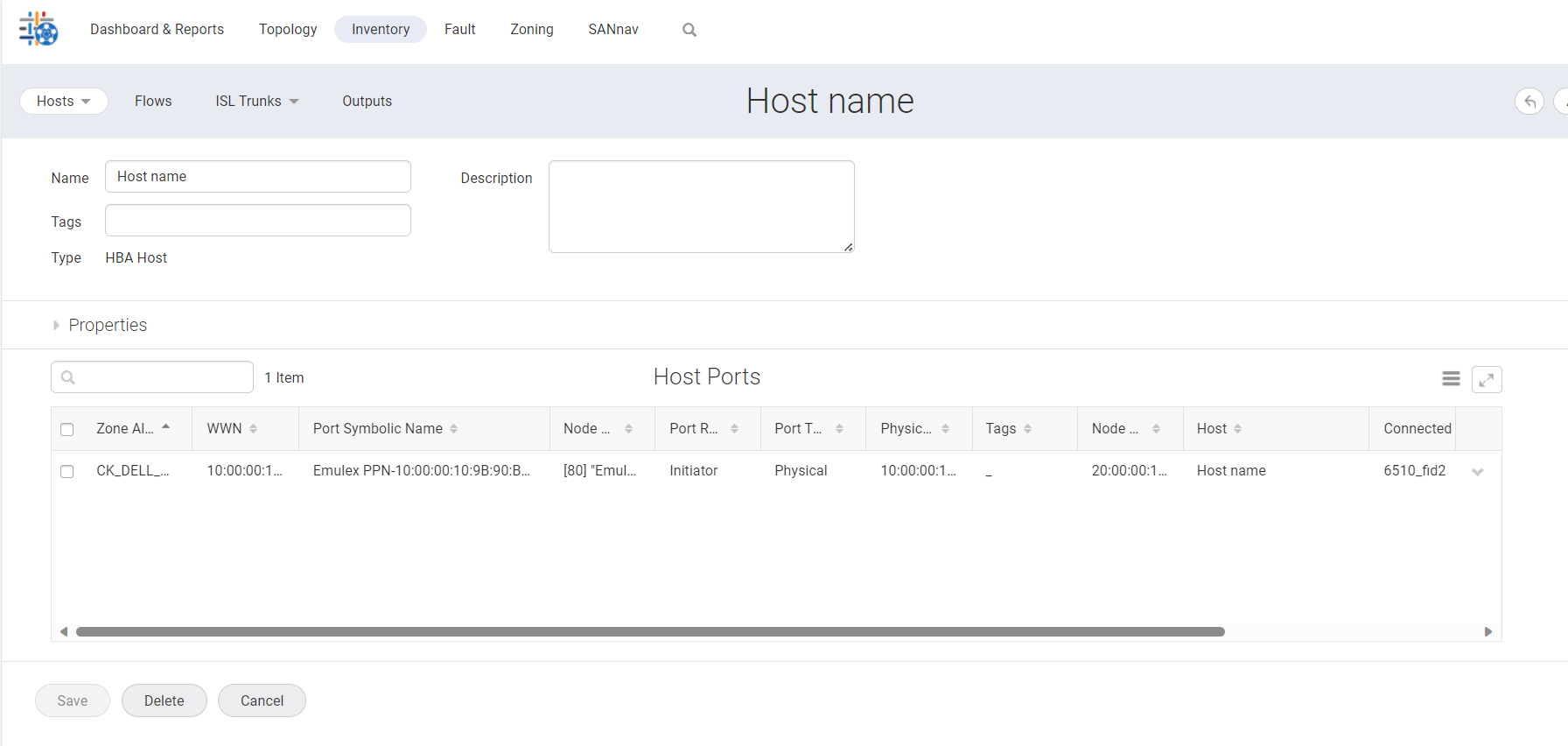
- Verify that the host member is successfully mapped in the Hosts enclosure.
The example above was done for a host, a similar procedure can be followed for storage.
Additional Information
This example was created on SANnav version 2.3.1. For more information, see the SANnav user guide: Brocade SANnav Management Portal User Guide 
Products
Connectrix SANnavArticle Properties
Article Number: 000220729
Article Type: How To
Last Modified: 29 Aug 2025
Version: 3
Find answers to your questions from other Dell users
Support Services
Check if your device is covered by Support Services.