Dell APEX Cloud Platform for Microsoft Azure: Deploy 01.00.x.x cluster failed to update GEO location due to AD enabled IPv6
Summary: Deploy a 01.00.x.x cluster failed to update GEO location on nodes when the Active Directory (AD) and Domain Name System (DNS) server enabled IPv4 and IPv6 dual-stack.
This article applies to
This article does not apply to
This article is not tied to any specific product.
Not all product versions are identified in this article.
Symptoms
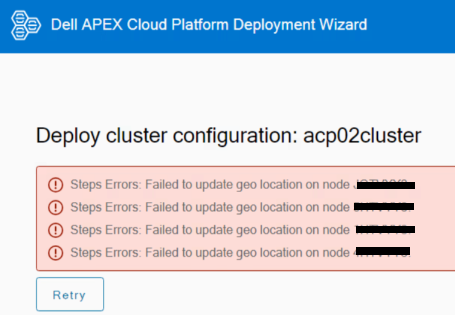
Deploy a 01.00.x.x cluster failed to update GEO location on nodes.
Check AD and DNS server, it enabled IPv4 and IPv6 dual-stack.
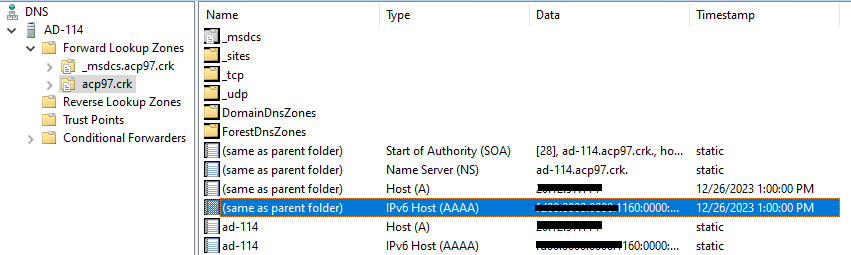
Check AD and DNS server, it enabled IPv4 and IPv6 dual-stack.
Note: This KB is not relevant to your issue if your AD and DNS server does not have IPv6 enabled.
Cause
ACP manager enables IPv6 in RKE2 during first boot by default. If customer AD and DNS server also enables IPv6, DNS will response both AAAA (IPv6) and A (IPv4) records, ACP manager will attempt to connect to the IPv6 address first and the connection will fail after 60 seconds then fallback to IPv4. Since some services on the ACP manager have default timeout of 60s, so these services will hit timeout before the connection fallback to IPv4.
Resolution
Start from ACP 01.01.00.00 release, the ACP manager already disabled IPv6 in RKE2, so it will not hit this KB issue.
For release before 01.01.00.00, follow below steps to disable IPv6 on the ACP manager.
Step1. Login ACP manager VM with mystic account.
Step2. Switch to root account.
Step3. Edit rke2-cilium-config.yaml.
Step6. Check that all pods are running and IPv6 addresses have been removed.
For release before 01.01.00.00, follow below steps to disable IPv6 on the ACP manager.
Step1. Login ACP manager VM with mystic account.
Step2. Switch to root account.
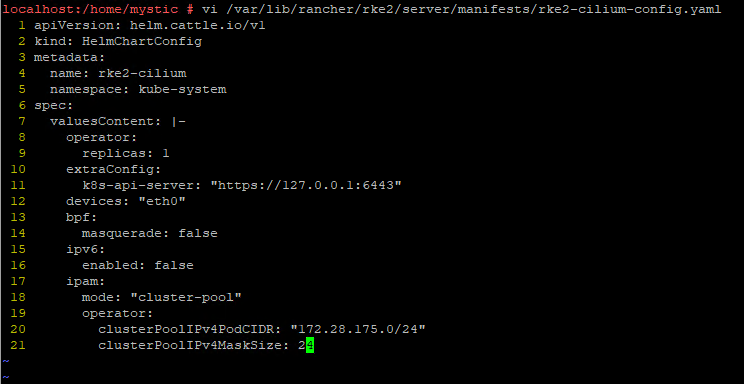
Step3. Edit rke2-cilium-config.yaml.
- vi /var/lib/rancher/rke2/server/manifests/rke2-cilium-config.yaml
- #change line 16 from "true" to "false":
ipv6:
enabled: false
#delete line 22 and 23:
clusterPoolIPv6PodCIDR: "fd83:8383:8383::/48"
clusterPoolIPv6MaskSize: 48
For example:
Step4. Edit cilium-config.
- kubectl edit -n kube-system configmap cilium-config
- # change line 42 from "true" to "false":
enable-ipv6: "false"
#delete line 22 and 23:
cluster-pool-ipv6-cidr: fd83:8383:8383::/48
cluster-pool-ipv6-mask-size: "48"
Step5. Restart pods with following commands.
- kubectl delete pod -n kube-system -l k8s-app=cilium
- kubectl get pod -n kube-system
- kubectl delete pod --all
Step6. Check that all pods are running and IPv6 addresses have been removed.
- kubectl get cep
- kubectl get pods
For example: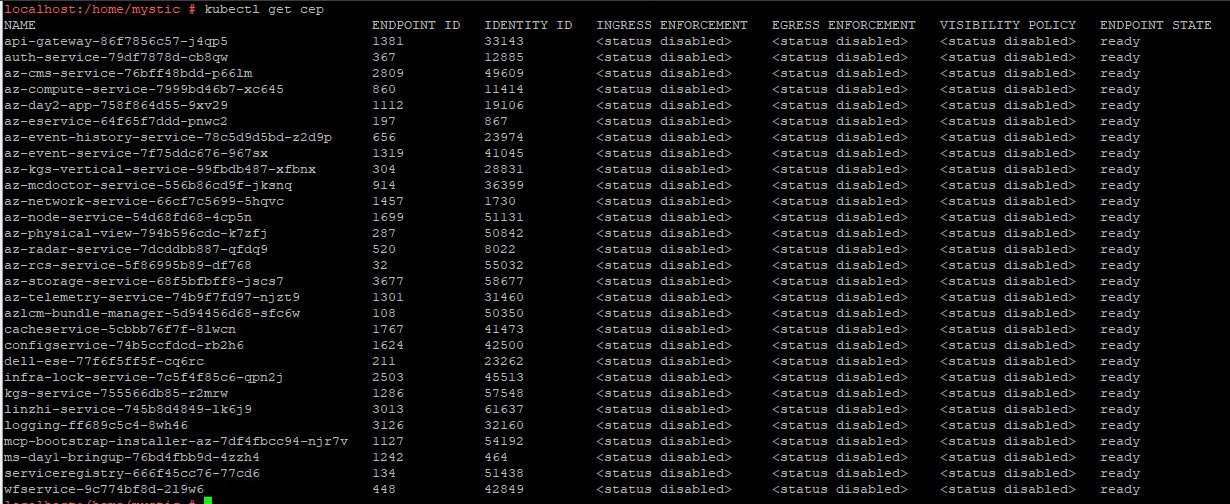
Step7. Click "Retry" on ACP day1 UI.
Affected Products
APEX Cloud Platform for Microsoft AzureArticle Properties
Article Number: 000221466
Article Type: Solution
Last Modified: 03 Mar 2026
Version: 6
Find answers to your questions from other Dell users
Support Services
Check if your device is covered by Support Services.