PowerEdge XE: How to install packages for DCGMI troubleshooting in Ubuntu LTS
Summary: How to for DCGM installation within Linux for collecting DCGMI logs for troubleshooting.
This article applies to
This article does not apply to
This article is not tied to any specific product.
Not all product versions are identified in this article.
Instructions
Pre-Requisites
To run DCGM the target system must include the following NVIDIA components, listed in dependency order:
- Supported NVIDIA Datacenter Drivers
- On HGX systems, the Fabric Manager and NVSwitch Configuration and Query (NSCQ) packages
- DCGM Runtime and SDK
For Ubuntu Releases:
Note: Screenshots are for reference only, and results may have some differences.
Download the meta-package for the CUDA network repository:> wget https://developer.download.nvidia.com/compute/cuda/repos/$distribution/x86_64/cuda-keyring_1.0-1_all.deb
[Replace x86_64 with "sbsa" for arm64 or replace with "ppc64le" for ppc64le if needed. Remove quotes]
Install the repository metadata and the CUDA GPG key:> sudo dpkg -i cuda-keyring_1.0-1_all.deb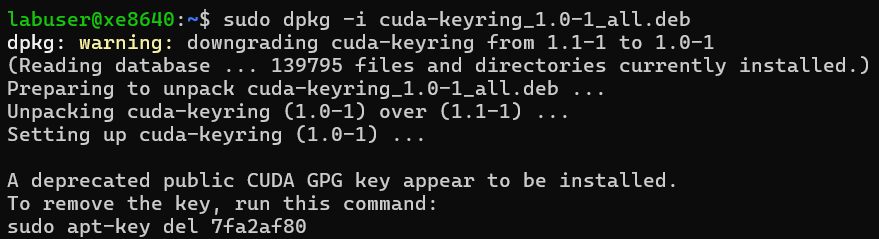
Update APT:> sudo apt-get update
Install DCGM:> sudo apt-get install -y datacenter-gpu-manager
You may get this dialog box before the update finishes, select OK to continue (use tab to move to OK/Cancel)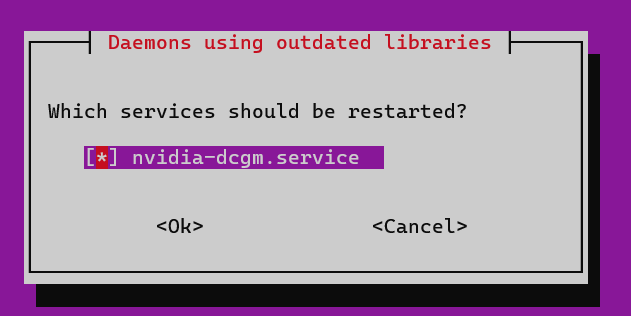
On HGX systems (A100/A800 and H100/H800), you must install the NVIDIA Switch Configuration and Query (NSCQ) library for DCGM to enumerate the NVSwitches and provide telemetry for switches. NSCQ must match the driver version branch (XXX) installed on the system. Substitute XXX with the wanted driver branch in the commands below.> sudo apt-get install -y libnvidia-nscq-XXX
Query the OS for the driver version:> nvidia-smi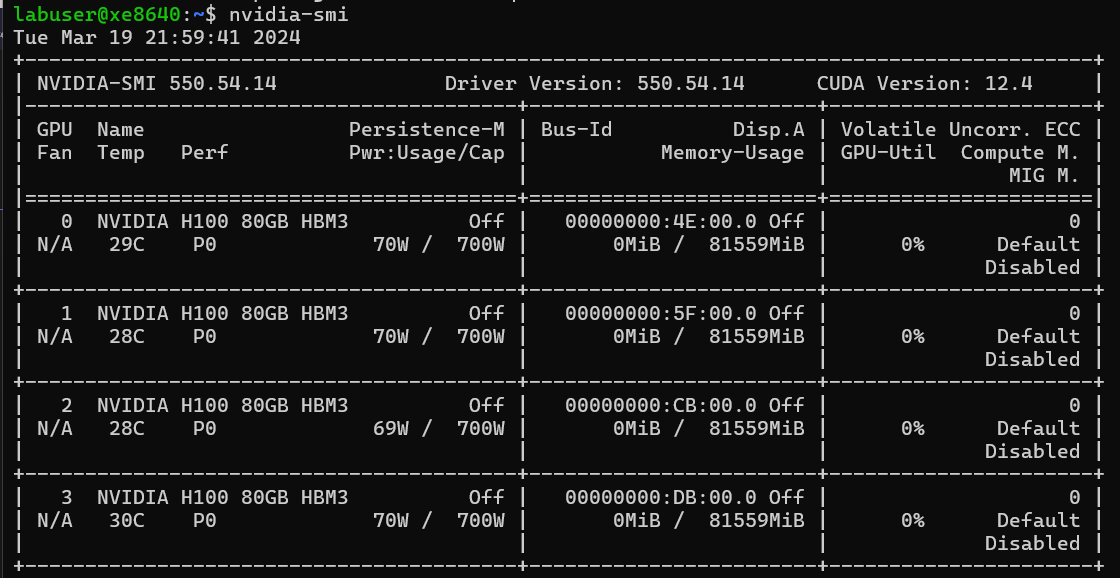
So for this example, we use the following command:> sudo apt-get install -y libnvidia-nscq-550
This dialog box may appear before the update finishes, select OK to continue (use tab button)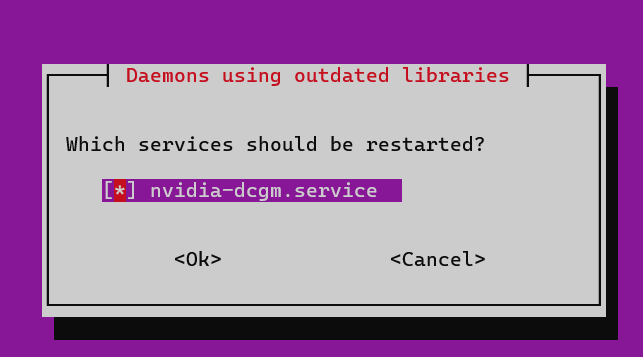
Enable the DCGM systemd service (on reboot) and start now:> sudo systemctl --now enable nvidia-dcgm
To verify installation, use dcgmi to query the system. You should see a listing of all supported GPUs (and any NVSwitches) found in the system: (the switch is a lower case L)> dcgmi discovery -l
[Example below does not have NvSwitches but the field populates with details if they are present/detected.]
Run the needed DCGM diagnostics.
Additional Information
https://docs.nvidia.com/datacenter/dcgm/latest/user-guide/getting-started.html
Affected Products
XE Servers, PowerEdge XE2420, PowerEdge XE7100, PowerEdge XE7420, PowerEdge XE7440, PowerEdge XE7745, PowerEdge XE8545, PowerEdge XE8640, PowerEdge XE9640, PowerEdge XE9680Article Properties
Article Number: 000223312
Article Type: How To
Last Modified: 10 Apr 2025
Version: 3
Find answers to your questions from other Dell users
Support Services
Check if your device is covered by Support Services.