Avamar: Unable to log in to Avamar Administrator user interface
Summary: An error is encountered logging in to the Avamar Administrator UI.
This article applies to
This article does not apply to
This article is not tied to any specific product.
Not all product versions are identified in this article.
Symptoms
Avamar Administrator is the Java-based thick client that most call as the "Java GUI."
An attempt to log in results in the following error message, "Failed to connect to Administrator Server. Connection refused to host."
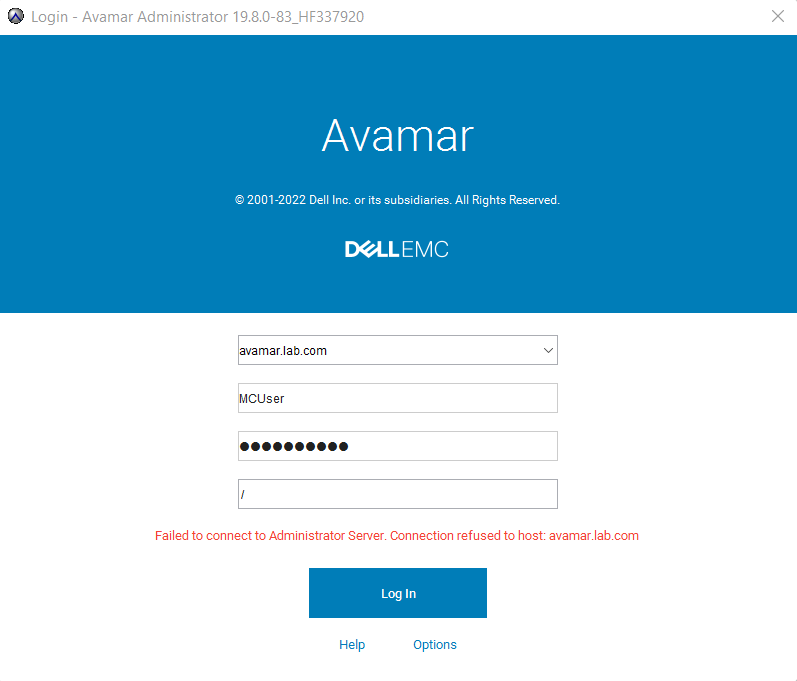
An attempt to log in results in the following error message, "Failed to connect to Administrator Server. Connection refused to host."
Cause
This is due to the Java Remote Method Invocation (RMI) ports being blocked on the network.
The following ports are required for communication between the Windows computer (client) and the Avamar (server).
Test whether the required RMI ports are open between the Windows computer that Avamar Administrator is on, and the Avamar server.
The test can be done with the PowerShell utility on Windows to conduct a TCP connection test on each port from the Windows computer to the Avamar server.
Example output of a failed connection:
From the failed test, the ping test succeeds meaning there is a network route from the computer to the Avamar server.
Although there is a network route, the TCP test fails, indicating that the port is closed on the network.
Example of successful connection:
The following ports are required for communication between the Windows computer (client) and the Avamar (server).
7778
7779
7780
7781
Test whether the required RMI ports are open between the Windows computer that Avamar Administrator is on, and the Avamar server.
The test can be done with the PowerShell utility on Windows to conduct a TCP connection test on each port from the Windows computer to the Avamar server.
Test-NetConnection -ComputerName "<avamar_ip_addr>" -Port 7778
Test-NetConnection -ComputerName "<avamar_ip_addr>" -Port 7779
Test-NetConnection -ComputerName "<avamar_ip_addr>" -Port 7780
Test-NetConnection -ComputerName "<avamar_ip_addr>" -Port 7781
Example output of a failed connection:
PS C:\Users\tony> Test-NetConnection -ComputerName "avamar.lab.com" -port 7780
WARNING: TCP connect to avamar.lab.com:7780 failed

ComputerName           : avamar.lab.com
RemoteAddress          : 10.241.x.x
RemotePort             : 7780
InterfaceAlias         : Ethernet0
SourceAddress          : 10.x.x.x
PingSucceeded          : True
PingReplyDetails (RTT) : 0 ms
TcpTestSucceeded       : False
From the failed test, the ping test succeeds meaning there is a network route from the computer to the Avamar server.
Although there is a network route, the TCP test fails, indicating that the port is closed on the network.
Example of successful connection:
PS C:\Users\tony> Test-NetConnection -ComputerName "avamar.lab.com" -port 7780

ComputerName     : 10.241.x.x
RemoteAddress    : 10.241.x.x
RemotePort       : 7780
InterfaceAlias   : Ethernet 2
SourceAddress    : 10.x.x.x
TcpTestSucceeded : True
Resolution
Open the RMI ports 7778, 7779, 7780, and 7781.
Affected Products
AvamarArticle Properties
Article Number: 000223528
Article Type: Solution
Last Modified: 08 Jan 2026
Version: 3
Find answers to your questions from other Dell users
Support Services
Check if your device is covered by Support Services.